On this page
- The principle: you see what you may do
- The three member types
- Custom roles: grant extra rights deliberately
- The permission profile: what someone may do
- Permission check: why may this person do this here?
- Visibility: making templates and categories private
- Who sees a template's cases?
- Field-level rights within a task
The principle: you see what you may do
Permissions in Bricksta are role-based access control (RBAC) — the same model as GitLab, Jira or monday.com. One rule applies: the interface shows exactly what you are allowed to do. Navigation and enforcement read the same rights, so there are no buttons without function and no contradictory grants. Grant someone a right and the matching area appears automatically; remove it and the area disappears.
The three member types
Every member has a type — their built-in starting role. The three types cover the vast majority of cases without touching individual rights. You set the type per person under Organization → Members.
One exception applies to the Administrator type: anyone allowed to manage members can switch freely between Manager and Contributor — but only an owner or administrator can grant or revoke Administrator. The reason: that type does not add one more permission, it adds all of them at once. If you lack the level, the “Administrator” card sits greyed out and read-only with a note above it; and if the member already is an administrator, every card is locked, because any switch would take the level away from them.
- Administrator
- May do everything: work on cases, configure templates and automation, manage members and roles, change settings. For the people who set up and maintain your Bricksta organization.
- Manager
- Works on cases — take, fill in, complete and assign tasks — and sees all cases in the organization (except in templates set to “Only those who have a part in it”), but no configuration (templates, roles, settings). The default type for your team; “Manager” means overview, not admin rights.
- Contributor
- Sees and works only on cases in which they themselves have an assigned task. For people who contribute selectively without seeing the whole case base.
- Externals without an account
- Are not members and need no seat. A customer returning a form fills in exactly one task via a guest link and sees nothing else of your organization. An external who works along regularly and should sign in becomes a member of type Contributor.
To see exactly what a type covers, go to Organization → Permissions: the three types (Administrator, Manager, Contributor) sit at the very top, above the profiles — with their rights, their visibility (all cases or only their own) and the navigation areas they can reach. That makes it clear at a glance what the type (access level) controls versus what a role (extra rights) adds.
Grant types as sparingly as possible: most members do not need administrative rights to collaborate. Manager is the right choice for most.
Besides the human types there is one more member type: the AI agent. It has a tightly scoped executor role (only start, fill in and complete tasks), cannot sign in, and works under a budget and granted tools. How to create and control agents is explained in the article AI agents.
Custom roles: grant extra rights deliberately
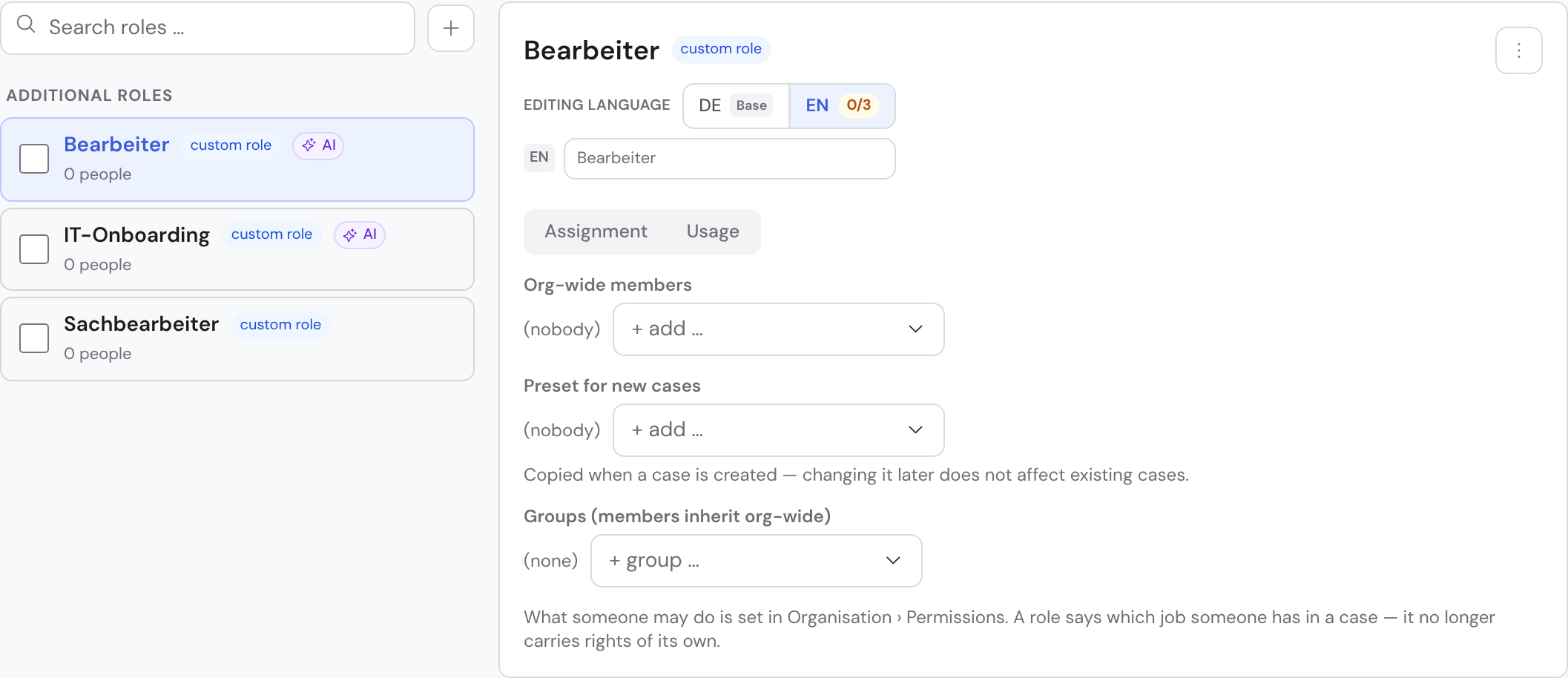
Sometimes someone should be allowed to do more than their type provides, without becoming a full admin. For that there are custom roles under Organization → Roles: a named bundle of individual rights that you assign in addition. For example a role “Template editor” containing only the right to edit templates — a Manager with it may maintain templates without gaining everything else an admin has.
On the left you pick a role from the searchable role list; on the right you see who holds it — as a person, through a group, or as a default. Rights are no longer shown there: a role says WHAT someone is responsible for; WHAT they may do lives in the permission profile under Organization → Permissions. You create a new role by naming it. Two roles that mean the same thing can be selected in the list and merged into one via “Merge”. If content languages are configured for the organization, the language picker sits above the role list. Pick a target language there and a role's detail shows a field below its title for the translated role name (empty = base language); if names are missing, a line above the list gives the count — member types are already translated.
The permission profile: what someone may do
A permission profile is a named list of rights — “work on cases”, “maintain templates”, “invite members”. You create it under Organization → Permissions and assign it to a person or a group. Someone holding several profiles may do everything they add up to.
Why two objects rather than one: a role answers WHAT FOR — who is the approver in this case, who does the work. A profile answers WHAT — who may complete at all, who may only read. The same person can be approver in one case and nothing at all in another, without anything about their rights changing. That is why a role no longer has checkboxes: it never had ones that could carry this distinction.
And that decides WHERE a right applies. Case-scope rights — everything around tasks — take effect where you are involved: you own the case, you are staffed on a role in it, or a task in it is yours. If a profile should apply everywhere, tick “applies to all cases” on the profile itself. Organization-wide rights such as “maintain templates” need no involvement; they always apply.
Creating a case does not make you all-powerful inside it. As the owner of a case you are involved in it — so you may do whatever your profile allows. No more. Someone with a narrow profile who creates a case can therefore do less inside it than you might expect. That is deliberate: ownership says WHERE you may act, not WHAT you may do.
One organization-wide right concerns who sees other people's absences: “View absences”. What is visible without it is set by the organization's setting “Who sees who is away” — whole organization (default: every internal member sees who is away across the organization), own groups, or only with the right. Whoever holds “View absences” sees the whole organization at every level, for example HR. Only the person, the period and a half day are ever shown — never the reason, the template or fields of the request. Guests and restricted members only see their own absences, even with the right. Only someone allowed to “Manage organization” changes the level. Internal members see the “absent until …” hint for anyone; everyone else only on tasks they see.
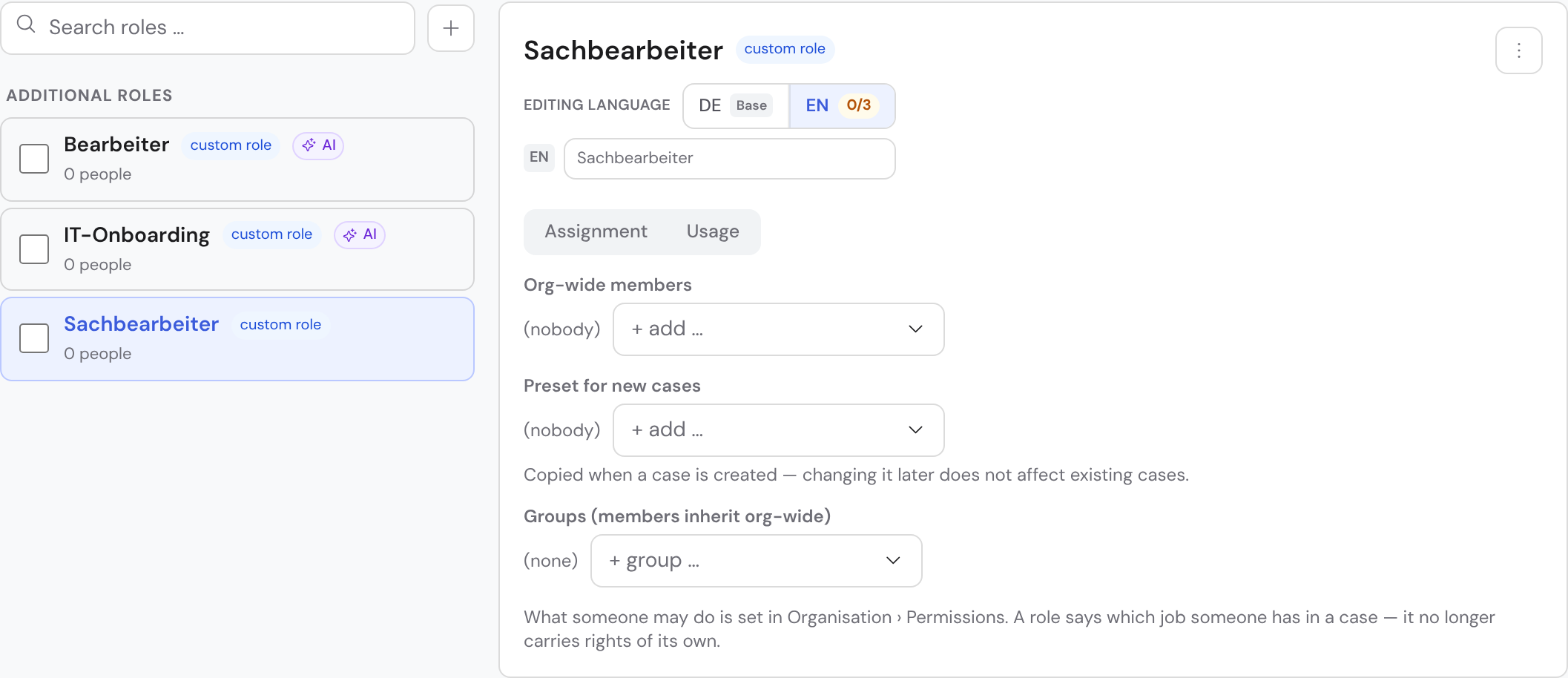
Custom roles are purely additive: they give non-admins more, they take nothing away from anyone. Admins already hold all rights. For most organizations the three types are enough — roles are the optional refinement.
A new organization starts with no roles at all: which roles exist is your call — they describe your process, and bricksta cannot guess it. The list stays empty until you add the first one via “New role” at the top right. Every role is yours: you can rename, deactivate and delete it. The base rights of the three member types live under Organization → Permissions, alongside the permission profiles: they answer the same question (“what may someone do”) and therefore belong there. Their case-scope rights apply where the person is involved in the case — they own it, are staffed on a role in it, have a task in it, or are named as its approver.
The baseline of a member type is changed under Organization → Permissions by whoever may manage members. Organization-wide rights — “Manage organization”, “Manage missions”, “Manage members / roles”, “Invite members”, plus “Manage templates”, “Create / start cases” and “Delete case” — additionally require the right “Manage organization”. The reason: a right on the baseline takes effect for every member of that type at once — including yourself. Without “Manage organization” exactly those checkboxes are greyed out and read-only, with a note above them; every case- and task-related right stays fully editable. Who holds a member type is shown in the same view, right below its name: the people of that type, read-only. To move someone to a different type, go to Organization → Members — here too, every thing has exactly one place where it is changed.
Roles can also be created automatically: when you generate a template with AI, it derives fitting roles from the process, assigns them to tasks as the default responsibility and creates them here — marked with an “AI” tag. If a role of the same name already exists, it is reused instead of duplicated. For similarly named roles (e.g. “Case handler” and “Handler”), role management shows a “Possible duplicates” hint: via “Merge” you combine two roles into one — all assignments, rights and template responsibilities move over to the role you keep.
If the two really are different functions, mark the pair as “Not a duplicate” — the suggestion is then gone for good and won't return on your next visit. That decision applies to the whole organization: roles are shared property, and what one administrator has settled shouldn't be put to the others again. Right after the click you can take it back with “Undo”; after that the way back is the “Hidden pairs” line below the hint. It expands the hidden pairs and restores each one individually via “Show again” — and it stays visible even when there is no open suggestion left. The decision is attached to the two roles themselves, not to their names: it survives a rename and only disappears once one of the two roles is deleted.
To see everywhere a role is attached, open the “Usage” tab in the role detail. It has two sections: “Assignments” shows who holds the role (organization-wide, in individual cases, as a default member, or through a member group), “Usage” shows where the role is expected (template responsibility, approver, task library, field permissions, open tasks, pending invitations). Each category expands on its own — entries load only then, so the view stays fast even with very many hits; large numbers appear as “200+”. You can release a link straight from its row, or clear a whole category at once with “Release all”.
A role can only be deleted once nothing depends on it any more — Bricksta checks up front and lists every remaining usage with its count in the delete dialog; “Show” jumps into exactly that category in the “Usage” tab, where you can release it. Nothing is removed silently on delete: a template must not lose its approval rule unnoticed. Completed tasks keep their responsibility permanently, so the record of your cases isn’t falsified after the fact — while the role sits there, deletion stays blocked. You then have two ways out. “Deactivate” is the simpler one: the role disappears from every picker and grants no rights any more, but nothing is rewritten — completed cases still show who was responsible, and you can reactivate the role at any time. Choose “Merge instead …” when the work genuinely moves to another role: pick a target role, every usage moves over and the old role disappears. That cannot be undone.
You deactivate a role from the ⋮ menu at the top right of its detail view. It then sits at the bottom of the list in its own “Deactivated” section, which you show or hide with the “Show” switch — the working list stays tidy and nothing is lost. People who hold the role keep the entry; it simply has no effect any more and is marked “(deactivated)” on them. Wherever the role is already assigned — on running and completed tasks, in templates, on pending invitations — its name stays visible; you just can't pick it again.
Permission check: why may this person do this here?
So far you have read where a right can come from: the member type, a permission profile (assigned directly or through a group) and involvement in a case. In a concrete dispute the question runs the other way round — „Why can this person not complete the task?“ That is what the permission check under Organisation → Permission check is for. You pick a person and a case; below it every right is listed with its state (granted or denied) and the source it comes from: „Case role: Reviewer“, „Permission profile (via a group): Accounting“ or, for a denied right, the reason — „No active profile carries this permission“.
The permission check does not recalculate anything: it asks the very rule Bricksta enforces. What it says therefore holds — even when it surprises you. Without a case only organisation-wide rights can be answered; case rights need a case, because they depend on involvement in it. And because the permission check exposes someone else’s permission situation, it is reserved for the people who may administer the organisation.
If the permissions cannot be read right now — a flaky connection, for instance — the permission check shows a notice with „Try again“ and NOT an empty list. An empty list would read as „this person may do nothing“, and that is a very different statement.
Visibility: making templates and categories private
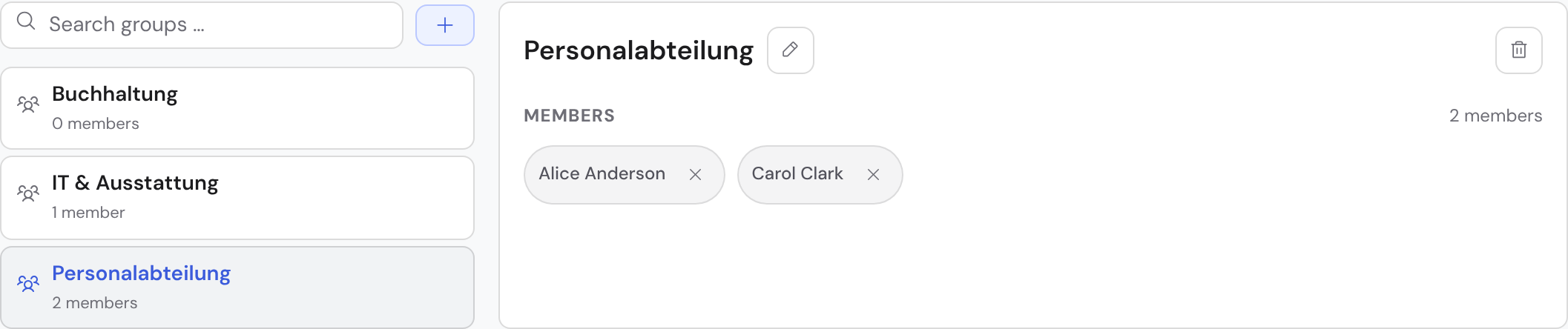
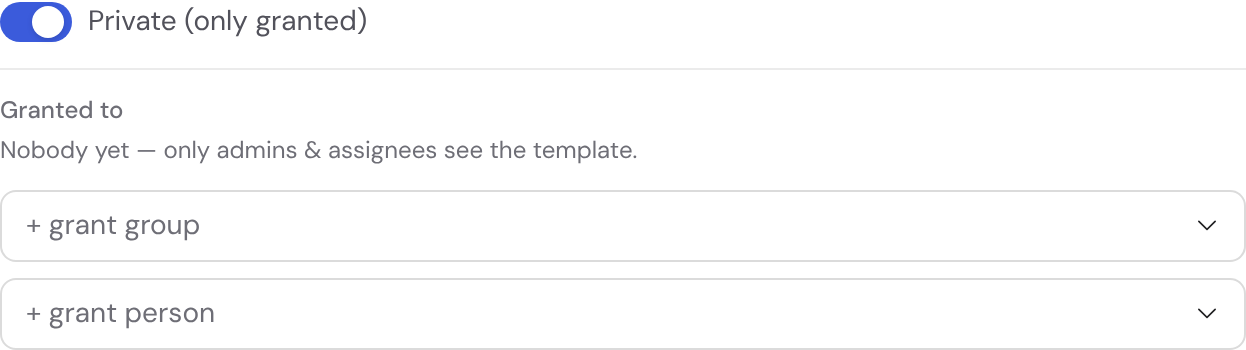
Beyond “what may someone do” there is “what may someone see”. That is a separate layer. By default templates are visible to everyone. You can set an individual template or a whole category to private — then only the people and groups you explicitly grant can see its cases. You set the grant right on the template or category under Visibility; you maintain groups under Organization → Groups — there you pick a group on the left, add its members on the right and can rename it via the pencil icon next to its name, just like with roles.
Two exceptions always apply, also with “Only those who have a part in it”: admins see everything, and whoever has their own task in a case sees that case — otherwise you could not assign them any work.
What “private” protects today: the template and its cases only appear to admins and those granted. Copying, exporting, search, starter packs and the AI features (refine template, generate introduction) are reserved for those granted as well. Not yet protected is the structure itself: anyone using the API directly can still read the steps and fields of a private template. So do not put content there that only those granted may know.
Who sees a template's cases?
Without further settings, whoever sees a template also sees every one of its cases, except for absences. Under Visibility you set below that who can open the individual cases: Everyone who may see the template or Only those who have a part in it. That means whoever started the case, the person it is about, whoever has or completed a task in it and whoever gives the approval. Admins always see everything.
Two checkboxes widen the circle: whoever may “Manage personnel data” (only for templates that record a person, such as absences) and that person's direct manager, even without their own approval. The choice takes effect immediately, also for running cases; only admins can change it. The setting does not govern starting: whoever sees the template and has “Create / start cases” may start one, and for an absence with “Anyone may request it for themselves” everyone may for themselves.
Absence templates default to “Only those who have a part in it”, because a request often holds a reason, notes or a sick note. If you switch to “Everyone”, Bricksta asks first and tells you how many cases would then become visible to everyone. Person and period still show in the team calendar, as far as your company opens it.
Field-level rights within a task
For fine tuning you can restrict individual fields in a template's form editor to specific roles — visible only to them or editable only by them. That keeps, say, an internal note reserved for the responsible role while the rest of the task stays open to all handlers. Without such a restriction a field is visible and editable for everyone.
Rights are enforced on the server, not just hidden in the interface. And: if you revoke someone's access or deactivate a member, access ends immediately — but the history of the work done so far stays fully intact.