On this page
How to: set up an approval
- 1Open the template and select the task that should be reviewed.
- 2Turn on Approval required (4-eyes).
- 3Under Approver, choose who may approve, for example a role or a person.
- 4Under When changes are requested, decide what a rejection does.
- 5Publish the template. The approval applies from the next use onward.

- 1Approval required (4-eyes)
- 2Approver: who decides
- 3When changes are requested: what a rejection does
- 4Also on a rejection in the customer portal
From then on the assignee only submits the task. It completes once a second person approves it. Until then nothing downstream starts.
Who can approve?
| Approver | Who decides | Good for |
|---|---|---|
| Any admin | Any admin of the organisation | Small teams without fixed responsibilities |
| A role | Whoever holds the role in the case under Participants or organisation-wide | Robust against staff changes |
| A person | Exactly that person | One fixed responsible reviewer |
| Manager (of the submitter) | The manager of whoever submits; level selectable | Requests along the reporting line |
| External: … | The person invited for that role, in the customer portal | Sign-off by the customer |
Four-eyes means: whoever submitted cannot approve it themselves. Very small teams have an exception, see Small organisations.
When no manager is set
- If the submitter is part of management, another member of management approves. Otherwise the organisation’s substitute approver decides.
- For everyone else, the people with the right Manage personnel data approve. Never an admin just for being an admin.
- These approvals appear on My work in the collapsed group “Covering for others: no manager is set”.
- Set the managers under Organization › Members and waiting approvals go straight to them too.
- In an absence template with a person field, the person entered counts. Their manager approves — never they themselves, never whoever entered them.
There is exactly one approver step per task. Multi-stage, parallel or conditional approvals are not yet available.
Choose what the approval shows
Below the approver, pick up to five fields of the task under What the approval shows, for example discount, quote total and reason. Drag them into the right order. Without a selection, the approver sees all fields of the task.
| Question | Answer |
|---|---|
| Where do the fields appear? | On My work, in the Decide approval window and in the confirmation in the AI chat. |
| Which fields can I pick? | Own fields and assigned case fields with a one-line value: text, number, date, yes/no, choice, person. |
| What is left out? | Files, signatures and cards. A field someone may not see because of their role is left out here too. |
| And with an AI exclusion? | The field is only missing from the chat card, not in Bricksta. |
| When does the selection apply? | From the next publication. Running approvals show what their version set up. |
Why does the approval reach nobody?
Without a second person, the task carries the badge Approval reaches nobody in the case. It then cannot be submitted. The message reads “no approver other than you is available”.
| Cause | Fix |
|---|---|
| Nobody holds the approver role, neither in the case nor organisation-wide | Staff the role in the case under Manage participants. The badge disappears right away. |
| Only you hold the role | Add a second person. Someone else has to approve. |
| Nobody steps in for the manager | Set the manager under Organization › Members. |
| The approver was changed to a role that running cases have not staffed | Staff the role there. Or whoever submitted chooses Withdraw and submits again later. |
The template editor warns you at the approver, and Check template reports a role without holders as a finding. A changed approver applies to waiting approvals right away. The editor then tells you how many are left without a decider.
Staff the role when creating the case
The Create case window and the start form on My work show every role of the template as a slot. Open roles come first. If the slot already shows “org-wide” with your name, you do not need to pick yourself too.
The selection is pre-filled from Preset for new cases under Organization › Roles. Cases from automations, intake forms, schedules or AI agents get exactly this preset. Later changes there do not affect existing cases.
Submit for approval
- Fill in the task and click For approval. The task is then “in approval”.
- The form fields are now locked. The decision is about exactly what you submitted.
- The Responsible column shows who submitted on the left and who the approval sits with on the right.
- If you do need to change something, choose Withdraw on the task. Only the submitter may do that.
Approve or request changes
Your open approvals sit on My work under Waiting for your approval, with submitter, time and case. Decide opens the choice right there, View in case takes you to the content. In the case, you decide on the expanded task. If an approval is with you only because you stand in, it says “standing in for …”.
| Decision | What you enter | What happens |
|---|---|---|
| Approve | A comment, if you like | The task completes and the workflow continues. Exception: an absence request in a hard blackout period. |
| Request changes | A reason, required | The task is “Changes requested”. The assignee sees the reason as a red band above the form. |
As an admin you can decide any approval in the case, except approvals to the Manager. A blocked task cannot be approved: lift the block first.
What does “Request changes” do?
You set the effect of a rejection in the template under When changes are requested. Before rejecting, the decision bar tells you what will happen.
- 1Back to a step
- 2End the case
- 3at most this often back
| Setting | Effect |
|---|---|
| None | The open task goes back for rework. Completed tasks stay closed. |
| Back to a step (task back-jump) | An earlier task, also of an earlier phase, reopens, pre-filled, in a new round. Everything after it follows in order. The limit is set by at most this often back. |
| End the case | Open tasks are dropped, completed work is kept. The case carries the chosen outcome, such as “Rejected”. |
| Also on a rejection in the customer portal | Only when switched on does a customer rejection have the same effect. |
How rounds look in the case is described in Flow, back-jumps and rounds. An answer can also end a case, without an approval: End on answer.
When a back-jump or ending does not happen
- The rejection still stands. The history shows “Back-jump skipped” with the reason.
- Reasons: the case is no longer active, or Also external is off for that connection. Or the rejecting person lacks the Reset phase permission, ownership or visibility of the case.
- The owner then receives the task “Rejected — decide on back-jump”, provided they may see the case.
- Check template reports ending and a back-jump on the same rejection as an error.
- Whoever may reject ends the case even without the Close case permission. With an open customer escalation it does not end.
Have the customer approve
Pick an external role as the approver, for example External: Customer. In the task’s form, tick Visible for external approval on each field. The customer sees only these fields, read-only, without assignee, history or attachments.
- 1Click For approval on the task.
- 2If the role is still unfilled in the case, enter the email address in the confirmation.
- 3Click Send for approval. Bricksta invites the person and submits the task.
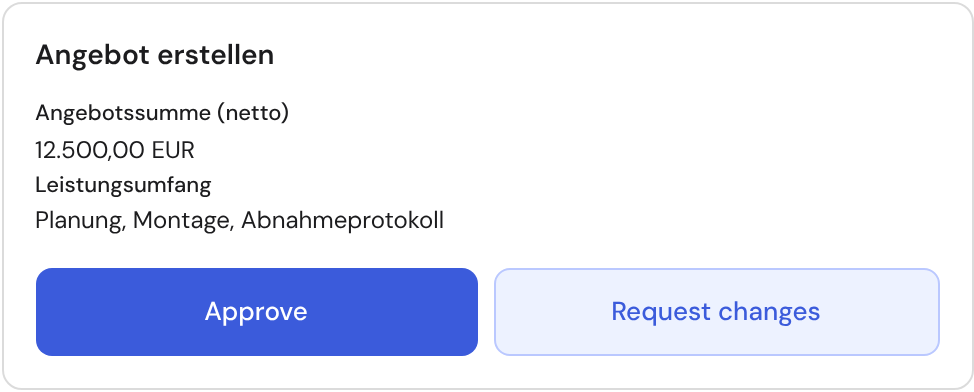
- 4The customer receives exactly one email with a link. On first opening they confirm with a six-digit code.
- 5They choose Approve or Request changes with a reason in the customer portal. No account needed.
| Case | What happens |
|---|---|
| Mistyped address | Choose Change address in the task’s ⋮ menu. The old link stops working immediately. |
| Address from your own organisation | Rejected. A sign-off you grant yourself would be none. |
| Second address for the same role | Rejected. Exactly one person decides per case. |
| Nobody invited or confirmed | The approval falls back to any admin. If you submitted as an admin yourself, you see a hint instead. |
| The customer does not respond | Admins decide with Approve anyway. This is recorded in the log. |
| The task is blocked | The customer cannot decide and does not learn why. Afterwards they continue via the same link. |
| You choose Withdraw | The customer gets an email with your reason. Without confirmed access it arrives without the reason. |
| The task is skipped or cancelled | The approval is withdrawn without an email. The history records “Approval withdrawn”. |
Small organisations: approve your own
If you work alone or in pairs, the second person is often missing. Do not switch the approval off, or the proof of review is lost. Under Organization › Master data, set Approving your own submissions to Self-approval.
- Only an organisation admin may switch it. The change is recorded in the activity.
- Every self-approval is logged and marked as such.
- If an approver role is unstaffed in the case, submitting stays blocked. Then a staffing is missing, not a permission.
- Approvals to the Manager are never approved by the submitter. If management is one person with no substitute approver, allow it under Organization › Members in Approvals for management.