On this page
What a guest link is — and what it isn't
A guest link is a secure, randomly generated link that points to exactly one task of a case. Whoever opens it sees only the output form of that single task — no login, no account, no access to the rest of the case or your organization. The link itself is the key: Bricksta uses it to determine which task is meant and which organization it belongs to.
A guest link is deliberately narrow: one person, one task, only its form. For a whole case or several tasks you create several links.
Who may create a guest link
Bringing an external person onto a task is a form of assignment. So a guest link can only be created or revoked by someone who could also reassign the task — organization administrators, and anyone with the right to reassign tasks in that case. A guest link can also only be created for a task that is currently open or in progress.
Creating a guest link
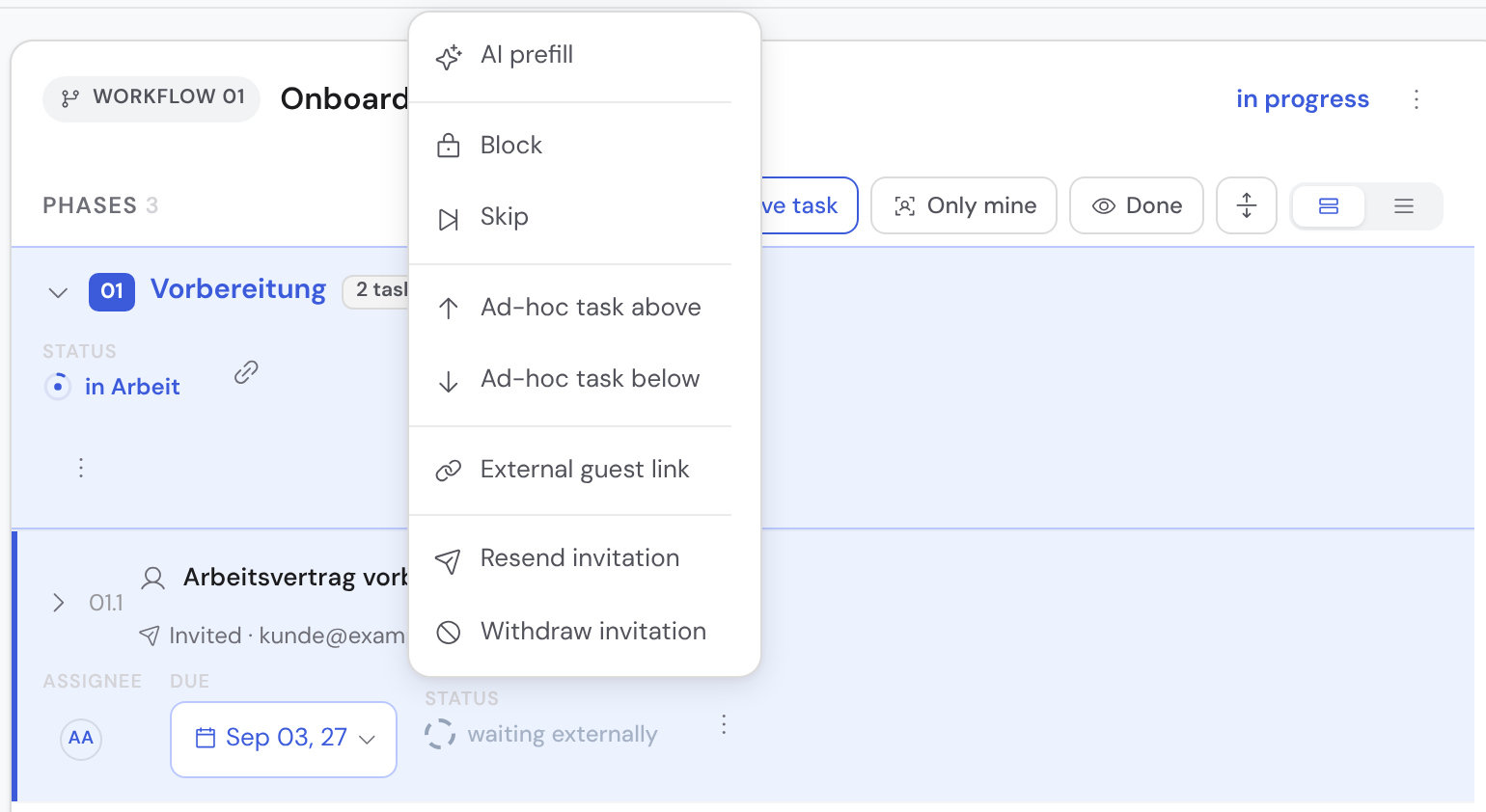
Open the case, expand the task and choose “External guest link” from the task's action menu (⋮). A panel opens where you create and manage links to exactly this task.
If you enter an email address, Bricksta creates the link and sends it straight to that address as an invitation. If you leave the field empty, the link is created and copied to your clipboard right away so you can share it yourself (e.g. through your own channel). In both cases the link is valid for 14 days by default.
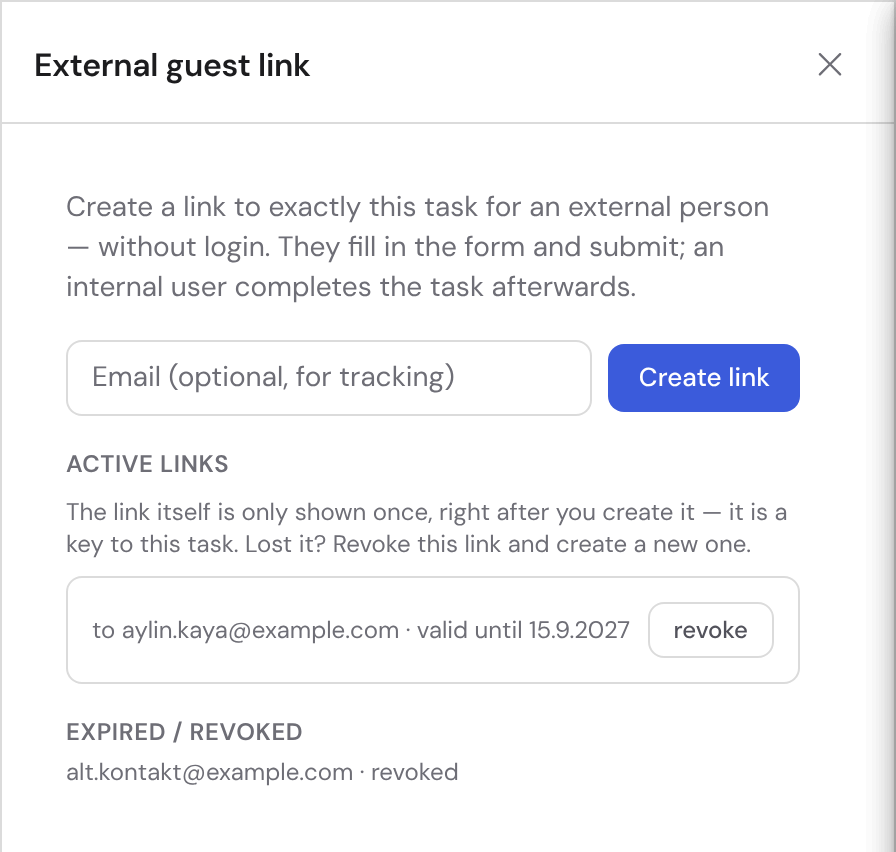
- 1Open the task in the case and choose “External guest link” from the action menu.
- 2Optionally enter an email address — then Bricksta sends the invitation directly. Without an email the link is created and copied to your clipboard.
- 3Click “Create link”. The new link appears under “Active links”.
- 4Share the link right away — it is already on your clipboard. You can revoke it there later.
The link itself is shown exactly once: right after you create it. The list keeps the entry with recipient, validity and status afterwards, but not the address — the link is a key to this task, and Bricksta does not keep it around for looking up. If you lose it, revoke the entry and create a new one.
If sending the email fails once (e.g. because the mail service isn't configured), the link is still created and offered to you for copying — you can then share it manually.
If the task has a required field an external person is not allowed to fill in, Bricksta asks before creating the link: the notice names the fields in question and says that the guest will not be able to submit the form. You can go ahead with “Create anyway” — for instance because you will fill the field in yourself — or cancel and adjust the template first. If you cancel, no link is created. Which fields are affected is listed below under “Limits at a glance”.
What the external person sees
The guest opens the link and lands on a plain page with the task name and its form — no menu, no login, no view into the rest of the case. The form is the same one you use internally: required fields, dependent fields that appear based on a choice, option lists, date and number fields and validations all behave for the guest exactly as they do for your team. In addition, the person can attach files.
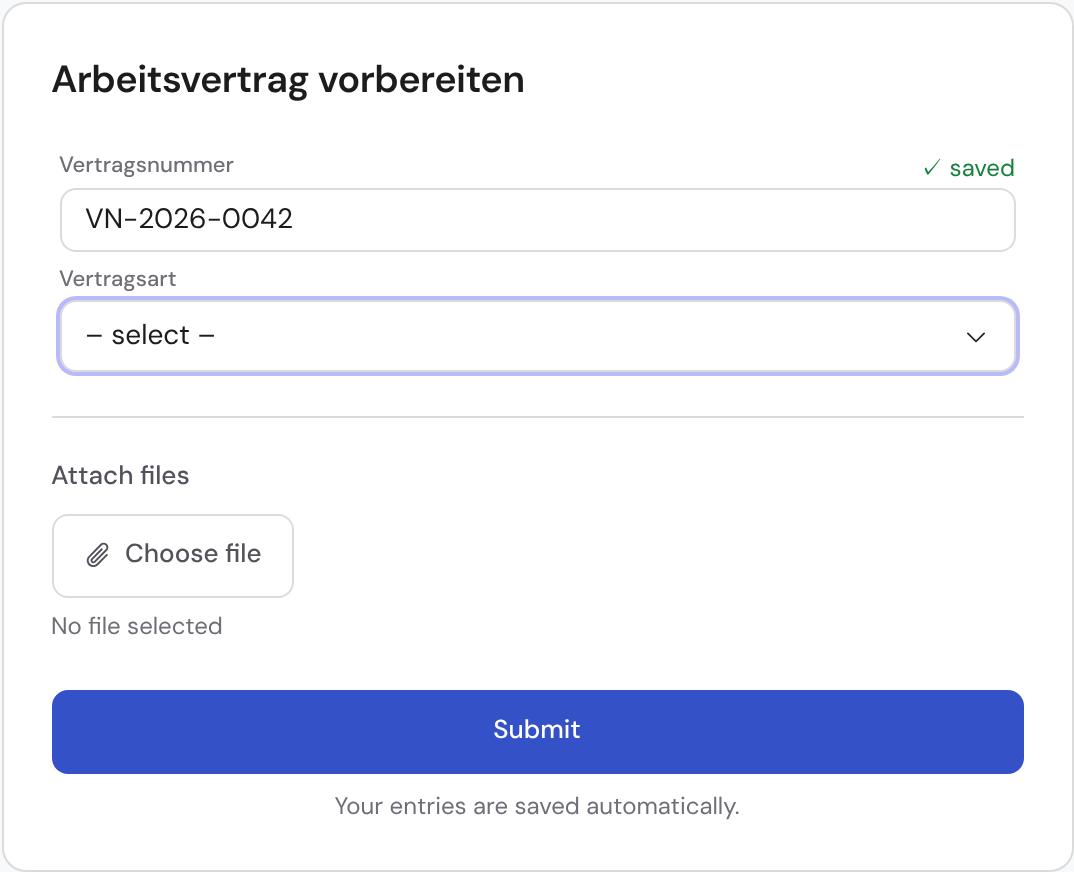
The guest's entries are saved automatically as they go. The person can close the link and continue later — as long as it is still valid and not yet submitted.
The guest page is bilingual: at the top right the person can switch between German and English at any time. By default the language follows the person's browser. You can also preset a language by appending ?lang=de or ?lang=en to the link.
Submitting, reviewing and completing
When the guest is done, they click “Submit”. That transmits their entries and marks the link as sent — after that the guest can no longer change anything. Importantly, the guest does NOT complete the task. Instead, an internal team member is notified, reviews the entries inside the case and completes the task in the normal way. This keeps control with your team at all times (review gate).
If a required answer is missing, the submission is rejected: the guest stays in the form, sees the names of the open fields above it and is taken to the first one. The check is the same one your team faces when completing the task — including fields that only become required through another answer, and confirmations that have to be set to “Yes”. This means a guest can no longer submit an incomplete form and end up stuck on the thank-you screen while the task cannot be completed internally.
- Who gets notified
- the task's assignee — if there is none, the person who created the link, and failing that the case owner.
- If a required answer is missing
- the submission is rejected and the open fields are named and highlighted in the form. The link stays open — nothing is transmitted.
- After submitting
- the link is locked (view only). In the management panel the link is marked “sent”.
- Once the task is no longer open
- the guest sees a note that the task can no longer be edited, instead of the form. This applies as soon as the task has been completed, skipped or cancelled — even if the link itself is still valid.
- If the form cannot be loaded right now
- because of a dropped connection or an outage, the page says exactly that and offers “Try again”. This is deliberately a different screen from “Link invalid or expired”: the link is fine, and the guest should not ask for a new one.
- If saving does not answer right now
- “Submit” waits at most 15 seconds for the entries still in flight. If no answer arrives within that time, nothing is transmitted, the button becomes usable again, and the guest reads that their entries could not be saved just now. They can check the connection and send again — the link stays open.
- Completing
- happens internally through the task's normal path — including the usual review of the answers.
Validity, revocation and tracking
In the management panel you see two groups per task: active links (valid and not revoked) and expired or revoked links. Each active link shows its validity, the optional recipient address and — once submitted — the “sent” marker. You can revoke a link at any time; it becomes invalid immediately, even if it hadn't expired yet.
- Validity: 14 days from creation by default. After that the link is automatically invalid.
- Task closed: once the task is completed or cancelled, the guest page accepts neither entries nor files — even while the link itself is still valid.
- Revoke: makes a link unusable instantly — use it as soon as the entries are in, or if a link might have fallen into the wrong hands.
- Tracking: the optional email shows who a link went to; the “sent” marker shows that entries have arrived.
Security and privacy
Guest links are built to be frugal and sealed off. Still: the link is the access — whoever has it can open the form. So treat it like a password and only send it to the intended person.
- The link is the key
- A guest link contains a long random value; it cannot be guessed. Everything hinges on possession of the link — so send it deliberately and revoke it once done or on suspicion.
- Strictly scoped to one task
- The guest only sees the form of that single task. The case title, other tasks, internal roles or permissions are never shown to them.
- No abuse through volume
- The guest endpoints are throttled against too-frequent requests — a known link cannot be exploited for spamming.
- Files stay private
- Attached files go into private storage. The guest can only upload to their task and cannot browse or retrieve anything that concerns others. Their list shows only the files they uploaded themselves — internally attached documents never appear there, not even by name.
- Everything is logged
- Creating, saving, submitting, uploading a file and revoking a guest link are all recorded in the history — as traceable as any other action.
- The guest never completes
- External entries are always reviewed by an internal team member before the task is completed.
Anyone who holds the link can open and fill in the form — there is no additional password prompt. Only share a guest link with the intended person, and revoke it as soon as the entries are in or if you suspect it was passed on.
Limits at a glance
- One link leads to exactly one task — for several tasks you create several links.
- The guest can fill in fields and attach files, but cannot comment, complete the task or look into the case.
- If a field is VISIBLE only to certain roles, the guest never sees it at all — neither the field nor any value already entered. They hold no role, so they never meet the condition.
- If a field is visible but only certain roles may FILL IT IN, the guest sees it with a lock — “no role” does not mean “every right” here. It is filled in internally.
- Fields that need internal context are out of reach for the guest as well: person, contact and company fields, dataset and live-system lookups, and values that are calculated or carried over from an earlier task. They can see them; only the internal team can edit them.
- Everything else is theirs to fill in: text, long text, rich text, email, number, date, yes/no, single and multiple choice, checklist, rating, scale, signature and repeatable groups.