What the task library is
A building block is a predefined task together with its fields and an optional default role. It lives independently of any single template and is kept in reserve — for steps that look the same across many flows.
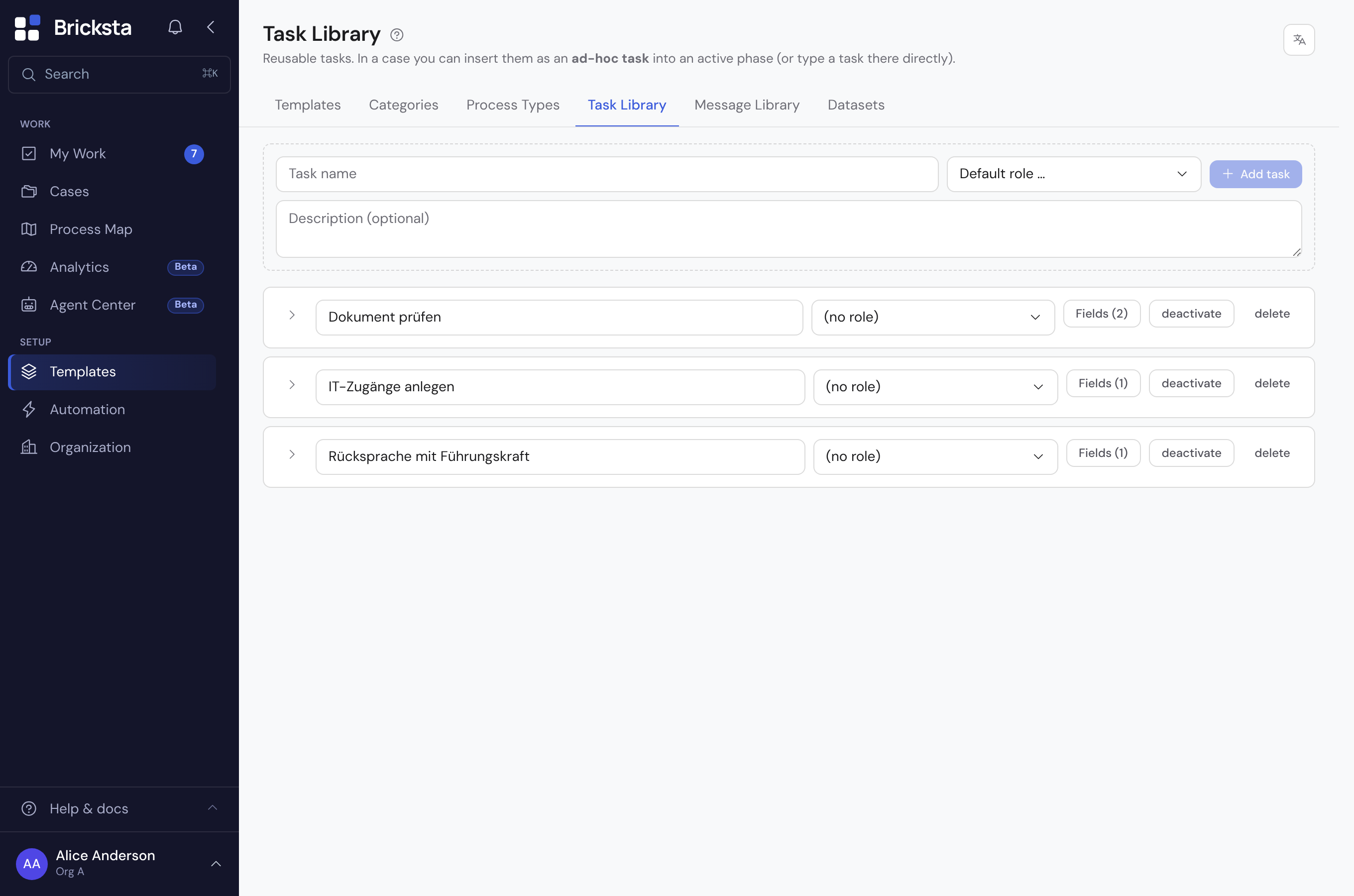
Creating a building block
- 1Enter a meaningful task name at the top.
- 2Optionally pick a default role the task is assigned to when inserted.
- 3Click “Add task” — the building block appears as a row in the list.
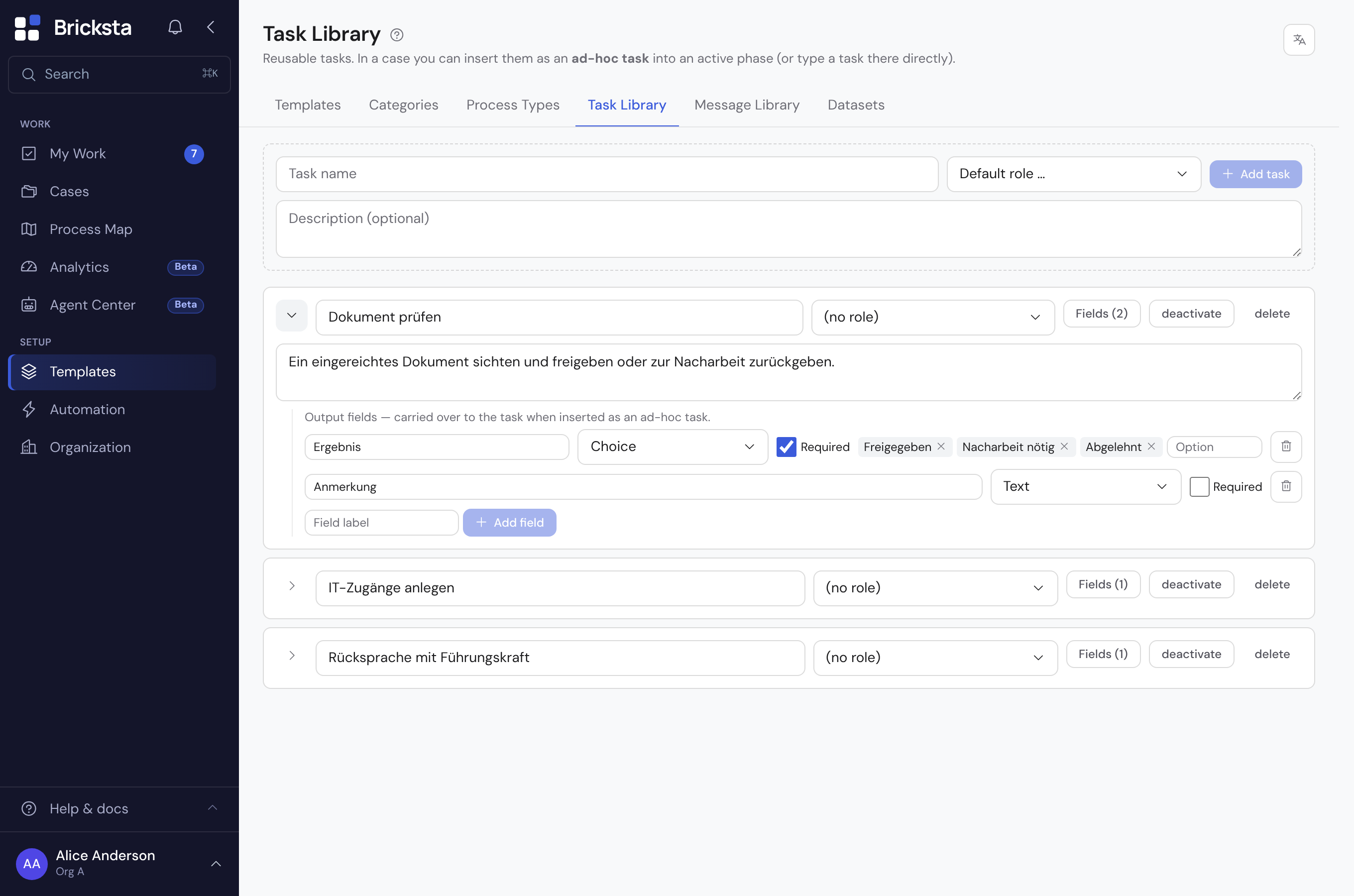
- 4Open the block's field list via “Fields” and define what should be captured while working on it.
A block's fields work just like in a template: various types (text, choice, date, number …), optionally required. They are carried over when the block is inserted into a case.
Inserting it into a case
In a running case you insert a building block as an ad-hoc task into an active phase — or type a task there directly. This adds a step to a flow without changing the underlying template.
Building blocks are ideal for recurring single steps (such as “Check back with manager” or “Review document”) that appear in many cases but do not permanently belong to a template.
Blocks you no longer need can be deactivated instead of deleted — they disappear from the picker but stay traceable for existing cases.
If the library cannot be loaded, a red message appears at the top of the page instead of the list — and the “no entries yet” hint is NOT shown. The two are deliberately kept apart: an empty list really means empty, while a red message means something could not be read. The message text comes straight from the database, untranslated; it is meant for troubleshooting.
If content languages are configured for the organization, the language picker sits top right. Pick a target language there and a field for the target language appears below each block name and (when expanded) below the description — empty = base language. If translations are missing or outdated, a line below the header gives the number of texts; “Translate ›” switches to that language. The picker shows the name in the active language when you insert it.