On this page
How to: give a task a type
- 1Open the template and click the task in the list.
- 2Click Edit form in the sheet's footer. The task window opens.
- 3Click the first chip Type and pick the type, such as Message.
- 4Fill in the other chips. Anything still missing reads “missing” in amber.
- 5Click Close. Every change is already saved.
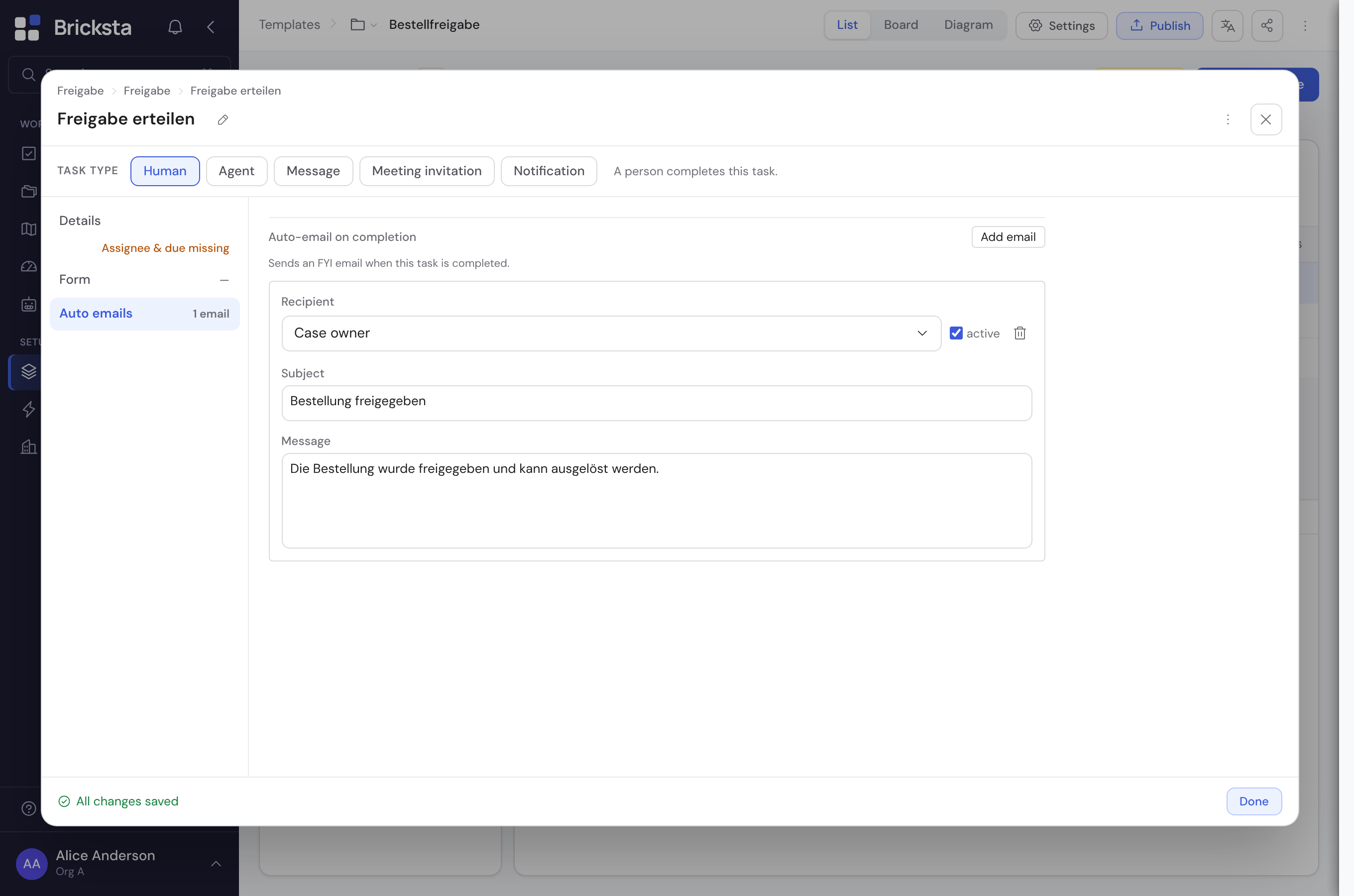
- 1Type: the kind of task
- 2Owner: person, role or external role
- 3Approval: four-eyes check
- 4After completion: emails on completion
Which type do you need?
The choices in the Type chip are split into A person does it and Runs automatically. Each type comes with one sentence on what it does.
| Type | Who completes it | What for |
|---|---|---|
| Human | A responsible person, internal or external | The normal task with a form, such as checking documents. |
| Agent | The AI | Fill fields, compose an email or read from documents. |
| Message | Bricksta, automatically | Send an email in the middle of the flow. |
| Meeting invitation | Bricksta via Microsoft Outlook | A real calendar invite with date, duration, location and Teams link. |
| Notification | Bricksta via Microsoft Teams | A short internal notice (150 characters at most) to members. |
| Generate offer | Bricksta, automatically | A PDF from a document template and the case's values. |
Switching the type deletes nothing. Switch back and the earlier setup is there again. It carries the note “earlier setup kept”, and Discard clears it.
What do the chips set?
Each chip shows one property and opens its choices when clicked. Which chips appear depends on the type.
| Chip | For which type | What it sets |
|---|---|---|
| Owner | Human | Who completes the task: person, internal role or external role. |
| Due and Priority | Human | By when and how urgent. An automatic task reminds nobody. |
| Approval | Human | Another person approves before completion (four-eyes principle). |
| Flow | all | What the task starts after. |
| Documents | Human | Material from Organization › Documents, such as a checklist. It always goes along in the current version. |
| Send or Run | automatic types | After confirmation: a person releases it first. Automatically: without intervention. |
| On behalf of | automatic types | Under whose name the step acts. |
| Description | all | An explanatory text below the task's name. |
For a message via Outlook and for the meeting invitation, Send and On behalf of are left out. A person sends it there. Whatever the task still lacks appears in the hints box next to the tabs, each with a button to the right spot.
Send a message automatically
- 1Pick the type Message in the Type chip.
- 2Write subject and text under Content. Use Insert field to place case values.
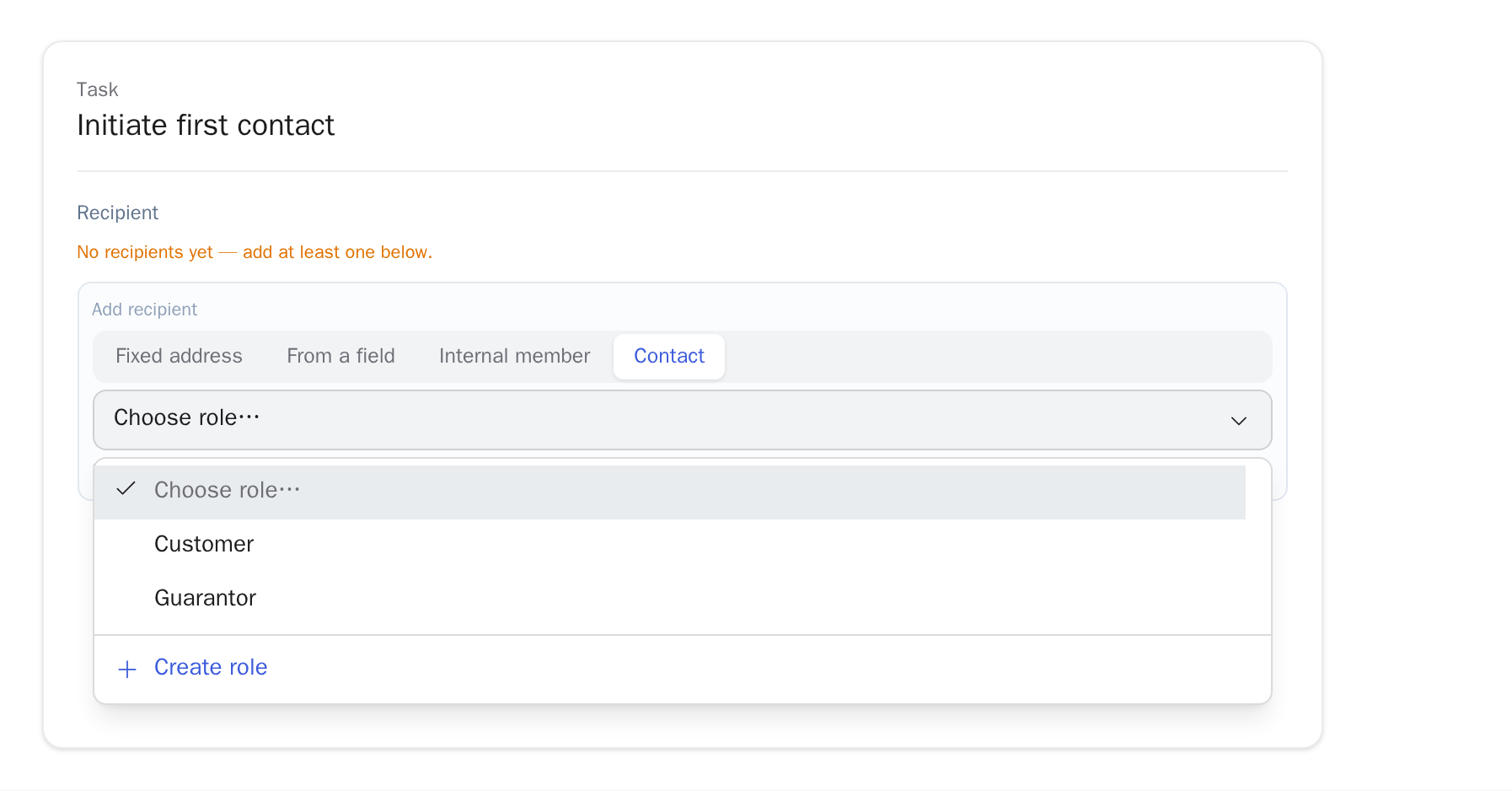
- 3Add one or more recipients under To in Recipients.
- 4Pick the channel under Delivery: Bricksta Mail or Microsoft Outlook.
- 5Set the Send chip to After confirmation or Automatically.
A Message step counts as done once the message is sent. A missing reply therefore never blocks the flow.
Who receives the message?
| Recipient kind | What Bricksta inserts |
|---|---|
| Fixed address | Exactly the email address you typed. |
| From a field | The address from an email, member or contact field of an earlier task. |
| Internal member | The stored address of a person in your organization. |
| Contact | The case contact in an external role, such as Customer. If the role is missing, Create role takes you to the template settings. |
Fields for text and recipients need a token and must come from an earlier task. Bricksta does not offer later or parallel tasks, because their values are still missing at send time.
Set up delivery
| Setting | What it does |
|---|---|
| Send: After confirmation | A person sees the finished message at the task in the case and releases it with Send & complete. |
| Send: Automatically | The message goes out without intervention as soon as the step is due. |
| On behalf of | Under whose name the step acts. Whoever completed the previous task takes the person of the task before: in sequence the one above, by dependencies the connected one. If several connected tasks released the step, it stops as an incident. |
| Retry on failure | How often Bricksta retries a failure before it shows as an incident on the task. |
| Send a copy | After sending, a separate email marked “Copy:” goes to you or further recipients. |
| Recipients can see each other | All recipients appear visibly on the distribution. |
| Template | Applies subject and text from the message library, as a copy. |
Special cases when sending
- If a placeholder without a matching field is left in, the message does not go out. The step names the unresolved label.
- If Bricksta finds no address for a person, the preview says “N recipients have no address”.
- For each attachment you decide whether it is required. If a required file is missing, nothing is sent.
- A file field with role protection only goes along once you tick Send despite role restriction on the attachment.
- On Bricksta Mail the sender reads “<organization> via Bricksta”. Replies go to the person responsible for the case.
- An incident waits for a person: Retry, Complete manually or Skip.
- Only an admin can enter someone other than yourself under On behalf of.
Send emails on completion
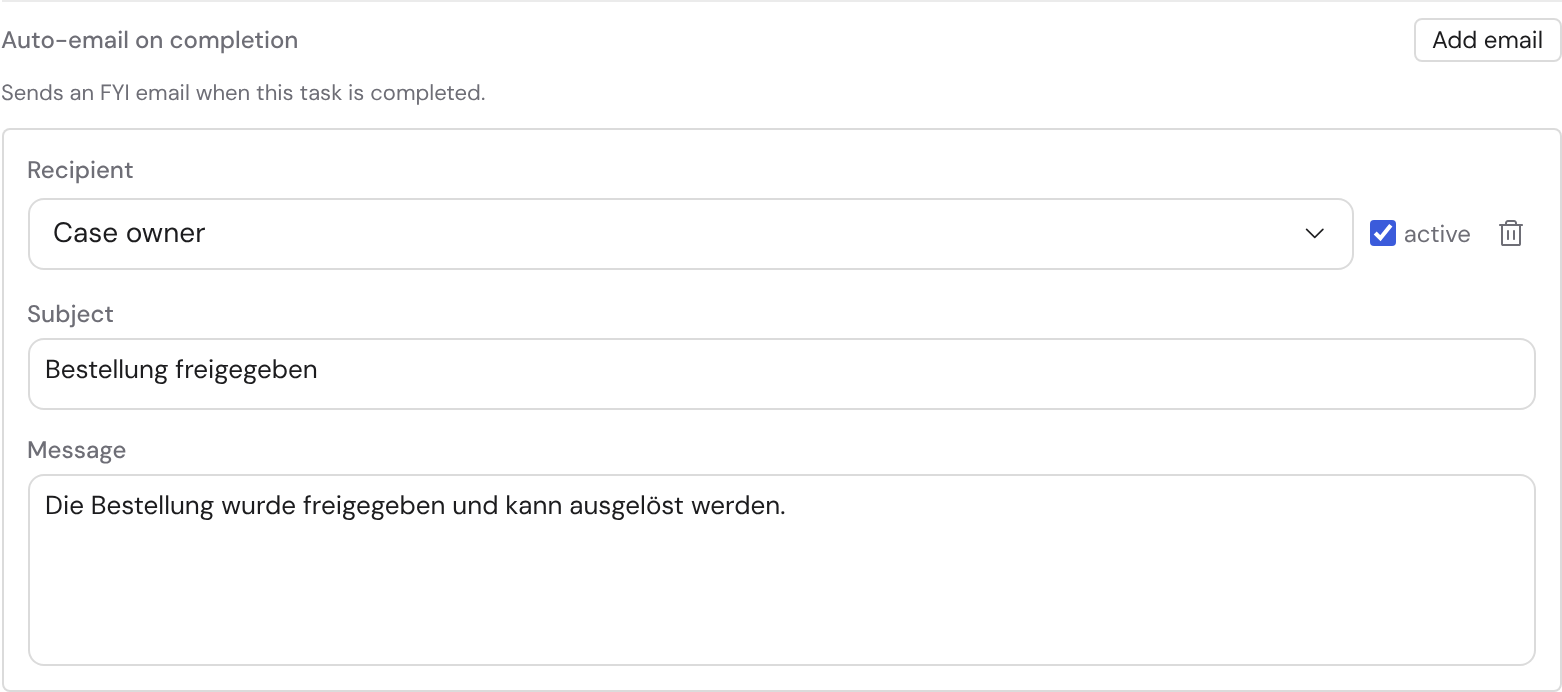
A Human task can send emails itself when it is completed. Open the After completion tab and click + Email under Emails on completion.
Set up an AI step
With the type Agent the AI completes the task. Under Task you pick the operating mode and write the instruction, using Insert field for case values.
| Operating mode | What the AI does |
|---|---|
| Fill fields | Writes the result into the output fields, such as a summary or a classification. |
| Compose email | Writes subject and text. Delivery works as for a message. |
| Read from documents | Reads the case's attachments, such as PDFs or images, and fills the fields from them. |
Under Execution you pick the model: Fast for short tasks, Thorough for long texts. The agent never fills output fields without a token. Whether someone checks the result first is set by the Run chip.
Generate an offer as a PDF
The type Generate offer turns a document template and the case's values into a PDF. It lands in a file field of this step. A Message step afterwards attaches it via Attachments.
| Section | What you pick |
|---|---|
| Template | The document template with letterhead and text blocks. |
| Placeholders of the template | A field of an earlier task for every placeholder. |
| Amounts and Recipient address | The field for the net amount and the fields for the address block. |
| Storage | The file field the PDF lands in. |
| Run and On behalf of | Recommended: After confirmation. A person then triggers it with Release & generate. |
Instead of an offer the step can also generate an order confirmation or an invoice. Letterhead, number sequence, invoices and one offer per row are covered in Document templates.
Have a task completed externally
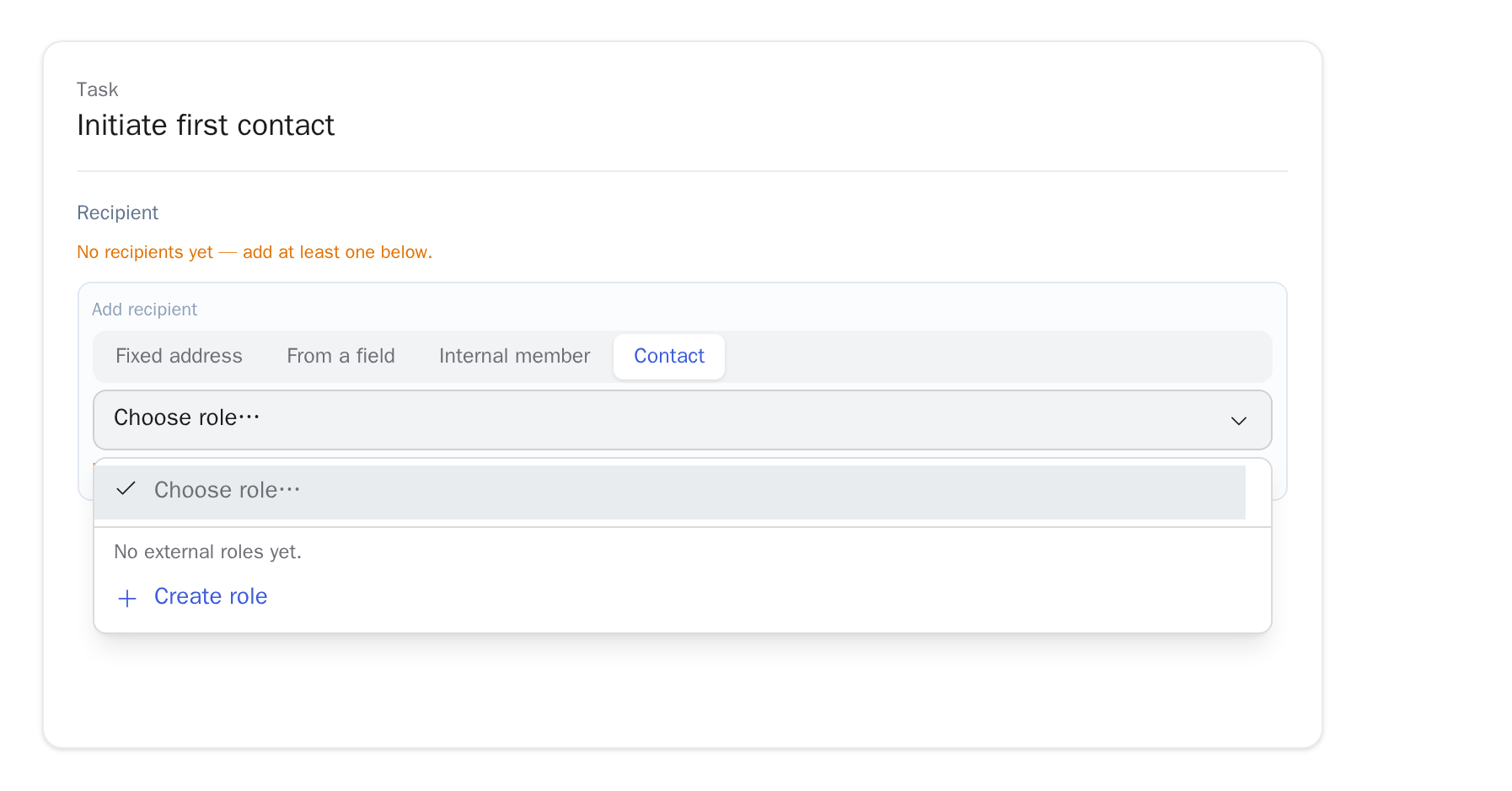
Someone outside your organization can complete a Human task, such as a customer. In the Owner chip, pick an external role under To an external role (customer portal).
The task then appears in the case's customer portal. Internally it carries the External badge. All fields of the task are visible in the portal, so check for internal notes beforehand.
| Situation | What happens |
|---|---|
| No external role created yet | The bottom of the list shows Create role. It opens the template settings on the External roles tab. |
| You pick an external role | An internal assignee and a configured approval are dropped. |
| You pick a person again or Remove assignment | The task returns to your internal team. |
| The task is marked “Done externally” but has no external role | It reaches nobody; the check reports this as a warning. Pick an external role or a person in the Owner chip. |
Who actually fills an external role is set later on the running case. The role itself applies to every case of this template.