On this page
How to: set a template's defaults
- 1Open the template and click Settings at the top right.
- 2Stay on the Defaults tab. It walks you through a case's life in four chapters.
- 3Under When a case is created, enter title, category, priority and due date.
- 4Under When the case ends, define the outcomes, say “Won” and “Lost”.
- 5Check How a new case starts at the top to see what a new case looks like. Every change is saved right away.
- 1Settings
- 2Calculations view
- 3End circle of a phase
What is on the “Settings” sheet?
The Defaults tab orders everything along a case's life. The values apply to every new case and can still be changed there.
| Chapter | What you set there |
|---|---|
| What is this case about? | One sentence on what the template is for. |
| When a case is created | Template type (time-bound or persistent), title, category, priority, due date and auto-start. |
| When the case ends | The outcomes with valuation, follow-up case and end events. |
| Who sees what — and for how long | Overview columns, visibility, cases for the same entry and GDPR retention. A click opens them in the same sheet, Back returns. |
The same sheet holds the External roles, Intake forms and Auto-create tabs. How to set the due date is covered in Deadlines and time in templates.
Time-bound or persistent?
| Type | Suits | Outcomes |
|---|---|---|
| Time-bound | Processes with an end, say a request or an onboarding. | Yes. The case ends with an outcome and is closed. |
| Persistent | Something that keeps running, say a machine or a contract. | No. The case never comes to an end that could be judged. |
You can only choose Persistent once the template has no outcomes. Removed outcomes count too.
Define outcomes
Outcomes describe how a case can end, say “Won”, “Lost” or “Withdrawn”. Each outcome carries a valuation. It decides the colour of the badge on the case.
| Valuation | Example |
|---|---|
| Positive | Won, Accepted |
| Negative | Lost, Declined |
| Neutral | Withdrawn |
Remove an outcome or bring it back
- If you remove an outcome, completed cases keep theirs. It is simply no longer offered for new cases.
- If you later add an outcome with exactly the same name, Bricksta brings the old one back. Valuation, follow-up case and end events come with it, and Bricksta tells you so.
- If the name is still in use, it says “already exists”.
Attach a follow-up case
Next to each outcome sits Follow-up case: none. Pick a template there, and a new case is created on its own when the outcome is recorded. A won request then turns into order processing, for example.
| Setting | What it does |
|---|---|
| Follow-up case | The template the new case is created from. Each outcome has at most one. |
| Field mapping | For each carried field you pick the target field in the follow-up. Like-named fields are suggested, and only fields of the same type are offered. |
| Amount received | The number field of the follow-up template that records the payment. The case list shows “received” or “partial payment X of Y” from it. |
Amount received only offers number fields that nothing is carried into. Otherwise a carried-over pledge would look paid. The rule applies at once to all cases, including running ones.
Assign end events
Below the outcomes sit the end events. For each last phase of a branch you pick the outcome the case ends with there. Say the phase “Accept” ends with “Accepted”, and Bricksta records the outcome itself on completion.
| Where | How |
|---|---|
| Settings | Under When the case ends you pick the outcome per last phase. |
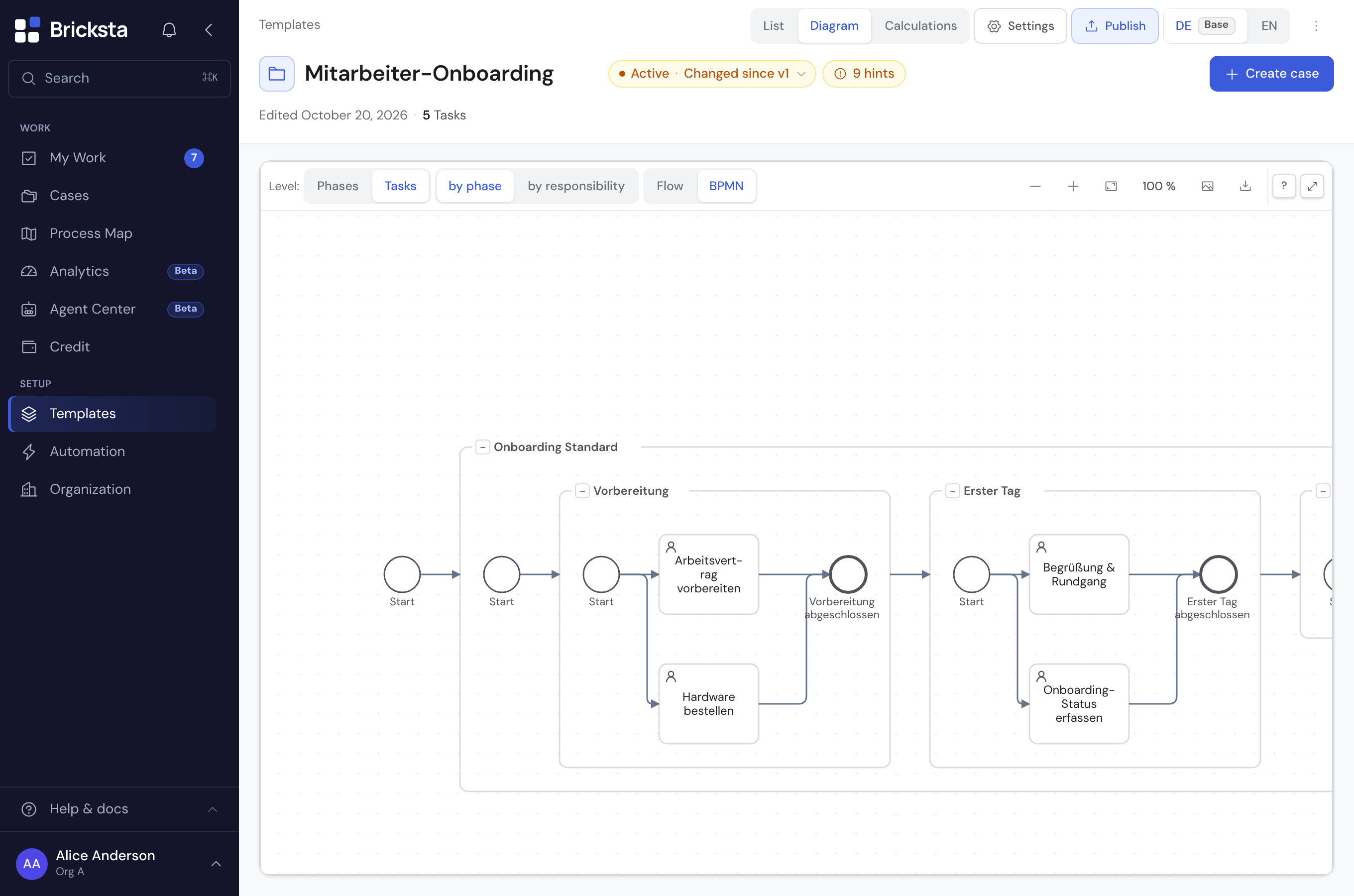
| BPMN diagram | A click on an end circle opens the same picker. There you pick an outcome per phase, No outcome, or create a new one. |
Both routes write the same thing. The diagram shows each assigned outcome as a labelled end event. A running case completes with whatever is set when it completes.
Outcome from an answer
Instead of one phase per result, an answer can decide the outcome. Under Outcome from an answer, pick a select field, say “Feedback”. Then assign an outcome to each option.
| Option in the “Feedback” field | Outcome |
|---|---|
| Accept | Accepted |
| Decline | Declined |
A single “Decision” phase is then enough. When the case ends, the most recently completed answer counts. How the probability jumps per answer is covered in Calculations in templates.
When answer and end event disagree
- An answer that repeats its phase (say a partial acceptance) decides nothing yet.
- If an end event and an answer point to different outcomes, “Outcome missing” stays. A person then chooses the outcome.
Set up the overview columns
The overview columns are up to eight fields, say quote value or customer. They appear as columns in the case list. You edit them in the Calculations view; the settings sheet leads there with Edit in ‘Calculations’.
| Aggregate | What the total row shows |
|---|---|
| Sum, Average, Minimum, Maximum | The respective value across all cases of the stack. Sums exist for numbers only. |
| Count | How many cases have a value. |
| % filled | The share of cases in which the field is filled. |
| Sum weighted by … | Amount times weight per case, then added up. |
| none | Nothing. The value only sits in the row. |
Under Where the value appears you choose in every row or only in the total. The same field may be a column more than once, say once as a sum and once weighted.
Build a weighted sum
Choose Sum weighted by … and, under Weighted by (percent field), a number field, say the probability. Under Name in the list you name the column, say “Weighted offer amount”.
Each case counts amount × weight ÷ 100, rounded to the cent. Example: €20,000 × 10 % + €15,000 × 40 % = €8,000. A case without a weight counts 0, and the list names it.

Which fields can be a column?
- Any field of a suitable type. If it sits in one task only, the value comes from that task, unless it was skipped or cancelled.
- If the field is carried under Also in other tasks, the value comes from the case.
- Sensitive fields, files and fields inside a group are excluded, also as a weight.
- Anyone who may not see the amount or the weight sees “cannot be calculated” in the column.
- Tip: make a column field required. Otherwise cells stay empty and the sum incomplete.
The key figure band
The key figure band holds up to eight tiles in the head of the case list. Each tile counts over an overview column and reads as a sentence. You also give it a name, colour and subtitle.
| Part of the sentence | Choice |
|---|---|
| [column] | An overview column. Field, aggregate and weight come from it. |
| across … | all cases, open only, completed only or an outcome such as “Won” |
| in period … | always, this year, this quarter, last 12 months, last 30 days |
| + only cards where … | Only for columns from a card: counts only cards where a yes/no or choice field has a value. |
Completed cases count in the period by their completion date, all others by their creation. Only organisation admins change columns and the key figure band. Every change applies at once to all cases, without publishing.
What the header of a stack compares its target with is set in target tracking. There you can also pick the sum of several tiles instead of a column.