On this page
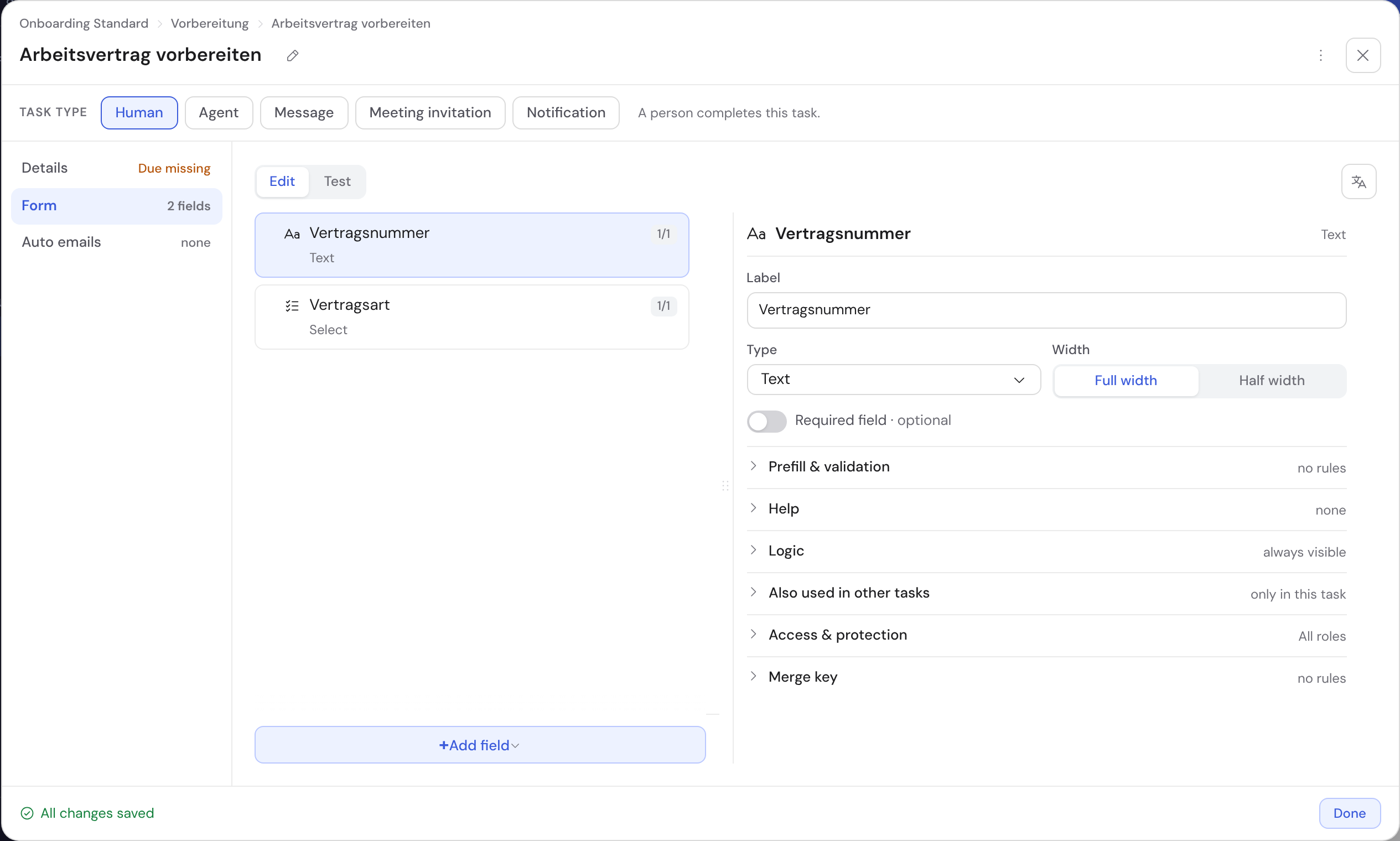
How to: set a due date on a task
- 1Open the task in the template and click Due at the top.
- 2Pick the anchor right in the sentence, such as “after this task opens” or date field.
- 3Enter the offset, for example “Due in 3 days …”.
- 4If something should happen while the task is open, set it under Flow.
- 1Due: offset and anchor
- 2Flow: “If still open after …” and “Ends after …”
- 3Hint “Due missing”
When does a deadline start counting?
You pick the anchor in the sentence, even before entering an offset. Phase and workflow anchors only offer earlier phases and workflows.
| Anchor | Sentence in the interface | Example |
|---|---|---|
| This task opens | “after this task opens” | Due 3 days after it opens |
| The case is created | “after the case is created” | Due 14 days after creation |
| An earlier task opens | “after opening of …” | 2 days after opening of “Send offer” |
| An earlier task, phase or workflow is completed | “after completion of …” | 5 days after completion of the phase “Review” |
| A date field of the case, also before it | date field | 2 days before the delivery date |
The default due date of the whole case only supports “after the case is created” and date field. You set it in the template settings.
What happens when a task stays open?
The task’s flow window has two clocks. Both count from when the task opens or from when the case is created. The history then shows “Timer” as the actor.
| “If still open after …” | “Ends after …” | |
|---|---|---|
| Purpose | Remind or follow up, the task keeps running | The task closes itself when the time is up |
| What you set | Duration, action under then, how often | Duration and an answer from one of the task’s choice fields |
| When it stops | As soon as the task is done | If someone completes the task before |
| Example | After 7 days remind Sales, at most 5 times | After 40 days end with “No answer” |
| Action under “then” | What happens |
|---|---|
| remind | The assignees or a chosen role or person get “Reminder: «task» is still open”. |
| Open a prepared task | A task with a form in the same phase only appears when the timer opens it, such as “Follow-up”. |
| Create a simple task | A new task without a form, e.g. “{{Nr}}. Follow up: {{Customer}}” → “2. Follow up: Pharma Ltd”. |
Under how often you choose once, at most that many times (up to 52) or while the task is open. Each point in time is a cycle. Days trigger at the time set under “Send reminders from” in the organization’s master data (default 7:00).
Example: follow up until the customer replies
- 1In the phase “Collect feedback”, create the tasks “Customer feedback” and “Follow-up”.
- 2On “Customer feedback” set: after 7 days Open a prepared task with “Follow-up”, at most 5 times.
- 3Below it: Ends after 40 days with the answer “No answer”.
- 4In the case, “1. Follow-up” appears on day 7, and once done “2. Follow-up” on day 14.
- 5A choice field such as “What next?” can keep following up, jump back or stop following up.
- 1Flow opens the timer
Which task a timer can open
- Only tasks of the same phase that a person completes internally: nothing that sends, goes outside or needs an approval.
- No AI or document steps, no task with predecessors or its own time rules. One timer opens exactly one prepared task.
- For this action “at most … times” is required. If the follow-up is still open at the next cycle, it stays the same task; the cycle still counts.
- The answer field must be one of the task’s own choice fields, “internal only”. For a jump back or stopping, Bricksta asks for the reason itself.
- An open follow-up is dropped when the main task is completed or ended, or when the case jumps back.
When does Bricksta end a task itself?
With Ends after …, Bricksta completes the task with the chosen answer when the time is up. The case then moves on as if someone had completed it that way. If someone already entered an answer, theirs applies.
| Case | What happens |
|---|---|
| A required field is missing | The task stays open and the case reports an incident. |
| Approval task | Cannot be ended this way. |
| Effect outside (message, follow-up case, customer portal) | Only with This may happen automatically. If an effect is added later, it needs a new approval. |
| Counting from creation with a repeat or jump back | The form warns: in the new round the time would already have passed. |
End a workflow after a time
In the workflow’s flow window, under Ends …, choose Set up ending and after a time. Enter a duration from the start of the workflow or from when the case is created, such as 30 days.
If the workflow is not finished by then, it ends early: open tasks are dropped, completed work stays. If a successor waits on it with “keep waiting”, the template check warns you.
Mark a template as an absence
A template like “Leave request” can say who is away and when. Its cases then appear in the team calendar, without the reason. You find the row Absence in the Settings, tab Defaults.
| Setting | What you choose | Example |
|---|---|---|
| Template is an absence | Turn it on | Leave request, sick note |
| From and To | One date field each, To may be the same field | “First day”, “Last day” |
| Person | A person field holding exactly one person | “Requester” |
| Half day | Optionally a yes/no field, only when From and To are the same | “Mornings only” |
| Counts once requested | Right away | Sick note |
| Counts once approved | After the approval | Leave request |
| Counts once closed | Only at the end, never with a negative outcome | Business trip |
Then publish the template. The setting applies to new cases; running cases stay unchanged.
You need the organization admin role for this, because date and person become visible to “See absences”.