On this page
How to: make a step wait
- 1Open the template in the list. In the step's row, click the Starts field; a new step shows “at start”.
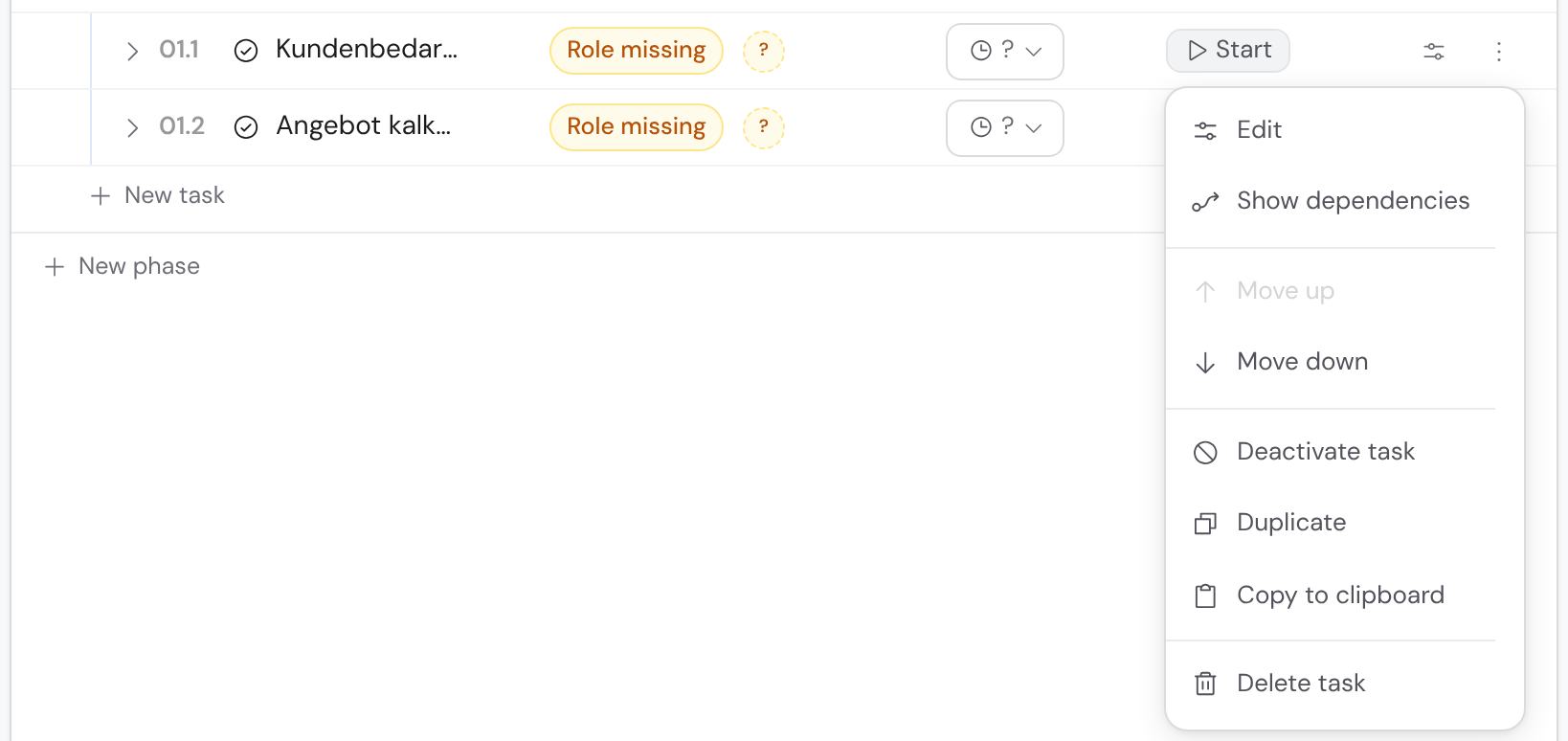
- 2In the window, pick the step it should wait for under Add predecessor ….
- 3If it should only start under a condition, choose field, comparison and value on the predecessor's card.
- 4Close the window. The field now shows something like “after 01.2”, and in the case the step only starts after it.
Set the order with dependencies
A dependency links a predecessor to a successor. In a case a step is only released once its predecessors are done. Steps without a dependency run in parallel.
You link tasks only within the same phase, phases only within the same workflow. The list shows everything in execution order: whatever waits for something sits below it.
| Shown in the Starts field | Meaning |
|---|---|
| “at start” | The step starts as soon as its phase begins. |
| “after 01.4” | It waits for step 01.4. |
| “after 01.2 and 01.3” | It waits for all predecessors named. |
| “after 01.2 or 01.3” | One of the predecessors is enough. |
| Clock sign, “by timer” | A timer opens the task, see Deadlines and time. |
Reordering changes the order
If you drag a step or use Move up to put it above something it waits for, Bricksta reverses the dependency. It tells you which one, and you can undo it right away. If that would close a loop, Bricksta refuses the move.
To turn parallel steps into a chain quickly, use Chain in sequence in the phase's ⋮ or Run phases one after another in the toolbar's ⋮. Both only add missing connections and delete nothing.
| Word in the phase header | Meaning |
|---|---|
| “in sequence” | Each task waits for the one before. |
| “all at once” | All tasks start together. |
| “mixed” | Partly parallel, partly one after another. |
| “Cycle” | The dependencies form a loop and never start. Remove one of them. |
Moving a task to another phase
- Drag the task into the target phase. Dropped on a task, it lands behind it. Dropped on the header of an expanded phase, it becomes its first task.
- Its dependencies to other tasks are released. Due dates anchored in the old surroundings lose their anchor. A binding to an intake form breaks once it leaves the first phase.
- If any of this applies, Bricksta asks first. The same move is available as Move to another phase in the ⋮ of the task window.
Edit the flow in the diagram
Use List / Diagram to switch to the graphical view. Phases / Tasks picks the level, Flow / BPMN the notation. On the task level, by responsibility puts the tasks into lanes, one per role.
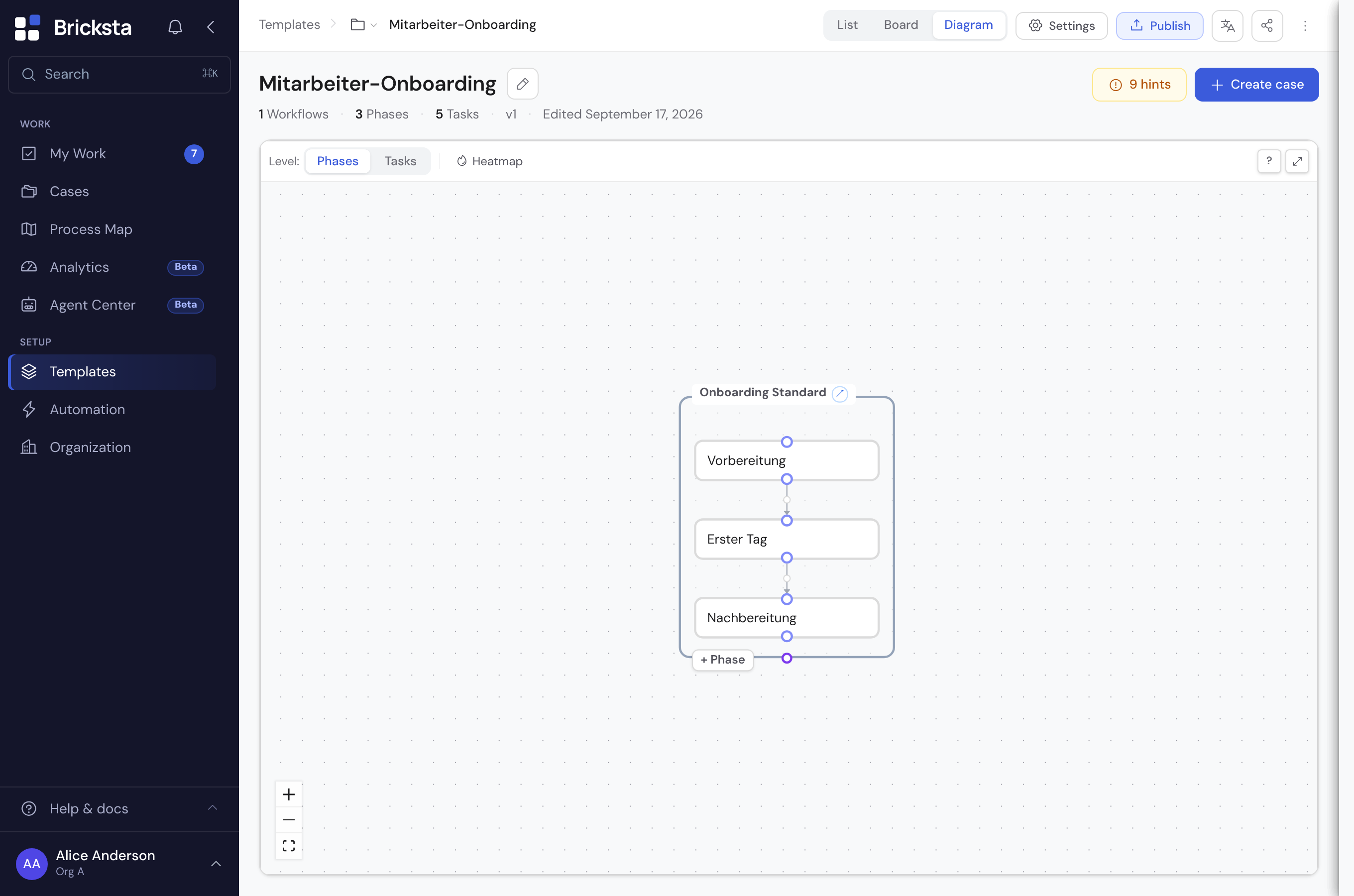
- 1List / Diagram
- 2Level: Phases / Tasks
- 3Notation: Flow / BPMN
- 4Dependency between two phases
A click selects a step or a line, and a small bar appears below it. Start and end cannot be selected; they follow from the flow.
| Sign | On a step | On a line |
|---|---|---|
| ↗ | Opens the step in the sheet next to it. | – |
| + | Appends a new step after it. | Inserts a step into the line. |
| ⑂ | Adds a step in parallel alongside it. | – |
| → | Connects to another step: then click the target. | – |
| ⚙ | – | Opens the condition form, as does the B key. |
| ✕ | Removes the step after a confirmation. | Removes the line, with Undo. |
You can also connect by dragging: grab a step and drop it on its successor. Permitted targets are highlighted. If you drop it on a task in another phase, Bricksta asks “Connect phase … → phase …?”.
| Line | Meaning |
|---|---|
| indigo, labelled near the target | Dependency with a condition, e.g. “Budget approved? is Yes” |
| with a slash and “otherwise” | Default path of a branch |
| amber, dashed, pointing back | Back-jump |
| fuchsia, dash-dot | Ends when … |
Build a branch
At a branch the case takes one of several paths. You set the conditions on the paths. That only one continues is set where the paths merge again.
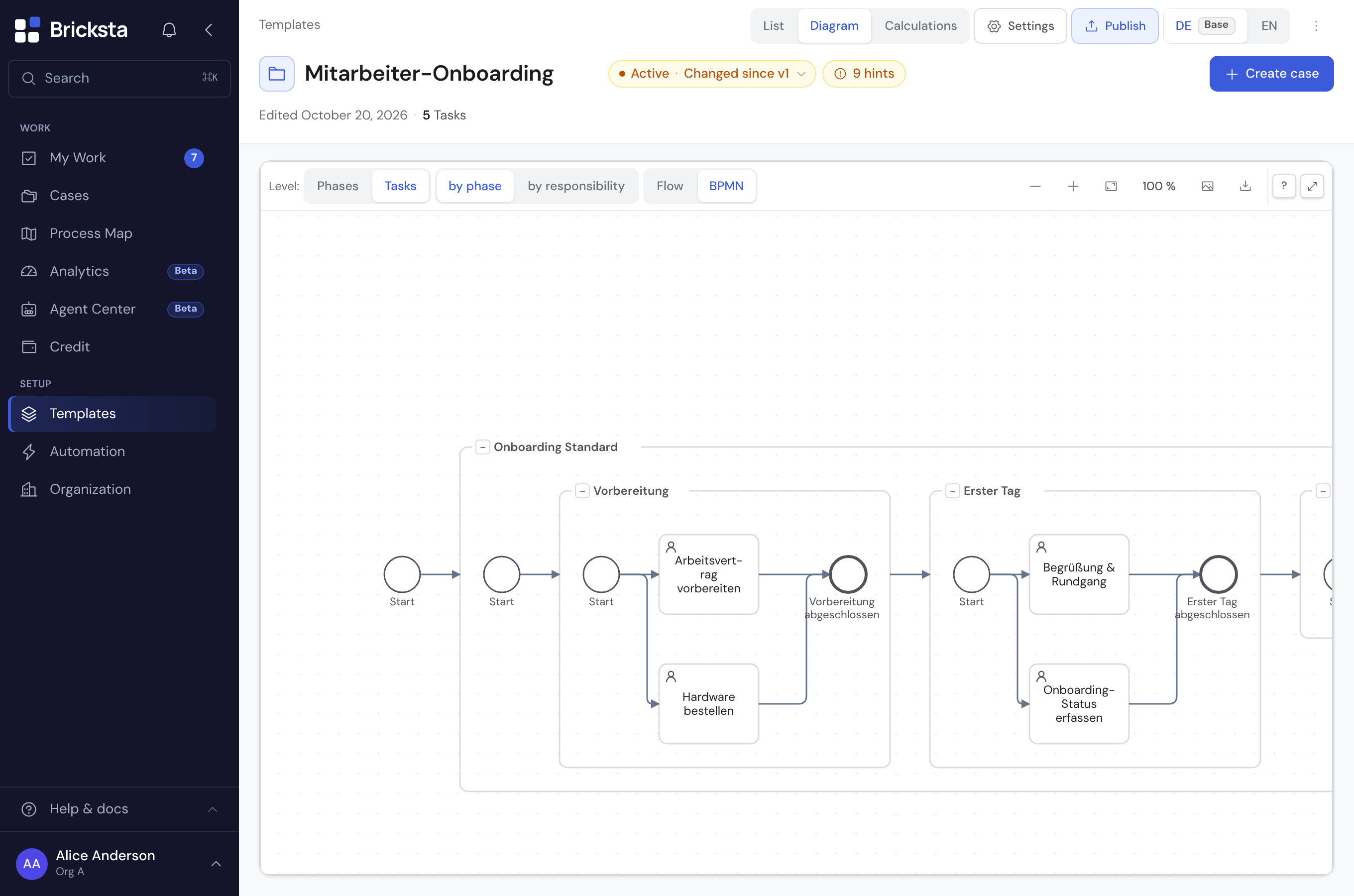
- 1Level: Tasks
- 2BPMN
- 3Frame of a phase
- 4End circle of the phase
- 1Connect the step before the branch to every path: by dragging or via → in the bar. If a step is missing, add it via +.
- 2Give each path a condition: click the line, choose ⚙. Under Field … you pick the field that decides, then comparison and value. You do not have to prepare the field. If it says becomes required, picking it makes it mandatory.
- 3Click the diamond where the paths merge again. Set Start when to “exactly one”. Bricksta asks first, because the other paths are then skipped.
- 4Optional: tick Default path on one line. This “otherwise” path applies when no condition is met.
- 5Read the template check. It reports gaps and overlaps, naming the value where it goes wrong.
| Diamond | Value of Start when | Meaning |
|---|---|---|
| + | “all of” | Every predecessor must finish. If a condition doesn't apply, the step is skipped. |
| ○ | “all selected” | Every predecessor whose condition applies must finish. Bricksta sets this by itself as soon as a predecessor gets a condition. |
| ○ | “at least one” | One predecessor is enough, several are allowed. |
| × | “exactly one” | Exactly one path continues: that is the branch. |
It is quicker at the diamond where the paths split: click it, choose × Exactly one, name the field and give each path its answer. All conditions are then set at once.
The same works in the list, the view the editor opens in. There you pick the predecessor under Add predecessor …. Start when is an ordinary picker there with the same four values.
What the check reports on a branch
- Two paths are true at the same value, say “from 5000” and “up to 5000” at exactly 5000.
- A value matches no path, say “below 5000” and “above 5000”. At exactly 5000 nothing continues.
- A path without a condition sits next to conditional paths without being the default path. Mark as default path in the findings list fixes that.
- None of these hints blocks publishing. More under Checking and publishing.
Which comparisons a condition offers
A condition compares a field from an earlier task with a value. The form only shows the comparisons that fit the field's type.

- 1Field
- 2Comparison
- 3Value
| Field type | Comparisons | Example |
|---|---|---|
| “Text”, “From dataset” | “equals”, “not equal”, “contains”, “does not contain”, “is empty”, “is not empty” | Feedback “contains” complaint. Upper and lower case do not matter. |
| “Select” | “equals”, “not equal”, “is empty”, “is not empty” | You pick the value from the field's options. |
| “Number”, “Rating” | “=”, “≠”, “>”, “≥”, “<”, “≤” | Order value “≥” 10,000 |
| “Yes/No” | “is Yes”, “is No” | Budget approved? “is Yes” |
| “Date” | “on”, “not on”, “after”, “before” | Delivery date “before” 1 December 2026 |
Four comparisons need NO value: “is empty”, “is not empty”, “is Yes” and “is No”. For all others you enter the value to compare against.
Seven field types can serve as the condition field: “Text”, “Select”, “Number”, “Rating”, “Yes/No”, “Date” and “From dataset”.
All other field types are not available in the picker, among them “Long text”, “File”, “Multiselect”, “Email”, “Member” and “Signature”. Fields inside a repeatable group are missing too.
If you still need a branch at such a point, capture the decision as a field of its own. Instead of the file you ask, for instance: documents complete?
End the case on an answer
Some cases end early, for example on “Take part in the tender?” = No. With End on answer the whole case ends with an outcome as soon as the task is completed with that answer. Open tasks are dropped, completed work stays.
- Open the task's flow window: via the Starts field or the Flow chip in the task window.
- In the Ends the case section, click End the case on an answer.
- Choose question, answer and outcome. The task's yes/no and choice questions are offered.
- If an answer from the customer portal should end it too, turn on Also when the answer comes from outside (portal).
It is evaluated on completion, never on saving. Running cases keep their version. End on answer and send-back on the same task is reported as an error by the check.
Jump back, repeat, end early
These rules steer the flow outside the normal order. You find them in the flow window that the Starts field opens.
| Rule | What it does | Where you set it |
|---|---|---|
| Back-jump | When changes are requested, the case goes back to an earlier phase. The work in between comes back pre-filled in a new round. | Flow window, section Send back, or drag a connection backwards in the diagram. |
| Task back-jump | Leads back to an earlier task within a phase. It is triggered by a rejection or by an answer such as “Testing: failed”. | Task window under Approval: When changes are requested: back to …, or in the Flow chip under On an answer. |
| Repeat when … | The phase starts over as long as a particular answer is chosen, with 2 to 20 rounds. | The phase's flow window: Set up repetition. |
| Ends when … | The workflow ends early as soon as a task in another workflow is completed. Its open tasks are dropped. | The workflow's flow window: Set up ending. |
In the BPMN view a back-jump branches off behind the “Approved?” diamond: the default path continues, the “Changes requested” path leads back. A back-jump is not a dependency and does not change the order of the list.
If a task lies between target and source, Stays valid on back-jump keeps its work. How that looks in a case is described under Flow, back-jumps and rounds.
Switch blocks off instead of deleting
If you don't need a block right now, choose Deactivate task, Deactivate phase or Deactivate workflow in its ⋮. It stays visible, dimmed and marked Inactive, and can be switched back on.
In a new case a deactivated task or phase is skipped the moment it would be its turn. An inactive workflow never starts. Cases already running are unaffected.