On this page
How to: Generate a template with AI
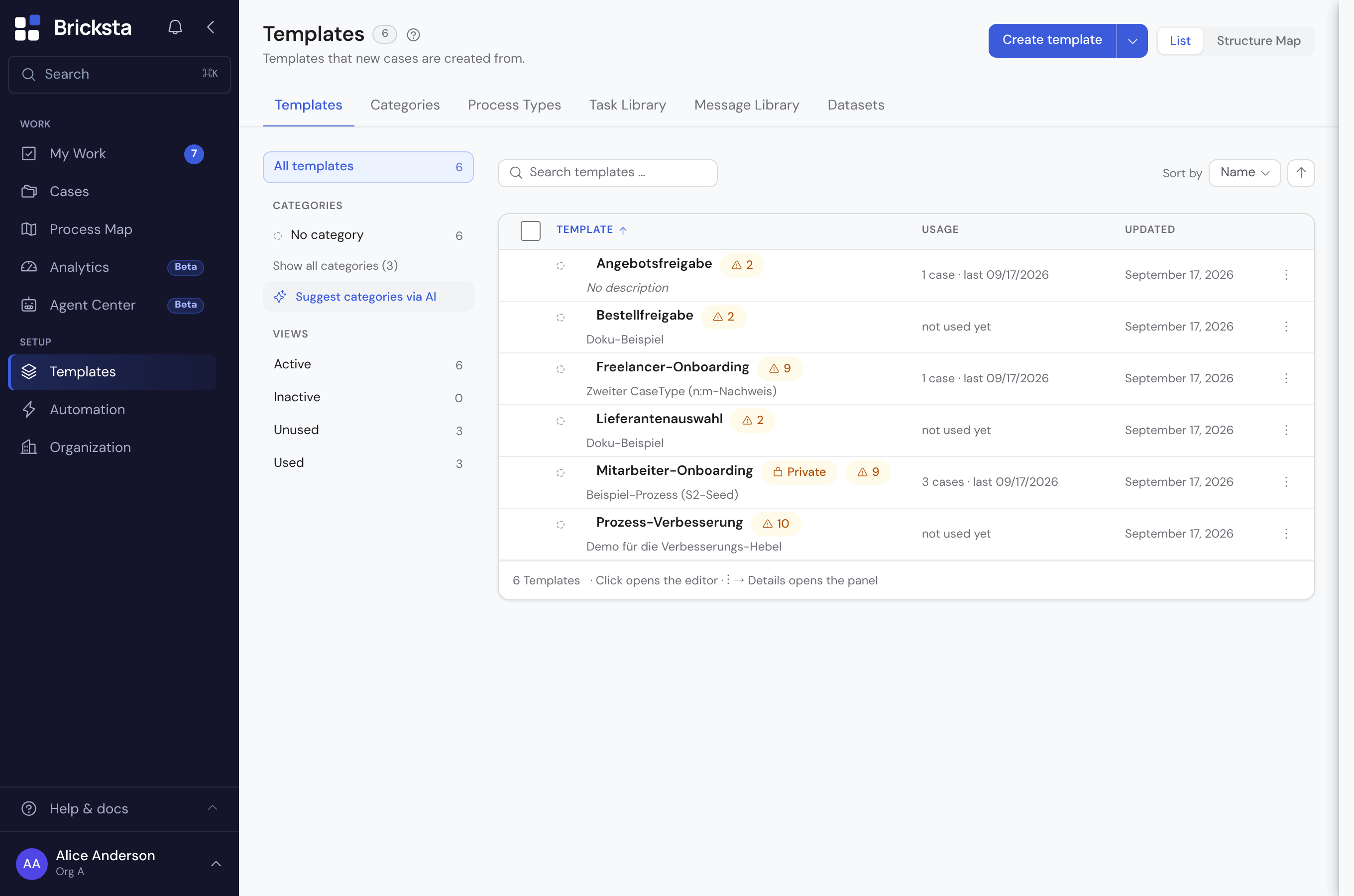
- 1In the templates list, click Create template and choose Describe with AI.
- 2Describe your flow in a sentence or two. Or attach existing material via Attach documents or BPMN.
- 3If needed, set a Deadline per task under Options.
- 4Click Generate. The template visibly builds up in the background.
- 5When it is done, it opens in the editor. Review and adjust it there.
How many generations you have left this month is shown on the Describe with AI card. Under Your recent descriptions, Reuse text takes over an earlier description.
Attaching documents and BPMN exports
You don't have to type the flow. Bricksta reads process descriptions (PDF, Word), screenshots, diagrams, spreadsheets or a BPMN export. You can also paste a file or image with Ctrl+V; an extra note is optional.
| With a BPMN export | What happens |
|---|---|
| Tasks, order, branches | Bricksta keeps them faithfully. |
| AI additions | How far the AI may add to them is set under Options → BPMN enrichment. |
| Before it builds | Bricksta shows the detected structure (tasks, branches, roles) for you to confirm. |
| Several processes in the model | You pick which ones each become their own template. |
| Elements not taken over | Message flows or multi-instance markers, for example: the confirmation lists them with a count. |
| File with a DOCTYPE declaration | Rejected for security reasons. Export it without one. |
Setting deadlines and cancelling
| Case | What applies |
|---|---|
| Deadline per task | None, 1 day, 3 days, 1 week or Custom (1 to 365 days). Every task without its own deadline gets this value. Automatic steps get none. |
| Cancel | No template is created. The run still counts towards the monthly allowance. |
| Leaving the page or losing the connection | The run stops. The templates page offers it to you for 24 hours to continue, without a new run. |
Refining an existing template
- 1Open the template in the editor and click Edit with AI.
- 2Describe the change, for example “make the review phase optional”. You can attach documents or a BPMN export.
- 3Check the coloured markers and the tally in the banner above the structure.
- 4Confirm with Mark as read. Then you publish the new state.
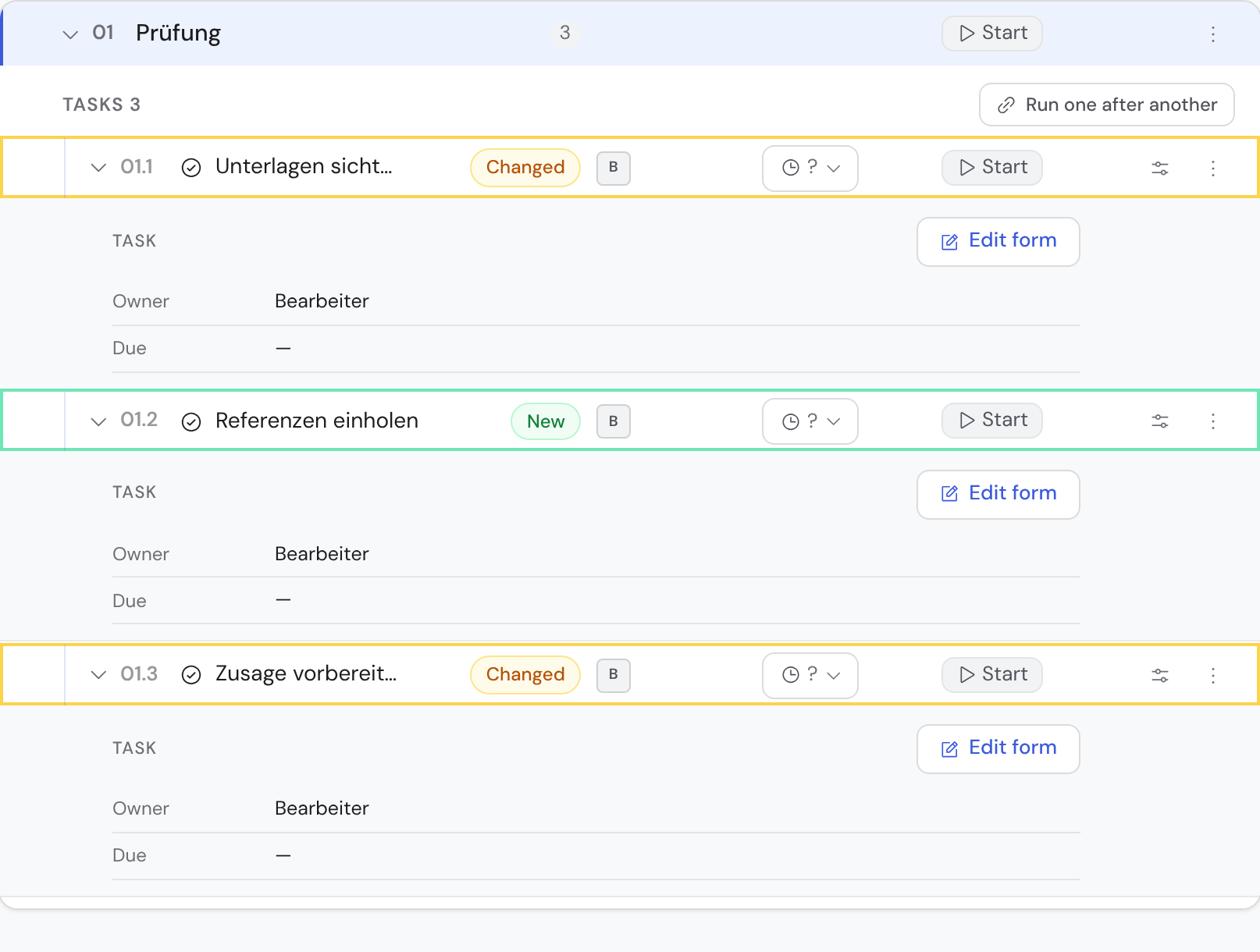
- 1Changed: amber outline
- 2New: green outline
The AI keeps working in the same template and rebuilds nothing. What you set by hand is preserved: approvals, assignees, due-date anchors, file restrictions, documents, field mappings and option colours.
What did the AI change?
| Marker | Meaning |
|---|---|
| Green, New | The AI created the building block. |
| Amber, Changed | The AI changed the building block. |
| Amber, two positions (e.g. “5 → 1”) | The AI only moved the building block. |

- 1Tally of the change
- 2Expand the AI rationale
- 3Mark as read
While the banner is up, Bricksta allows no structural deletion. Renaming and changing settings still work. That way you correct a suggestion while you judge it.

When reordering, the AI gives a rationale for each position. Read the ones for unchanged positions in particular: if a sentence does not hold up, the AI only assumed the order was right. If the AI changes nothing, the banner says “no change needed”.
What the AI does not do when refining
| Case | What applies |
|---|---|
| Removing building blocks | The AI deletes nothing. What it leaves out, the banner lists under left out by the AI. You can delete it after Mark as read. |
| Order against a dependency | A step with a dependency stays put. Tell the AI “B should only run after A” or use Run in sequence. |
| Incomplete order | If the AI does not return a position for every workflow, Bricksta stops. The template stays unchanged. |
| Steps acting on behalf of another person | The AI only changes them if you could do so yourself. Otherwise it leaves them out, and the banner names them. |
Rework loops and back-jumps
- If you describe a loop like “on rejection, go back to drafting the quote”, the AI adds the back-jump. Without a number, three correction rounds apply.
- A back-jump into an earlier workflow is possible. The banner then names the affected workflows and how many phases it resets.
- The AI does not create an invalid back-jump (forward, onto itself). The banner names it so you can decide.
- Back-jumps you switched off are left alone. Back-jumps within a phase hang on the approval; you set that up in the editor.