On this page
How to: Publish a template
- 1Look at the check button in the template header. Red means there are errors that block publishing.
- 2Click the check button and fix the errors with the buttons next to each finding.
- 3Click Publish. A sheet shows every change since the last version, with before → after.
- 4Read what the changes mean for running cases, and confirm flagged changes one by one.
- 5Click Confirm publishing. New cases are now created from the new version.
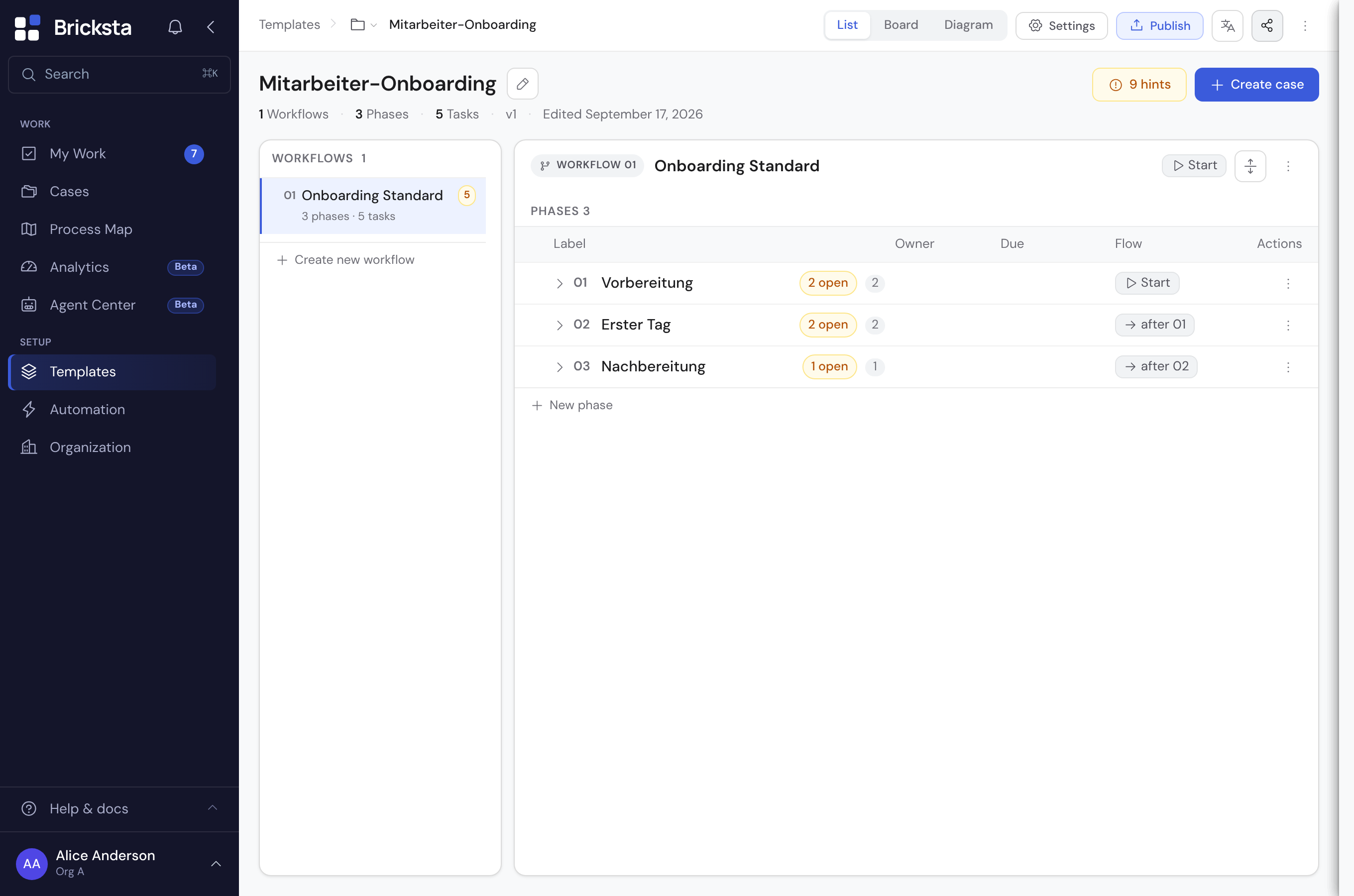
- 1Publish
- 2Status: Active · Changed since v1
- 3Check button
- 4Findings band with ‹ › and Findings only
What happens to running cases?
Every case runs against the state of the template it started with. The case header shows which version that is at the top right, e.g. “Template v2”.
| What you do | New cases | Running cases |
|---|---|---|
| Change things in the editor | Keep coming from the last published version — also via triggers, schedules, intake forms and agents. | Untouched. |
| Publish | Get the new version. | Keep their version. The sheet says, e.g., “3 running keep their version”. |
| Change a setting that takes effect immediately (such as category or retention) | Immediately. | Also immediately. The sheet marks it with “takes effect now, also in running cases”. |
| Delete a building block | No longer know it once you publish. | It stays fully functional there. |
| Reset the draft | Only get the old state after you publish. | Stay on their version. |
| Delete the whole template | Only possible while no case references it. | If cases exist, deactivate the template instead. |
A template that has never been published cannot create a case yet. How to publish while creating a case is described in Creating a case.
How does the editor save?
The editor saves every change right away, field by field. Saved in the header confirms it. If someone else changed the same field meanwhile, nothing is overwritten silently.
| The editor says | Meaning | What you do |
|---|---|---|
| “Not saved: someone else changed this in the meantime” | Someone changed exactly this field. The editor loads the current state. | Check the new state and change it again if needed. |
| “… was deleted in the meantime” | The entry no longer exists. | Nothing — your change no longer applies. |
| “Being edited right now — please try again in a moment” | The template is being written to at the same time. | Simply save again. |
Checking the template
The check button sits in the header next to the status and is always visible. It carries the most serious finding of the whole template and opens the findings list.
| Check button | Meaning | What you do |
|---|---|---|
| Red, e.g. “2 errors” | This state cannot be published. New cases keep coming from the last version. | Fix every error, then publish. |
| Yellow, e.g. “9 hints” | Cases are created, but something inside them runs incomplete. A hint blocks nothing. | Rework recommended; publishing still works. |
| Green, “Checked” | Nothing is open. | Publish. |
Working through findings
The findings list is split into errors and hints, grouped by workflow within each. Next to each finding sits the button that fixes it, e.g. Set assignee or Set due date. The click opens the task at the right spot.
Above the phases, a band names the findings of the workflow on screen. ‹ › steps through them, Findings only hides everything without a finding. Phases and tasks with findings carry a yellow number, workflows a number on their tile.
Common findings
| Finding | Kind | What you do |
|---|---|---|
| “No assignee” | Hint | Set a role or person. Otherwise the task stays unassigned. For external tasks the finding reads “External task without external role”. |
| “No due date” | Hint | Set a deadline. Otherwise the task is never due and sends no reminders. |
| “AI task without instruction” | Error | Fill in the AI tab or switch the task to another type. |
| “Follow-up case won't start” | Error | Turn on Auto-start in the follow-up template. Otherwise the follow-up case stays a draft. |
| “Answer never takes effect” | Error | Pick the field once in a condition or under End the case on an answer. |
| “Document without a number” | Error | The number sequence refers to the quote, but no case is created via Cases per row with the PDF of the row. |
Many tasks lack a deadline
- When several tasks lack a deadline, typically after an AI generation, Bricksta reports one hint, e.g. “37 tasks without a deadline”.
- Set deadline for all 37 picks a common duration, optionally Count working days only, and the starting point under Counted from.
- Only Apply to 37 tasks writes, and only to tasks without a deadline. You can change each deadline individually afterwards.
Confirming changes one by one
Some changes have to be confirmed one by one when you publish. They appear at the top of the sheet under To confirm, with a summary and the reason.
Click Show content on each row and read the change word for word; only then can you tick the box. Still open above the buttons counts down. Confirm publishing stays disabled until every box is ticked.
If the template changed while the sheet was open, “Changed in the meantime” appears at the top. Confirm the changed entries again.
What an AI revision changed and how to review it is described in Generating and refining templates with AI.
Deleting building blocks
You delete workflows, phases, tasks and fields via Delete in the ⋮ menu. With a multi-selection, the selection bar at the bottom deletes several siblings together. Deleting requires the template-management right.
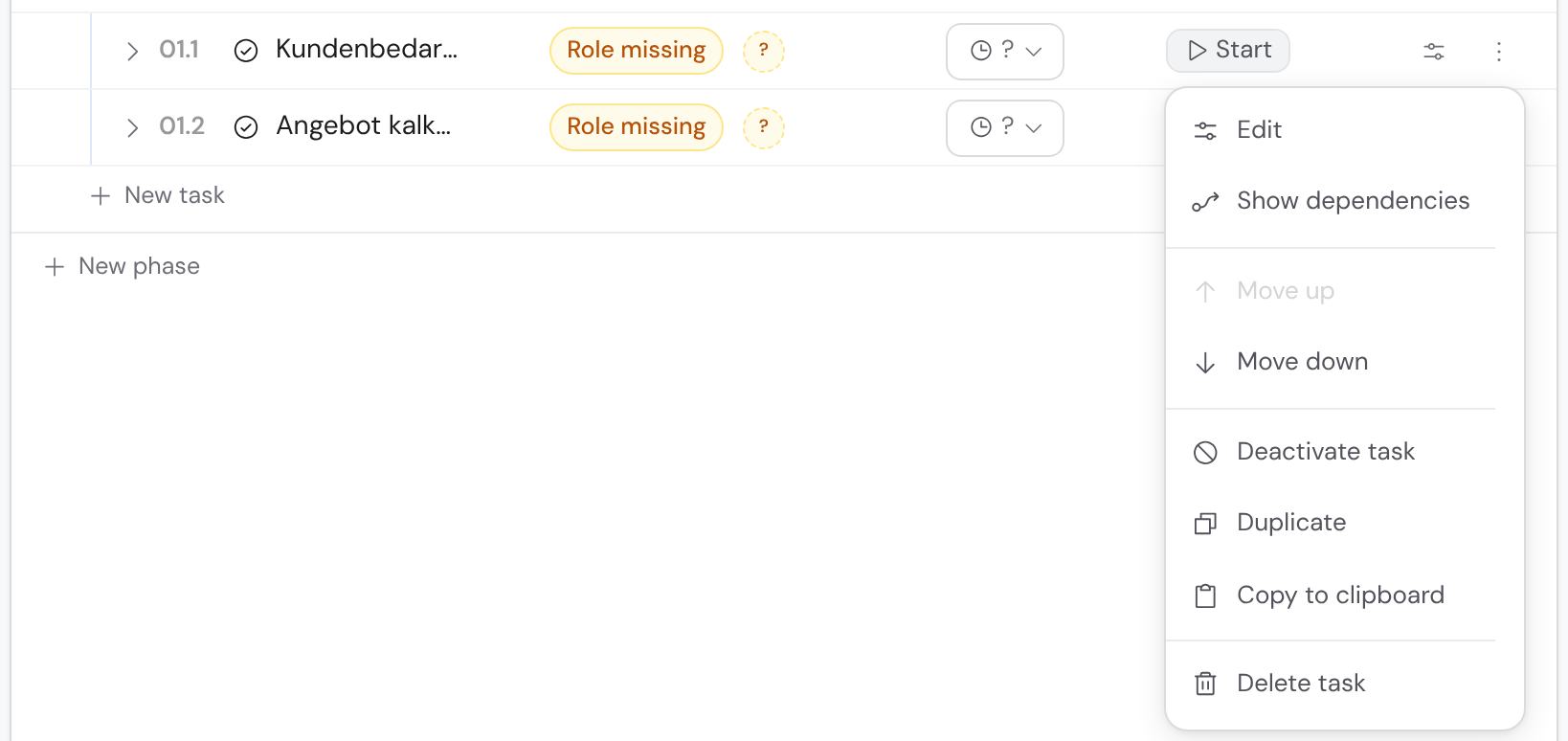
- 1Deactivate task
- 2Delete task
The confirmation dialog names the block. Contained parts, such as the fields of a task, go with it. Running cases keep the block.
A deletion cannot be taken back with Undo. If you are unsure, prefer Deactivate task for tasks.
If you try to delete a template still in use, the message names the number of cases: running, completed, cancelled. Completed ones count too. Show cases opens all of them.
Resetting the draft
If you went down the wrong path in the draft, reset it to an earlier version. This also works after publishing: version 4 was wrong, so back to 3 and publish again.
- 1Click the status in the header, e.g. “Active · Changed since v3”, and choose Reset draft.
- 2Pick the version at the top of the sheet. Each version shows its own preview.
- 3Read the preview: Will be lost, Stays and Also removed outside the template.
- 4Click Reset draft. The editor reloads the state.
| The sheet says | Meaning |
|---|---|
| “Nothing to reset” | The draft already matches the chosen version. |
| “Not possible. Running cases use parts …” | A running case uses something the chosen version does not know. Pick a newer version. |
| “Not possible. The workflow … is also used by another template” | A shared workflow cannot be reset for one template alone. |
| “Changed in the meantime” | Someone changed the draft. The preview shows the new state; confirm again. |
Tasks, fields, options, order and dependencies get the version's state back. A field deleted in the draft is the same field again afterwards. Settings that take effect immediately stay.
Viewing a template's history
History in the editor's ⋮ menu shows every change with time, action, building block and person. Use the search box to filter by keyword.
| Entry | What it shows |
|---|---|
| Rename or value change | The difference as old → new, e.g. “Active: Yes → No”. |
| Role or assignee changed | The names instead of just “changed”. |
| AI revision | The tally “N added · M changed · K left out”. Whatever was left out stays in the template until you delete it. |
| Duplicating, pasting, Run one after another | A single entry instead of one row per building block. |
| Publishing, resetting | One entry each, e.g. “Draft reset to a version”. |