On this page
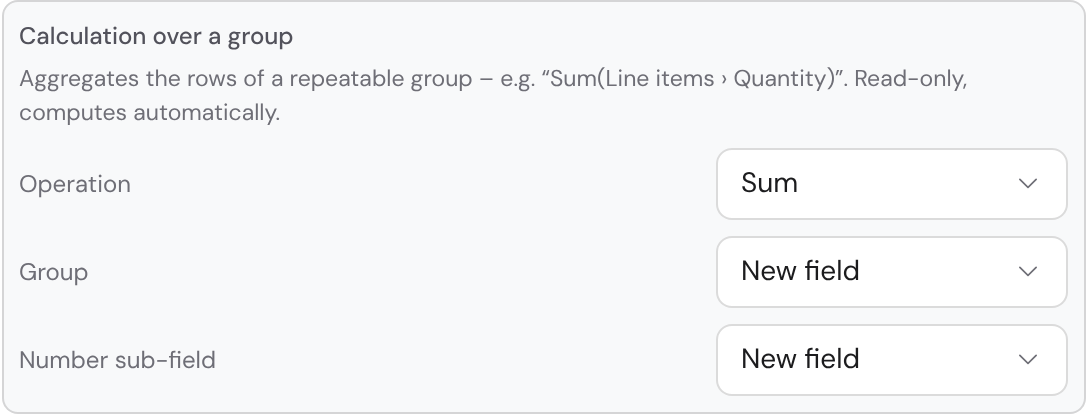
How to: calculate an offer amount
- 1In the task, add a Repeatable group “Line items” with the sub-fields
QuantityandUnit price. - 2Add a sub-field
Total priceand switch on Calculate per row:{Quantity} * {Unit price}. - 3Open the Calculations view and click New calculation. Choose Add up: the sum of
Total priceacross all rows of “Line items”. - 4Name the field
Offer amountand check it with test values: 2 × €100 and 1 × €50 give €250. - 5Publish the template. New cases calculate from now on; running cases keep their version.
Which calculation fits?
A calculation is not a field type of its own but a switch on many fields. Once it is on, the field is read-only and recalculates with every change. New calculation leads to the field in five steps: choose the kind, fill in the sentence, set name and place, check with test values, review the effect.
| Kind | What for | Example |
|---|---|---|
| Add up | Sum, count, average, minimum or maximum of a table column | Sum of all package prices |
| Calculate | Combine fields with + − × ÷ or “less … %” | Net amount less Discount % |
| Per row | Calculate in every row of a table from that row’s fields | Quantity × Unit price |
| Larger or smaller value | Take the larger or smaller of two values | Minimum fee or amount |
| If – then – otherwise | One of two values depending on a condition | If new customer, then 5 %, otherwise 0 % |
| Tiers | The highest tier reached applies | 5 % discount from €30,000 |
| Date | Add days, working days or months | Start plus 10 working days |
| Text | Join text or list a column | all services, separated by commas |
| Across several cases | Calculate over child and follow-up cases | Sum of all invoices of an order |
Whatever cannot be combined, the wizard rejects before saving: net with gross, two currencies or a cycle. You pick fields from a list that names task, net or gross and currency. You can create a new input field such as “Special discount %” right there.
The Repeatable group supplies the rows a calculation runs over. Which sub-fields it can have and how it looks in the form is covered in Fields and forms. If a total is only an intermediate figure, hide it under Rules with Don't show in the task.
Maintaining all calculations in one place
The Calculations view in the editor’s switcher shows every calculated value as a card: name, calculation as a sentence and result with test values. Expanded, it shows the worked example, Affects and Show formula. Open in form jumps to the task with the field.
Edit opens the same sentence builder as New calculation. If a formula does not fit its building blocks without loss, the card says “Can only be edited as a formula.” and leads to the expert view. Values only taken over from a dataset appear below under Taken from datasets.
Case list columns
Below the calculations you set up the columns of the case list, up to eight. Each column is a sentence of choice fields, say “[Sum] of [Offer amount] weighted by [Probability] across all cases”. Every change is saved right away. You need the permission to manage the organization.
Tracking targets
Next comes Target tracking: it sets how the overview stacks cases and compares them with a target. There is no built-in calculation. What counts, you set through the columns. Changes apply right away, without publishing. Stacking cases shows how this looks in the overview.
| Setting | What it controls |
|---|---|
| Stack by | The dataset field to stack by, also a field of a card |
| Target and deadline | Which dataset column supplies the target and the deadline |
| Direction | “Reach target” or “Stay within cap” |
| Offer amount and contract amount | Which figure counts as offered and which as committed |
| Count as committed | Which outcomes make a case “committed” |
| Compare target with | The column the gap and headroom are calculated against, say “Weighted offer amount” |
Probability per phase
- If there is a probability field, you set a default in percent per phase, say “Quote” 30%. When a task of the phase becomes workable, the field is set to this value.
- Anyone who enters something else by hand is shown with name and date below the field. A new default only changes cases still at the old value.
- With binding, the default applies when the phase starts, even over a manual entry, say “Accepted” 100% and “Declined” 0%.
- If the probability sits in a card, the default applies per card. With Only for certain cards … you set it only for matching cards, say “Accepted is Yes”.
Writing a formula yourself
In the expert view you write the formula as in a spreadsheet. Name fields in curly braces, such as {Quantity} * {Unit price}. Write a table column as {Packages[Price]}. A semicolon goes between a function’s arguments; the function names are German.
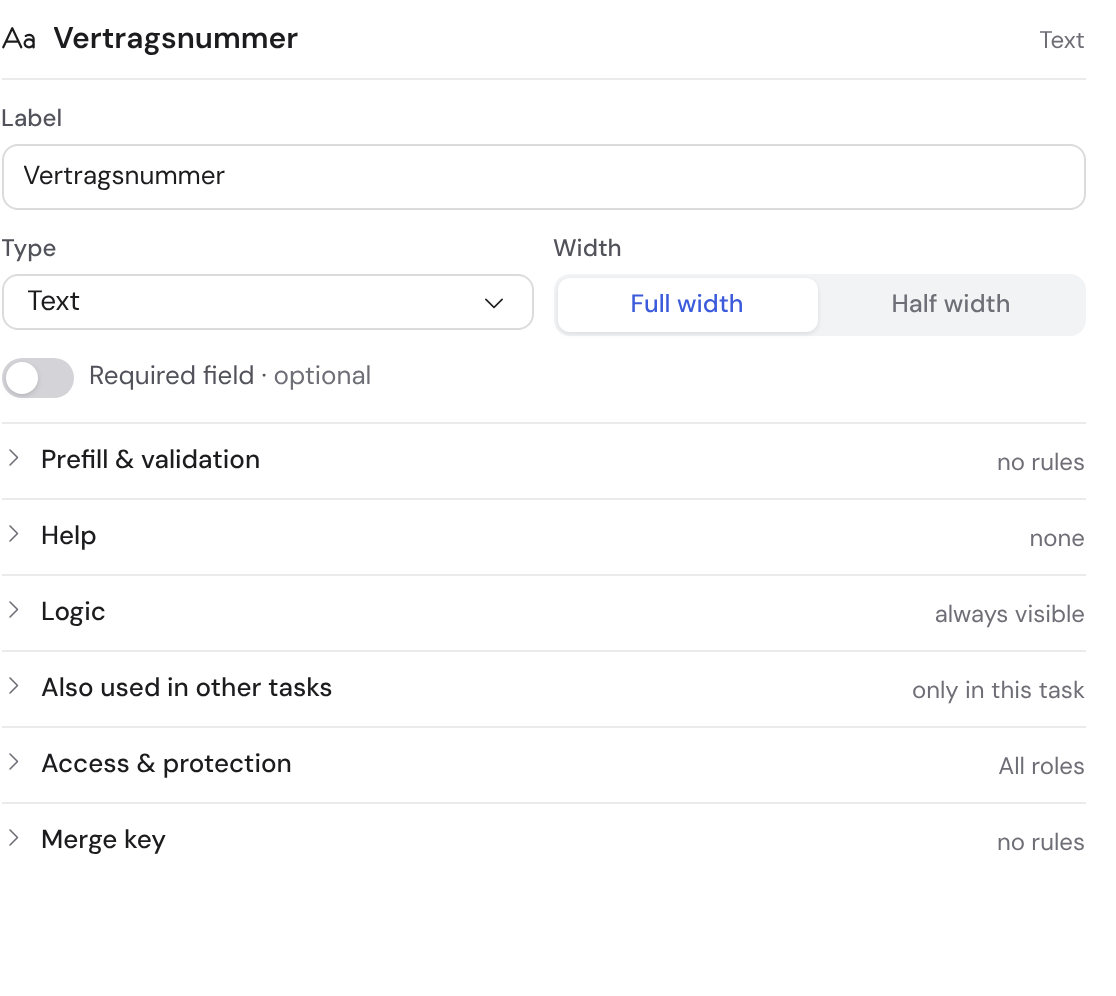
- 1Type: pick the field type the calculation belongs to
| Building block | Result | Example |
|---|---|---|
| SUMME, ANZAHL, MITTELWERT, MIN, MAX | Value over a column, optionally matching rows only | SUMME({Packages[Price]}; {Packages[Status]} = "confirmed") |
| WENN(condition; then; else) | One of two values | WENN({New customer}; 5; 0) |
| RUNDEN(number; digits) | Rounded number | RUNDEN({Total}; 2) |
| STAFFEL(value; from …; …) | The highest tier reached | STAFFEL({Total}; 0; 0; 30000; 5) |
| WERKTAGE(date; count; calendar) | Date skipping weekends and holidays | WERKTAGE({Start}; 10; "Hessen") |
| MONATE(date; count) | Date whole months later or earlier | MONATE({Start}; 12) - 1 |
| JAHR(date) | The year | JAHR({Document date}) |
| LISTE(column; separator) | The values of a column as text | LISTE({Line items[Service]}; ", ") |
| STEUERSATZ(customer; document date) | Tax rate in percent on the document date | STEUERSATZ({Customer}; {Sent on}) |
| & | Join text | {First name} & " " & {Last name} |
A date plus a number is a date, one date minus another the days in between. If the day does not exist for MONATE, the last day of the month applies: 31 Jan plus 1 month gives 28 Feb.
Tax and holidays as of the document date
You calculate VAT with {Offer amount} * STEUERSATZ({Customer}; {Sent on}) / 100. If the customer is a field of type company, the tax code from its master record applies. Instead of a customer you can also name a tax code such as "Inland".
The rate that applied on the document date is used, without a document date today’s rate. If a company has no tax code, the field says “Not computable”. If the customer is in a dataset, copy the tax code into a field of its own with From dataset and name that field in the formula.
| What | Where you maintain it | What applies |
|---|---|---|
| Tax codes | Organisation → Taxes → Tax codes, with the “Manage taxes” permission | Preset: Inland 19%, Inland ermäßigt 7%, EU-Unternehmen 0%, Drittland 0%. New rates apply from today. |
| Holidays | Organisation → Calendar → Holidays & working days | Nationwide and per federal state, 2024 to 2035. Your own holidays apply from the day they are added. |
| Completing a task | — | The case recalculates first and freezes the state of that day. |
A formula that names a tax code no longer finds it after it is renamed. Regional holidays such as Assumption Day you add yourself, see Team calendar.
Creating a case from every row
If a task captures several quotes in a table, every row can become a case of its own. You set this up on the task whose completion creates the cases: on the After completion tab under New cases per row. In the sentence, pick the group and the template of the new cases.
Bricksta immediately suggests which value goes into which field, and saves. A target must be a field that applies to the whole case. Once a row has its own case, it is locked in the task; changes are made in the new case.
| Setting | What it does |
|---|---|
| Carry over values | Pick the target per field or “do not carry over”. Only fields of the same type fit. |
| Only for certain rows | A case only for rows in which a condition holds, say “Accepted is Yes” |
| Bundle | Rows with the same value in a column, say “Congress”, become ONE case |
| PDF of the row | Each new case receives its row’s offer in a file field |
| Responsible | Who is responsible for the new cases; without a choice, whoever completes the task |
Bundling, amendments and carried-over tables
- When bundling, you choose per column how values come together: from the first row, as a sum, as a list or as the earliest or latest date.
- If the customer accepts more in a second round, a case of its own is created with only the new rows. Its title ends in “(Amendment 1)”.
- A related table, such as milestones per quote, comes along. If a row matches no bundle, the request shows “not carried into any new case”.
- At most 50 cases are created per completion; the rest follow within a minute. The rule does not travel when you duplicate the template.
Showing values from the case and external systems
Some fields capture nothing but show an existing value read-only. That way the context sits right in the task, without anyone typing it again.
| Field | What it shows |
|---|---|
| Case field | Case type, title, priority, due date or creation date |
| Reference | The value of a field from an earlier task, also a column of any group. Required and visibility are set on the source field. |
| Live lookup | A record from a connected system such as Jira or HubSpot |
| Live value | One attribute of the live lookup, say its status. More in Integration fields. |