On this page
Opening the Activity panel
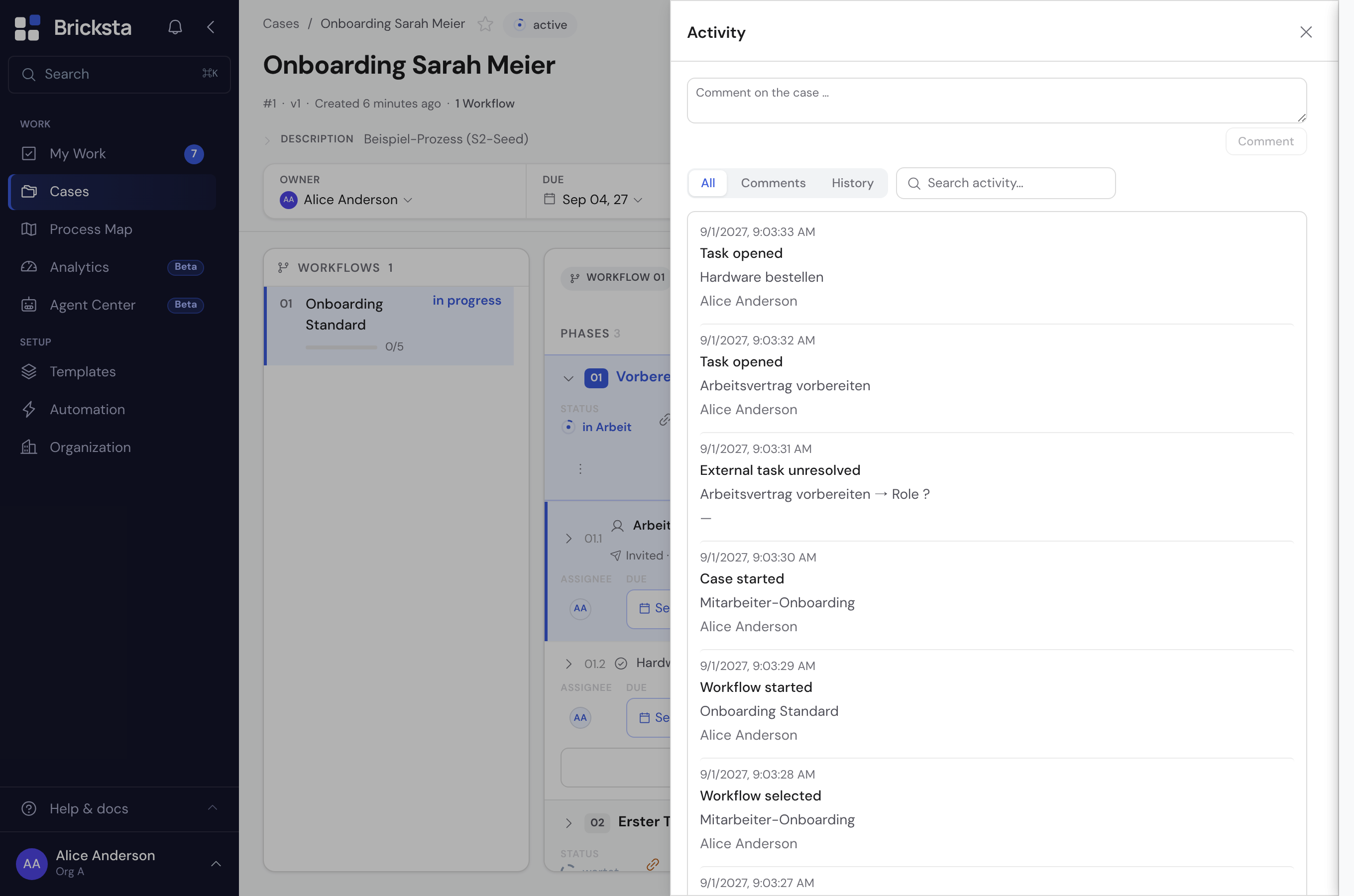
In the header of a started case, next to the “List / Diagram” toggle, sits the “Activity” button. The small number on it shows how many comments the case has. A click opens the panel — a side panel from the right on desktop, a bottom sheet on mobile. It is reachable in both views, so also in diagram mode. On mobile the header is collapsed so that the task list is visible right away: tap “Details” there first, then the “Activity” button appears.
Commenting and mentioning
At the top of the panel you write a comment on the case. Type “@” to mention a person — they get a notification (in the app and by email) and jump straight to your comment. Comments on individual tasks or fields also appear here, labelled with their target.
If the comments cannot be loaded right now, the panel says so: a notice with “Try again” appears above the list, and the comments loaded so far stay put instead of vanishing. Saving and displaying are two steps — if the first succeeds and the second fails, the message reads “Comment saved, but the list could not be refreshed”. Your comment is written; don’t write it again, just reload the list.
All · Comments · History
The toggle at the top of the panel separates the conversation from the automatic history: “Comments” shows only the discussion, “History” only the logged events (task opened, completed, assigned …), “All” both. Next to it sits the full-text search: it searches action, object and person, and narrows the list within the view you picked. Filtering by object type or period is not available here — the activity feed under “Analytics” offers that. The link “Open in activity feed” at the foot of the panel takes you there already narrowed to THIS case: the narrowing is visible in the “Case” selector and can be released again via “All cases”.
Protocol as PDF
At the foot of the panel you pull the full case protocol — header data plus the gap-free history — as a PDF. It always contains the entire history, no matter which view the toggle is showing: as evidence for audits or for sharing outside Bricksta, nothing may be missing.
If you want to see all cases at a glance rather than a single case, use the organization-wide activity feed under “Analytics” (see “Activity across all cases”). The other way round: the feed only ever shows what you are allowed to see anyway — narrowing to a case is a filter, not access.