How it works
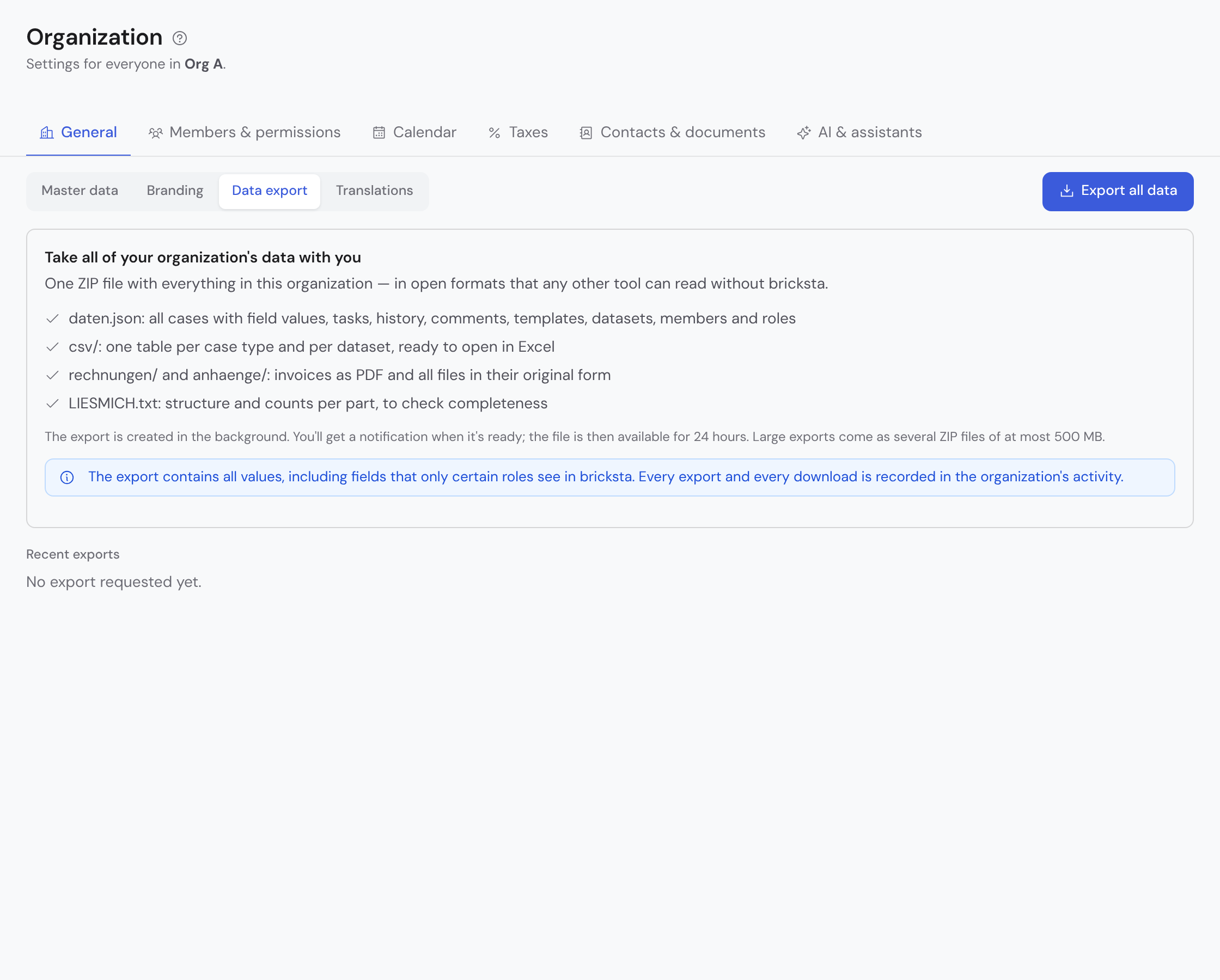
- 1Under Organization › General › Data export, click “Export all data”. The export is created in the background; you can leave the page.
- 2Wait for the notification. Every started 500 MB become one ZIP file, a “part”; expect about 5 minutes per part.
- 3Under “Recent exports”, download every part: “Part 1 of 2”, “Part 2 of 2” and so on. The parts are available for 24 hours, then Bricksta deletes them.
- 4Use LIESMICH.txt in part 1 to check that everything is there: it lists the counts of all parts, and they match the numbers in the row under “Recent exports”.
What the ZIP file contains
| Folder or file | Contents |
|---|---|
| daten.json | All data, machine-readable: cases with field values, tasks, history, comments, templates, datasets, members and roles |
| schema.json | Structure and meaning of every column |
| csv/ | One table per case type and per dataset, ready to open in Excel |
| rechnungen/ | Invoices as PDF, unchanged as issued |
| anhaenge/ | All files in their original form, folder = case number |
| LIESMICH.txt | Structure and counts for checking; in part 1 for all parts, in every further part for that part |
The export contains all values, including fields that only certain roles see in Bricksta — which is why only owners and admins can request it. Access secrets such as portal links and keys are not included. If a file is deleted while the export is running, it is missing from the export, and the LIESMICH of the part it would have been in names it. Every export and every download is recorded in the organization's activity.
What the states mean
| State | Meaning | What you do |
|---|---|---|
| Queued | The export is requested and starts with the next run, within 5 minutes. | Nothing; a second click does not start a second export. |
| Being created | Bricksta writes the parts, one after the other. | Nothing; you get a notification. |
| Ready | All parts are ready. | Download every part within 24 hours. |
| Failed | A part could not be created even after three attempts. Then no part can be downloaded, not even one that was already finished. | Click “Export all data” again. If it fails again, write to hallo@bricksta.com. |
| Expired | The 24 hours are over, the files are deleted. | Request a new export. |
After the contract ends
After a cancelled contract ends, the organization is read-only for 30 days, and the export keeps working. The yellow band at the top names the last day for it. Request the export on that day at the latest — it still completes — and download the parts right away: after that Bricksta deletes the data (Managing members).
The data export is the export of your organization, for example to move to another tool. Information about the data of a single person is something else; see Data privacy and retention.