On this page
How to: act on an improvement opportunity
- 1Open Analytics or a template's Workshop and go to Top improvement opportunities.
- 2Read the row: the problem, the sample size n, the confidence and the estimated effect.
- 3Click the blue lever, such as Make optional or Require approval.
- 4Check the change in the dialog and confirm it. It goes into the template draft.
- 5Publish the template. Only then does the change apply to new cases.
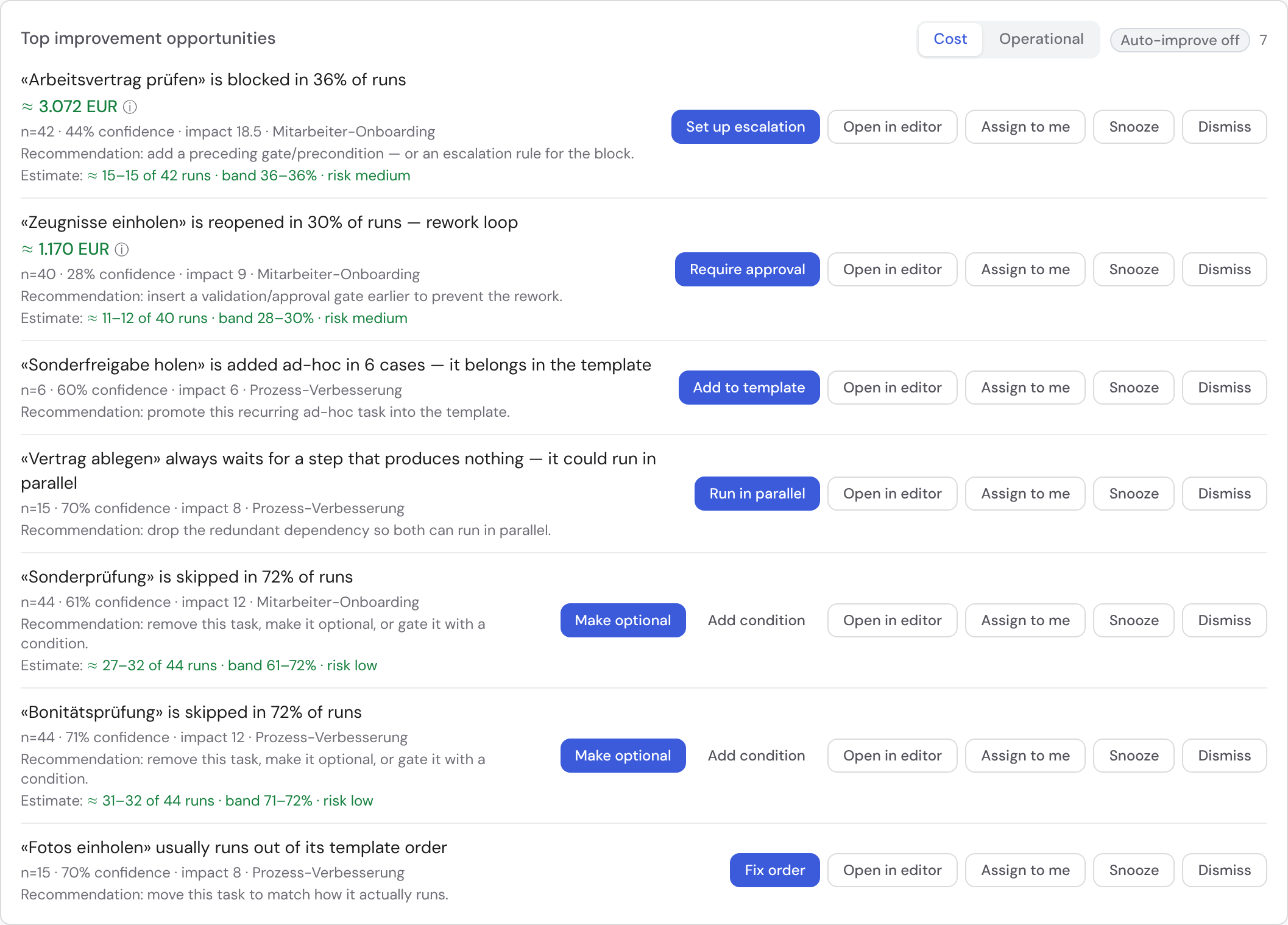
- 1Monetary value when cost rates are set
- 2Sample size n, confidence and impact
- 3The lever, here Set up escalation
- 4Sort by Cost or Operational
Which opportunities does Bricksta detect?
| Opportunity | What is behind it | Lever |
|---|---|---|
| Skipped task | It is skipped in most runs. | Make optional, Add condition |
| Block hotspot | It is blocked unusually often. | Set up escalation |
| Rework loop | It is reopened often. | Require approval |
| Reassignment churn | It is reassigned over and over. | Set owner |
| Unassigned backlog | Executable tasks sit without an owner and age. | Resolve |
| Missing due date | It chronically runs without a due date. | Set a default due date |
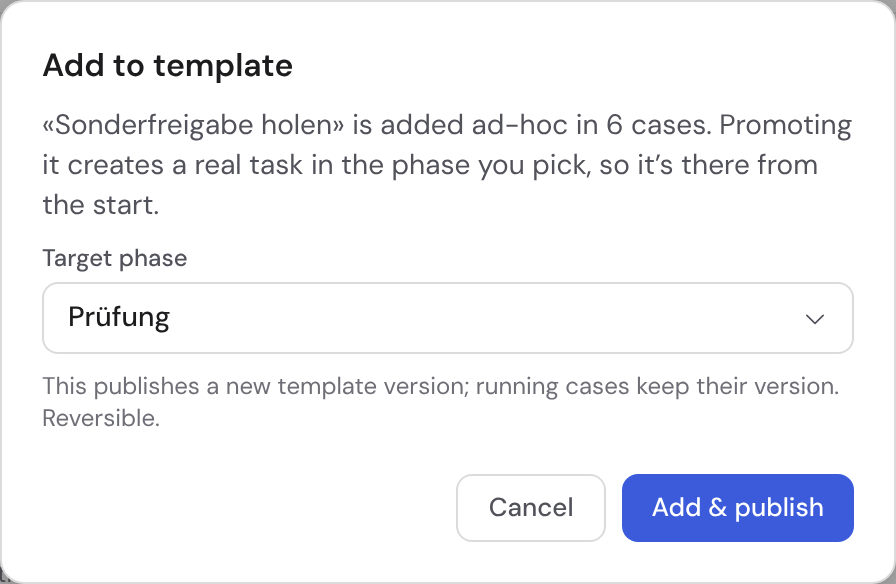
| Recurring ad-hoc task | It keeps getting added by hand. | Add to template |
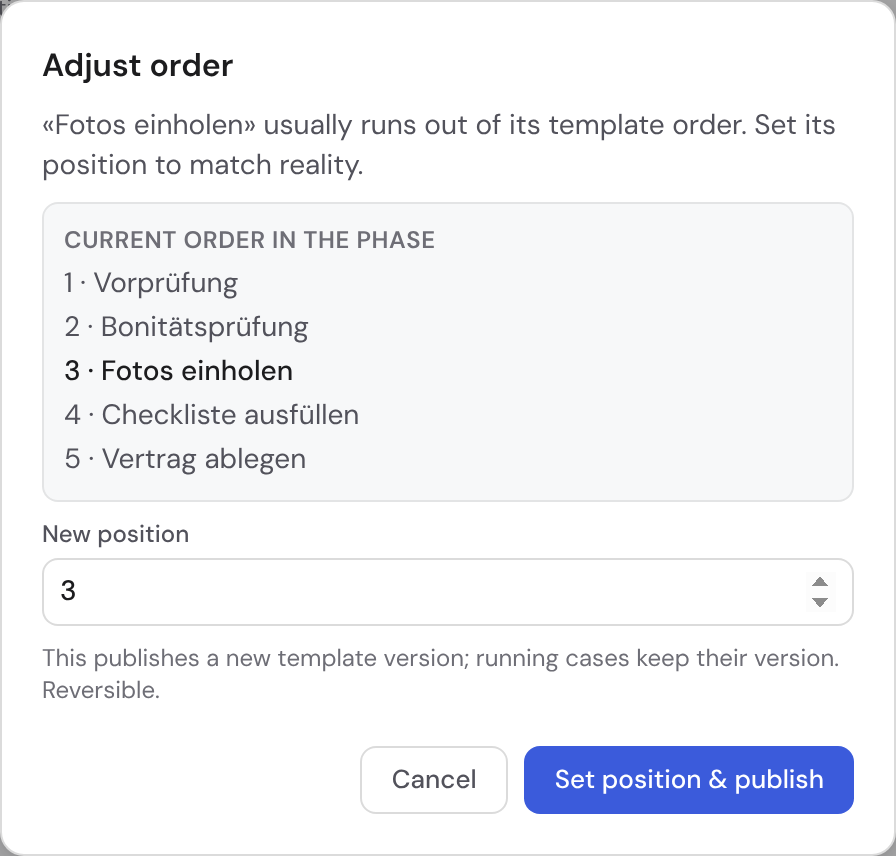
| Wrong order | It usually runs at a different point than planned. | Fix order |
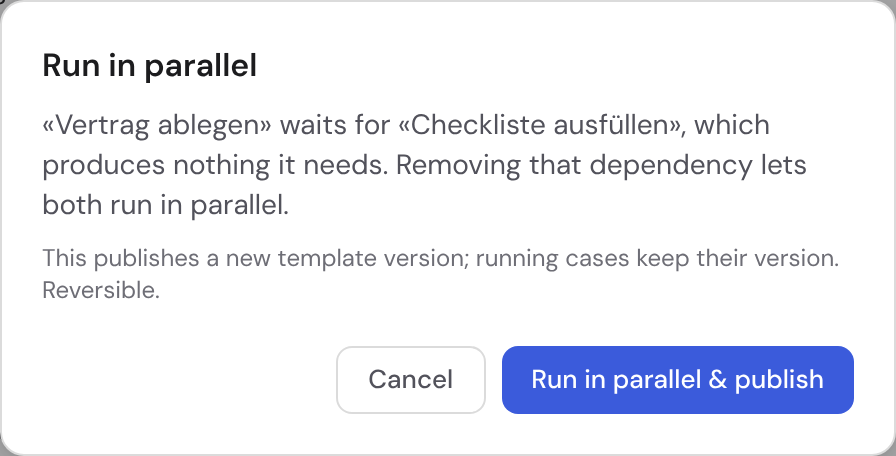
| Needless dependency | It waits on a step that gives it nothing. | Run in parallel |
| Dead branch | A conditional branch is never taken. | Open in editor |
| Role without execution right | The assigned role may not complete the task. | Grant the right or choose another role |
| Unstaffed role | Nobody in the case holds the role. | Staff the role under Participants |
| Key person, capacity imbalance | One person carries almost everything. | A hint only, without names |
With Find improvements in the workshop you also let AI look for patterns. It only receives aggregated metrics. Its suggestions carry an “AI” badge and a rationale.
How reliable is an opportunity?
| Figure | Meaning |
|---|---|
| n | In how many runs the pattern was measured. Below a minimum, no opportunity appears. |
| Confidence | A cautious score: 100% at 3 cases does not beat 80% at 200 cases. |
| Impact | The list sorts by it: what costs the most, not what happens to stand out. |
| Estimate | The expected effect as a band, such as “≈ 25–28 of 40 runs”. It is not an actual value. |
| ≈ EUR | The monetary value when cost rates are set (see below). |
Apply a lever
Each lever opens a dialog with the concrete change. Running cases stay untouched, and you can revert every apply. If the template was deleted, the lever reads “(deleted template)” and you dismiss the opportunity.
Example: add a condition
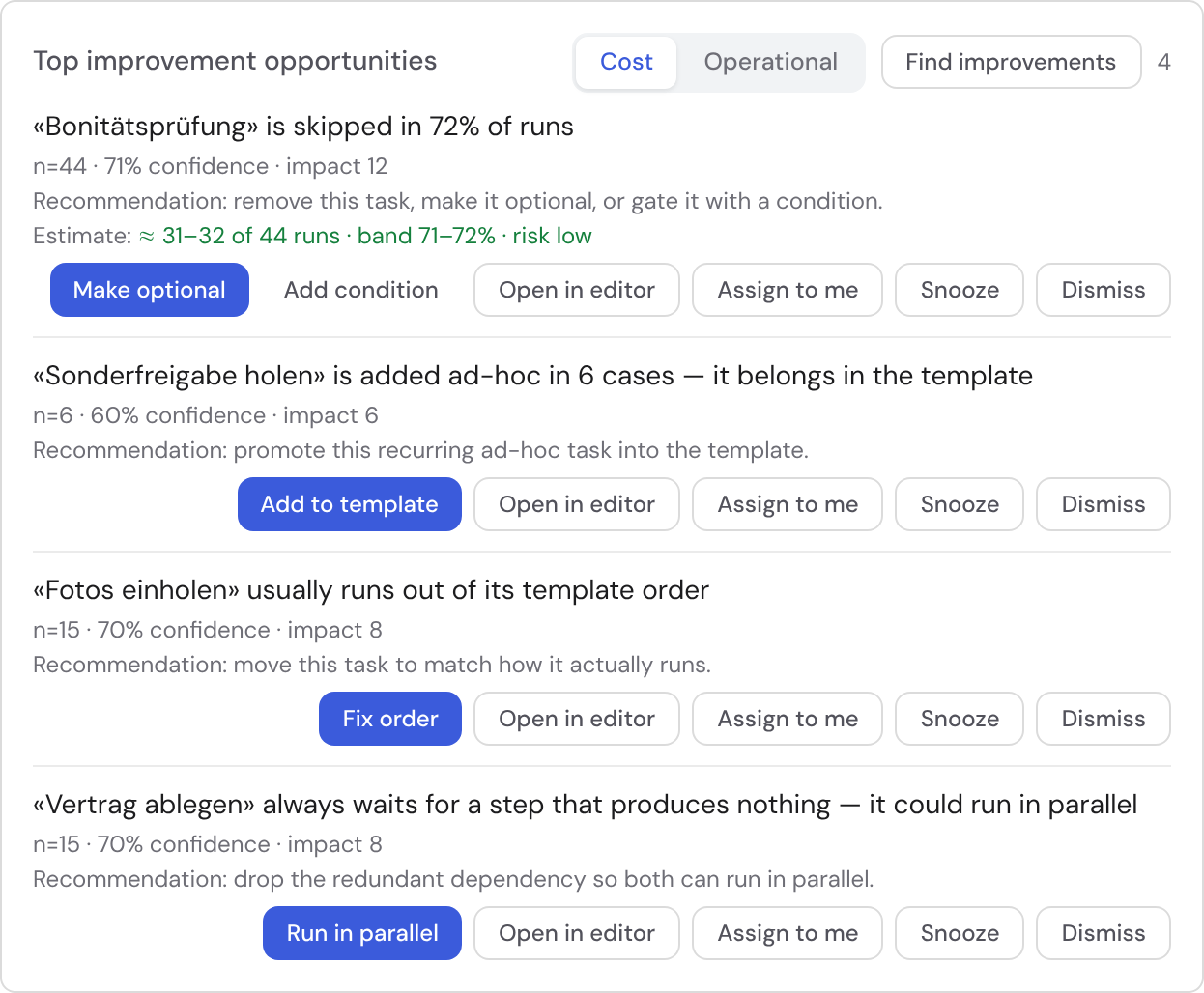
- 1On an often-skipped task, click Add condition.
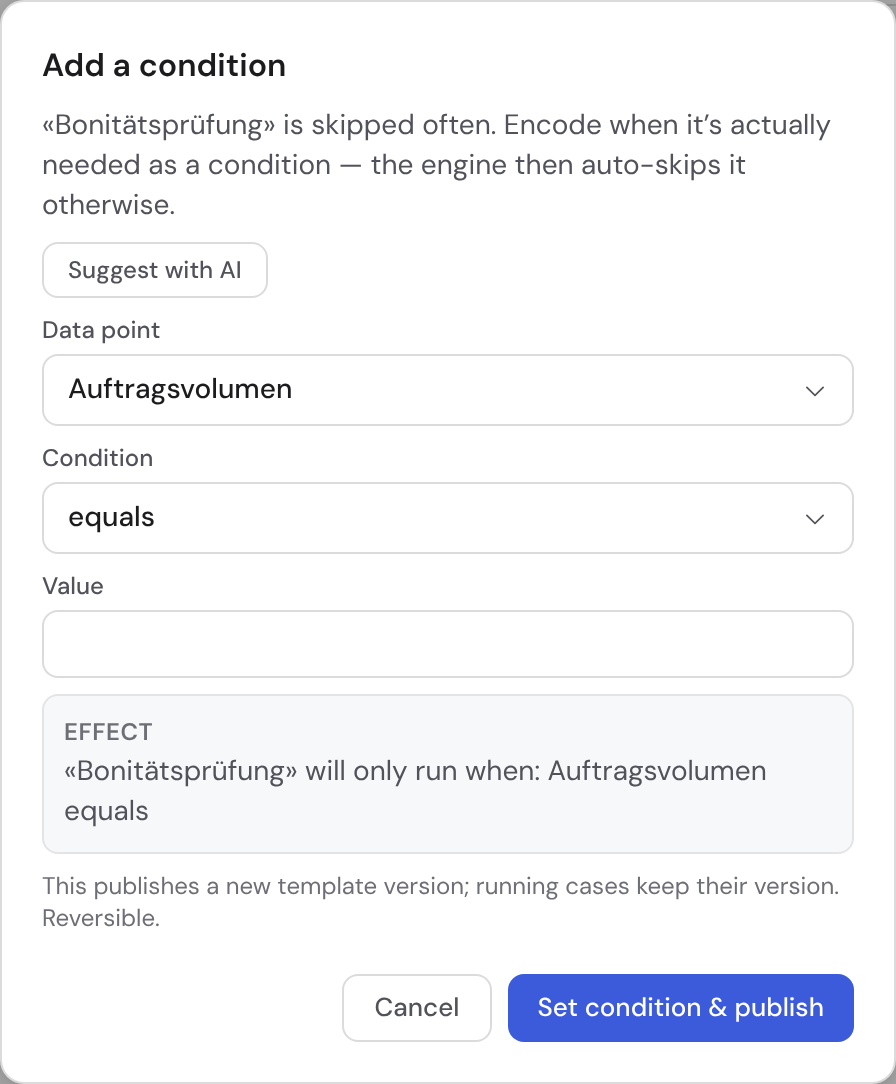
- 2Pick field, condition and value. The Effect line shows the finished rule in plain language.
- 3Or click Suggest with AI: Bricksta pre-fills the fields and explains the suggestion.
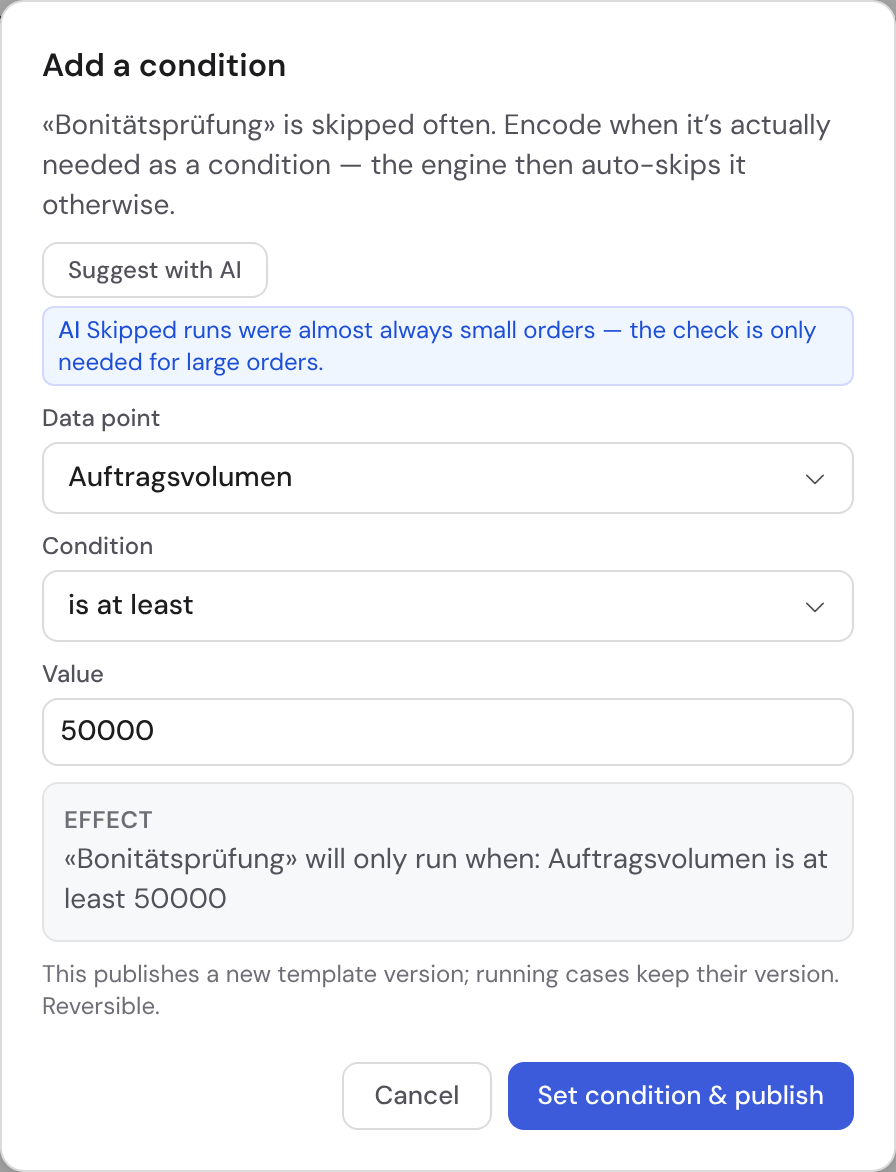
- 4Confirm. The task then only runs when the condition holds.
What to keep in mind with conditions
- If a field says “becomes required”, your choice makes it required.
- Bricksta rejects a field that is only captured after the task. Pick a field from an earlier step.
- Bricksta derives the AI suggestion from past runs. You still confirm it yourself.
The other levers
| Lever | What you do in the dialog |
|---|---|
| Add to template | Pick the target phase where the task will sit from now on. |
| Fix order | Set the new position in the phase. |
| Run in parallel | Confirm that the redundant dependency is dropped. |
| Make optional | Confirm. Skipping it no longer blocks the following tasks. |
| Require approval | Confirm. An approval then comes before completion. |
| Set owner | Pick the fixed role for the task. |
| Set up escalation | Nothing else: it creates an escalation rule, not a template change. |
| Open in editor | For opportunities without a lever of their own. You change the template in the editor. |
Share and track opportunities
| Button | What happens |
|---|---|
| Assign to me | You take over the opportunity. The All / Mine toggle shows only yours. |
| Snooze | The opportunity steps back for now. |
| Dismiss | The opportunity disappears from the list. |
| Resolve | For unassigned tasks: you assign them in the same panel, one by one or all at once. |
Once a week a summary of the open opportunities arrives, in the app and by email. Assigned opportunities go to their owners, the rest to everyone with access to the analysis.
Value opportunities in euros
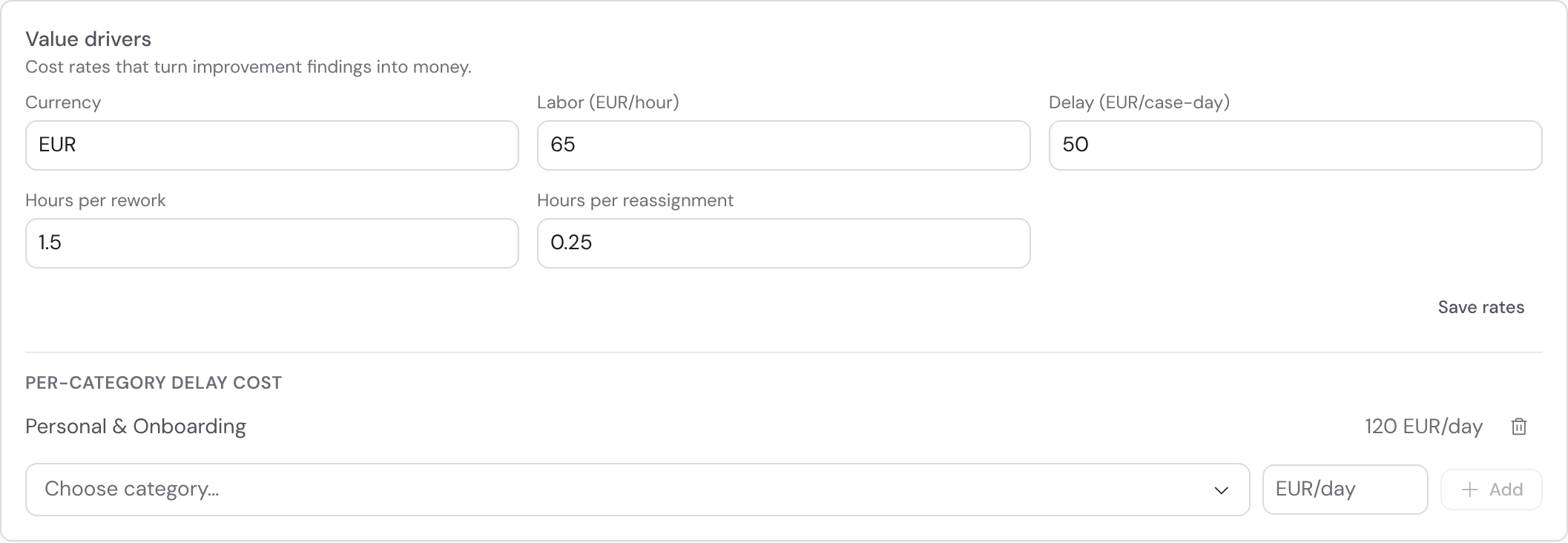
If you set cost rates under Value drivers, every opportunity gets a monetary value. Each amount is quantity times rate, and the info icon shows the breakdown. You need the Manage organization permission for this.
| Rate | What it counts for |
|---|---|
| Currency | For example EUR. |
| Labor (EUR/hour) | Rework and reassignment: count times hours times rate. |
| Delay (EUR/case-day) | Blocks, unassigned work and imbalances. Urgent cases count more. |
| Hours per rework, Hours per reassignment | The assumed effort per event. |
| Per-category delay cost | A daily rate of its own for one category. |
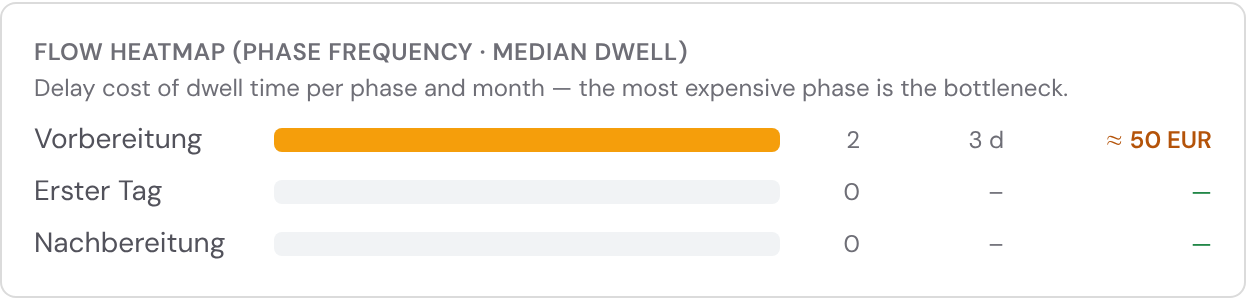
With rates set, the list sorts by euros. Cost and Operational switch the sorting. In the flow heatmap each phase carries its delay cost per month, and the most expensive one is the bottleneck.
Clean-up hints such as a skipped task, a dead branch or a missing due date deliberately get no euro value. They have no real cost basis.
Apply improvements automatically
If you turn on Auto-improve and autopilot, Bricksta sets missing default due dates itself. Such changes appear as “by autopilot” in the history. Structural changes to the template always stay with you.