On this page
What focus view is for
The sheet lowers the barrier to entry — especially for occasional or less tech-savvy users who prefer to fill in a form field by field rather than navigate a task list. One task equals one sheet: a large form, one work step, one primary action.
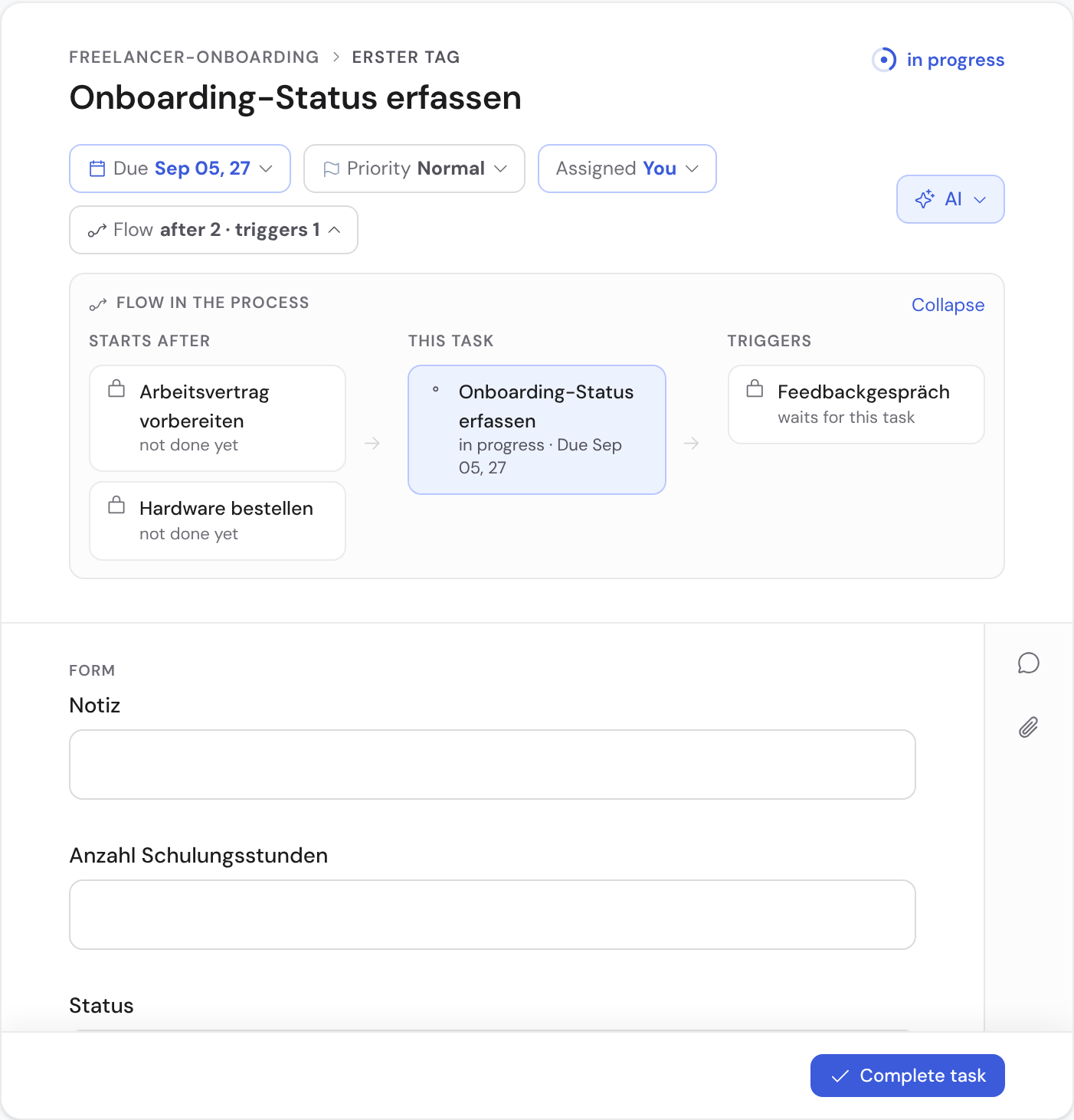
Opening the sheet
Inside a case you expand the task in its row: the sheet appears right there, without leaving the page. Under “My Work”, clicking a task opens its sheet next to the list — that sheet is built for daily work and described in the article “Assigning and working on tasks”. A link to a task, from a notification or an email for instance, opens it there.
Both sheets show the same task: what you enter in the case also appears under “My Work”, and the other way round. What differs is how you work with them — this article describes the sheet inside a case.
The sheet header
The top line says where the task belongs: the case, the phase with its number, and in front of the title the task’s own number — for example “02.1”, the same number as in the case’s list. Below sit the chips for status, due date, assignee (for a role task as “Name as role”) and flow. The priority only appears when it is “High” or “Urgent”. Next to them, the “AI” button opens prefilling the fields and the summary of the answers so far.
The ⋮ in the top right gathers the less frequent actions — depending on your permissions: release despite a dependency, block, skip, insert an ad-hoc task before or after, change the priority, share a guest link and manage the invitation of an external approver.
The flow in the process
The header holds the “Flow” chip — the same button as on workflow and phase; if the task is waiting for an open predecessor, it is orange. Clicking it expands “Flow in the process”: on the left, under “Starts after”, the tasks this one was waiting for; on the right, under “Triggers”, the ones waiting for it. Every neighbour card says where it stands — “done” with time and person, “not done yet”, “waits for this task”, or the condition in plain words. A click jumps to the neighbouring task.
The flow does not stop at the phase boundary. Predecessors also include the last tasks of the immediately preceding phase, and successors the first tasks of the following phase. So even a task sitting at the very start or the very end of its phase shows you where it comes from and where it leads.
An empty column does not mean the same thing on both sides. On the left, “Starts the process” is a statement — this task genuinely has no predecessor; “Loading …” only means the neighbours across the phase boundary are still being fetched, so wait a moment and the answer appears. If the lookup did not answer at all, the column reads “Predecessors could not be loaded” with “Try again” next to it: the list is then unresolved, not empty — the chain deliberately claims nothing in that case. On the right, the column says “No successor”.
Filling in and completing
- Fill in the fields — required fields, format checks, AI suggestions, attachments and comments apply as usual.
- If required fields are missing, “Complete task” stays in the form, marks the open fields and jumps to the first one — you are not sent on first. A field that must be on “Yes” is named in the notice above the footer; “Go to field” takes you there.
- Once all required fields are filled, “Complete task” completes the task — directly, with no interim page; for three seconds afterwards an undo message lets you take the step back. If an approval is configured, it is submitted instead. Under “My Work” the button reads “Complete & next”, and there you have ten seconds for “Undo”.
- Comments and files live in the column on the right. The comment button on a field opens it at the matching thread.
You can work on the same task inside the case or under “My Work” as you prefer — it makes no difference to the result; the values are the same.
Limits
Today you fill in exactly one task per sheet. A multi-page process document that stacks several tasks of a case into one continuous paper-style document is not yet available.