On this page
How to: handle a customer escalation
- 1The customer clicks Escalate your request in the portal and gives a reason.
- 2The yellow Customer escalation card appears on the case. Click Move to In progress or Add measure.
- 3If the report is unclear, ask with Ask a question.
- 4Once all measures are done, describe the solution with Present solution.
- 5The customer answers in the portal with Yes, solved or Still an issue.
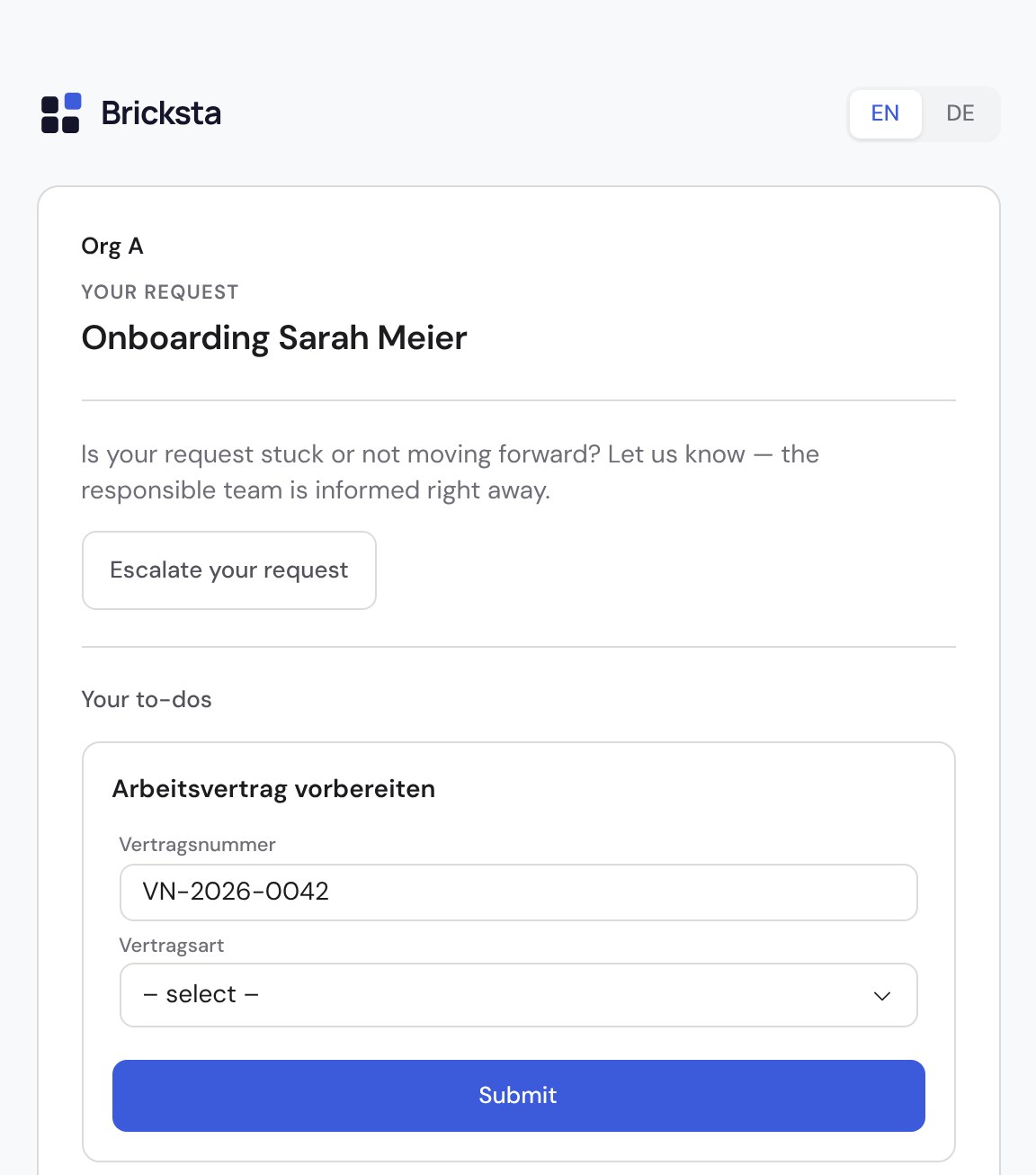
- 1Escalate your request
Move to In progress and the first measure stop the chain. After that no stage fires, not even to managers. This cannot be undone.
What happens after a customer report?
Every organization has the rule “Customer reports escalation”. It is active from day one. You can pause it and adjust its steps, but you cannot delete it.
| When | What happens |
|---|---|
| Right away | The case owner is notified and an activity entry is written. |
| After 24 hours | An email to the owner's manager, as long as nobody has reacted. |
| After 48 hours | A task for the case owner. |
| Question open | The stages pause. After 7 days without an answer you are notified. At most 3 questions. |
| 72 hours after the solution | Bricksta reminds the customer. |
| 168 hours after the solution | The escalation closes “without a reply”. |
| “Still an issue” | Back in progress. From the second time on, the next stage is due immediately. |
| Up to 30 days later | The customer can reopen it with Still an issue. |
Special cases of a customer escalation
- While it is open, the case cannot be completed or cancelled. The notice offers Present solution right there.
- You may present a solution even with an open question. The question is then withdrawn.
- The customer only sees the state and the solution, never rules, stages or names from the team.
- In the portal the request carries a chip: “Answer needed”, “In progress” or “Resolved”.
- For a category, a process type or a template you create your own customer rules. The most specific one applies.
Create an escalation rule
Under Escalation rules, click New rule. A rule checks a trigger and runs its steps one after another while the situation persists. When the situation clears, the incident closes by itself.
| Field | What you choose |
|---|---|
| Trigger | Case blocked, at risk, stalled or overdue; Task blocked; SLA breach imminent; Phase waiting too long; Unassigned work aging. |
| Scope | Whole organization, Category, Process type or Template. |
| Escalation steps | Per step: after how many hours, which action, to whom. |
| Action | Notify, Email, Log activity. With autopilot also reassign a task or create a follow-up task. |
| Recipient | Role, group, person, case owner or manager with levels up. |
Good to know
- “Case at risk” reacts to task signals. For the case's own passed due date, choose “Case overdue”.
- Groups only work for notifying and emails. Reassigning needs a single person.
- If there is no manager at the chosen level, Bricksta logs a warning. The step is not silently dropped.
- You maintain the reporting line under Members or in the org chart.
- Intervening steps run as “Timer” on behalf of the rule's creator. If they lose the right, the step is skipped.
- Per rule and case there is exactly one open incident.
Acknowledge an escalation
Open escalations appear in the overview under Open escalations. Acknowledge stops the chain, and Bricksta asks first. After that it reads “Acknowledged · chain stopped”, in the case history as well.
Customer escalations carry the label “Portal” and their state there. You handle them on the case.
Turn on autopilot
Autopilot starts off: Bricksta only shows escalations and sends nothing. You find the Autopilot off switch at the top right of Open escalations. You need the permission to control autopilot.
| Tier | What runs automatically | Requirement |
|---|---|---|
| Inform | Notify, Email, Log activity | Autopilot on |
| Intervene | Reassign a task, create a follow-up task, default due dates via Auto-improve | Autopilot on plus a separate opt-in |
| Structure | Nothing: you always change the template yourself | Not possible |
While autopilot is off, due steps are not lost. When you turn it on, Bricksta catches up on them.