On this page
- 1Pick the section on the right under “On this page”, e.g. “The terms of the stacked view” — or search across all chapters at the top.
- 2Each row names the term as the app calls it, with its meaning next to it or below it.
- 3The core terms (template, case, task, workflow / phase, category, letter greeting) are in the glossary.
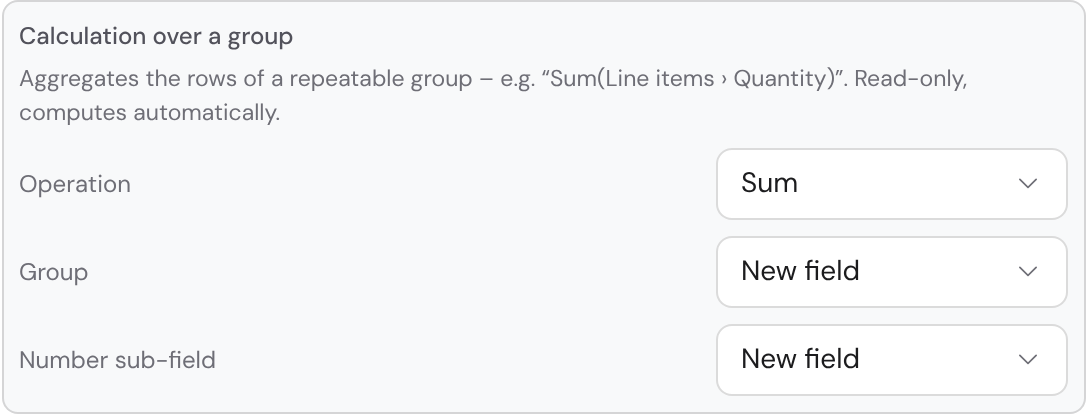
The terms of the stacked view
When you stack the case list by a dataset field, every stack’s “Whole inventory” box shows how far the stack has reached its target. These terms appear there and on the tile beside it.
| Term | Meaning |
|---|---|
| Target | How much a stack should reach when the case list is stacked by a dataset field. It comes from the number column of the dataset row named by the template's target tracking. With the measure “Sum” it is an amount, with “Number of cases” a count (“5 of 8”). If it is missing, the header shows “No target set”. |
| Target tracking | The one place per template (“Calculations” view) that sets up what the header of a stack counts: which dataset field stacks the cases, which columns give target and deadline, the direction, offer and contract amount, the probability, which outcomes count as committed and what the target is compared with (“Compare target with”). Nothing counts by itself — without a setting the header shows no target or no amount. |
| Binding phase default | A switch per phase under “Probability per phase” (view “Calculations”): when the phase starts, the probability is set to its default — even over a value entered by hand and even if no task of the phase carries the field, say “Accepted” 100%, “Declined” 0%. Without the switch the default only suggests. Applies right away, without publishing. |
| Probability per offer | The probability as a number in a card (per offer) instead of once per case — chosen in target tracking as “card › field”. A phase default then applies per card; per phase it can be limited to cards that meet a condition (“Only for cards where …”), the other cards get a value of their own. Below the value in the card it says where it comes from. |
| Committed | What a stack already has for certain: the sum of its cases with a committed outcome, each with its contract amount (without a contract amount, with the offer amount) — with the measure “Number of cases” their number. Running cases do not count here yet. If no column is chosen under “Compare target with”, the header compares the target with committed. |
| Compare target with | The target tracking setting that decides which figure a stack measures its target against: an overview column of the same template that sums — plainly or weighted, say “Weighted offer amount”. A stack’s “Whole inventory” box names the figure with the column's name (“Weighted offer amount €34,000 of €50,000”), with a traffic light by the view's limits (default red below 60%, green from 90%); a click shows the calculation per case. Without a choice the header compares with committed, as it does with the measure “Number of cases”. Applies at once to all running cases, without publishing. |
| Gap | Target minus the figure the target tracking compares the target with (the chosen column, without a choice committed): what is still missing to reach the target. If it is open and the deadline is no further away than the view's warning threshold (30 days by default), a yellow badge warns “Gap · N days left”. |
| Missed | What the gap becomes once the deadline has passed: the amount that was short of the target. |
| Deadline | By when a stack should reach its target. It comes from a date column of the dataset row, the first one unless you choose another. Once it has passed, the header shows “Deadline passed”. Not to be confused with the overrun days in analytics, which count a missed task due date. |
| Cap | The target of a view with the direction “Stay within cap”: an amount that should not be exceeded, such as a budget. From 90 % used, a yellow badge warns. |
| Headroom | Cap minus the compared figure (the column chosen under “Compare target with”, without a choice committed): how much room is left below the cap. |
| Overrun | How far the compared figure (the chosen column, without a choice committed) lies above the cap; red in the bar. An overrun is never offset against the headroom of another stack. |
| Action needed | Tile and filter of a stacked case list. It counts cases without activity for at least ten days, cases with an overdue due date or overdue task, overdue follow-up cases and stacks with a warning; a click shows only these. Not to be confused with “Act now” in analytics: Action needed is a set across the list, “Act now” the call to action on a single case. |
| Saved views | Your own tabs in the case list that remember filters, stacking, target, deadline, direction and measure. Personal at first; with “Share with the organization” every member sees the view, each only with the cases they are allowed to see. |
The terms of calculations
| Term | Meaning |
|---|---|
| Calculation | A value the database calculates in every case from other fields — say the sum of all item prices, an amount less a discount or a weighted sum of amount × probability. All calculations of a template appear in the “Calculations” view as a card with sentence, example and “Affects”; each is saved as a formula. |
| Sentence builder | How you create and edit a calculation without typing a formula: a sentence made of choices (“[Net amount] [less … %] [Discount]”), below it how it reads and the result with test values. For an existing calculation it only opens when its formula fits its building blocks without loss. |
| Expert view | The formula of a calculation in the form, written as in a spreadsheet. “Edit” leads there for a formula that does not fit the sentence builder, and so does “Expert view (formula)” from the builder. |
The terms of a case's analytics
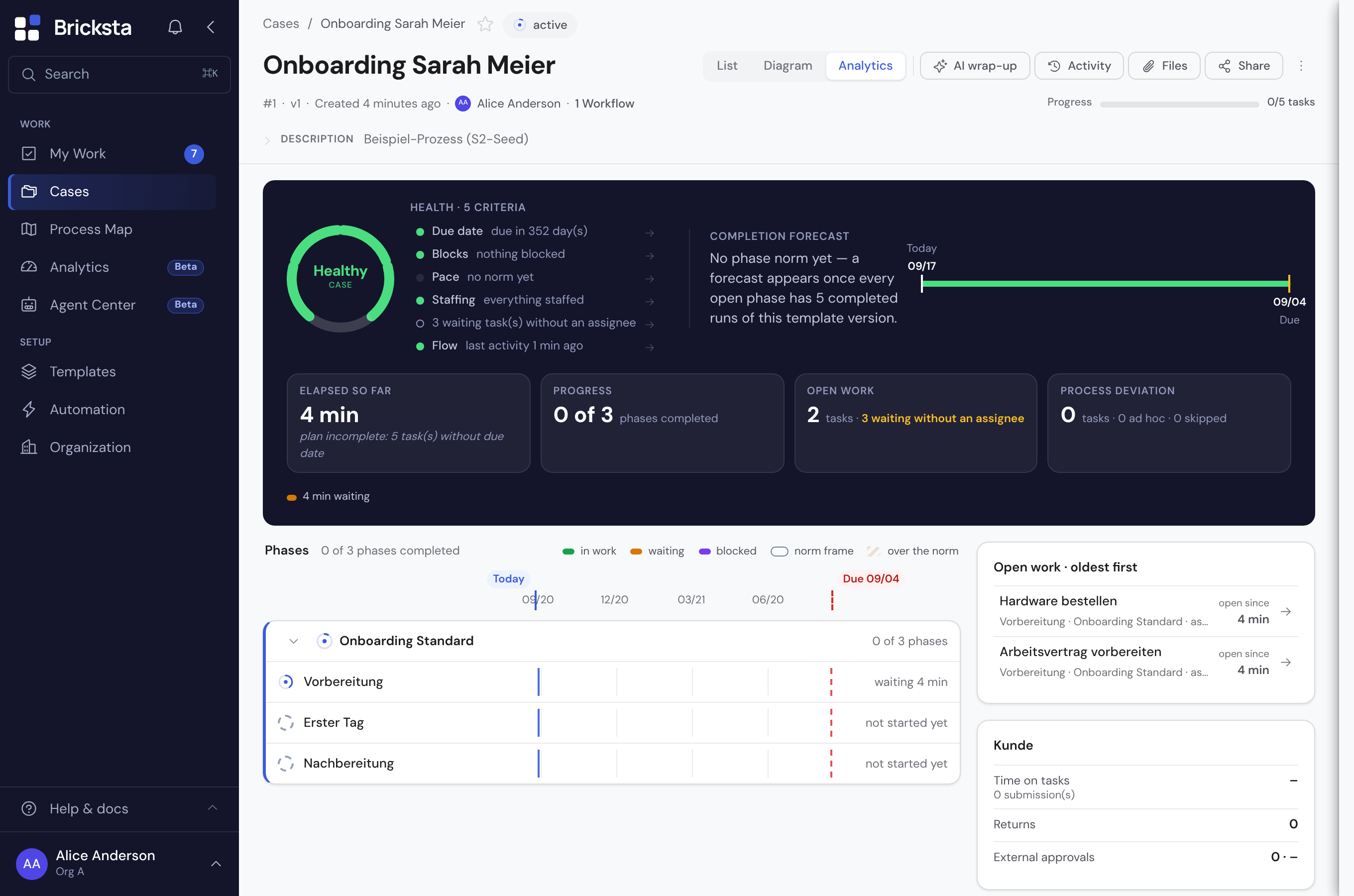
The "Analytics" tab of a case measures the process, not the person. These terms appear there on tiles, rows and cards.
| Term | Meaning |
|---|---|
| Cycle time | The time from a case's creation to its completion — for a running case "so far", up to today. The reference for norm, forecast and time shares. |
| Norm | The median cycle time of the last 20 completed cases of the same template, from five completions on. The comparison figure, not the forecast. |
| Provisional norm | The same calculation over the visible completions when there are fewer than five — with the case count beside it, so nobody takes it for reliable. |
| Plan cycle time | The sum of task due dates along the longest path of the template, from the snapshot frozen at start. The yardstick where no norm exists yet. |
| Forecast | The expected completion: today plus the norms of the phases still open along the longest path per workflow. "At the earliest" when a running phase has already used up its norm. Not to be confused with a "Sum weighted by …" in the case list: that is a sum over today's cases, not a prediction. |
| Forecast per phase | An expected start and end for every open phase; on the timeline a dashed box to the right of today. |
| Waiting time | The time a task was open without anyone working on it — measured per task and summed over all; that is why it can exceed the cycle time. |
| Blocked time | The time a task was explicitly blocked. |
| Time outside | The time portal tasks or external approvals lay outside the house — as a sum for the case, never per person. The surface names the participant by their role (Bewerber:in, Lieferant) rather than calling everyone a customer. |
| Time-share bar | Waiting, blocked and time outside as shares of the elapsed time. Shown only from two distinct workers on, because otherwise the remainder would be one person's working time. |
| Working span | The time from a task's start to its completion. Deliberately not shown on the case: for one person it would be their performance. |
| Target effort | An effort stored on the task definition that the working span would be compared with. Not built, because it would be a person figure. |
| Bottleneck | The running phase furthest past its norm. Listed under "Act now" with a jump to the phase. |
| Standing | Where a running case's elapsed time stands among the last 20 completions of its template: faster than the median, slower than the median, slower than 90% — fixed reference points, not a rank. |
| Process deviation | Tasks that were not in the template (ad hoc) or were skipped. Formerly "plan deviation"; renamed so that "plan" is free for the plan cycle time. |
| Automation share | The share of completed tasks done by an agent or the system — on the case only from two human workers on, the template average regardless. |
| Act now | The block of action rows: findings, bottleneck, customer, action step, agent — every row names a task or phase and has a jump. Not to be confused with "Action needed", the tile of a stacked case list that counts cases across the whole list. |
The terms of translating
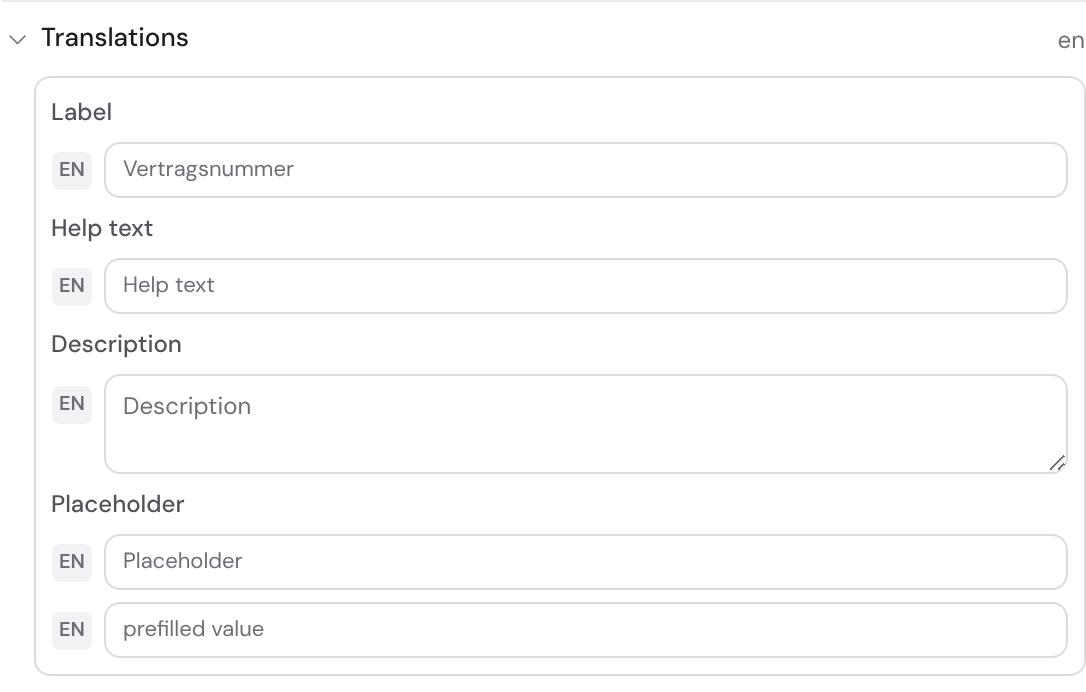
You build in one language and translate in a mode of its own. How that works is in the article “Translating content”.
| Term | Meaning |
|---|---|
| Base language | The language your organization builds in. Every translation refers to it; wherever there is no reviewed translation, everyone reads the base language. Set under Organization → Master data. |
| Content languages | The languages you translate into — in addition to the base language, chosen under Organization → Translations. A content language nobody reads the app in carries an envelope icon: its texts only arrive in emails to contacts with that language. |
| Target language | The one content language you are translating right now. The form shows it, with the original greyed out above. |
| Translation mode | When a target language is picked in the language switch at the top of an editing page, the page is there for translating rather than building. The mode applies for the session, on every page; the base segment switches back. |
The terms of the leave account
A leave account is a ledger: Bricksta never changes a balance, it adds bookings. It is visible to the person, their direct manager and anyone allowed to “Manage personnel data”.
| Term | Meaning |
|---|---|
| Account | A person's leave account for one calendar year. It is created by the first booking; its balance is the sum of its entries. |
| Booking | A booking as a whole: when, who, on what occasion (such as approving a request) and on what basis. A booking can carry entries on several yearly accounts and is never changed or deleted — not even when the person is erased. |
| Entry | A single signed amount in days on an account, for example −3 for three days of leave taken. |
| Counter-booking | How a booking is reversed: a new booking mirrors each of its entries with the opposite sign. A reversal always covers the whole booking. |
| Pot | Where a day of leave comes from, such as carry-over from the previous year, statutory or contractual entitlement. Every deduction records its pot as an entry of its own. |
| Annual entitlement | A person's leave days for one year: the company default or their own value in the profile, adjusted for part-time and joining date. The statutory part is always calculated by §§ 4 and 5 BUrlG (joining by 01.07.: full, otherwise one twelfth per full month) and is the floor; “pro rata” and “rounding” only affect the contractual part. |
| Remaining leave 2026 | What is left on the leave account at the end of a year, say the remaining leave from 2026. At the year-end rollover it carries over into the new year or is forfeited. |
| Opening balance | The remaining leave from your previous list, taken over once per person before Bricksta keeps the leave account — by hand, from Excel or a CSV. It carries over in full at the first rollover; change it by correction. |
| Carry-over | The remaining leave of the old year that Bricksta books into the new year on 01.01. The company's rule applies to the contractual part, “always” or “only with a reason” to the statutory part. |
| Forfeiture | The part of the remaining leave that does not carry over. According to case law, statutory leave is only forfeited if the person was informed beforehand about remaining leave and forfeiture. Forfeiture of the carry-over on 31.03. is coming by 31.03.2027. |
| Check point | A note in the preview of the year-end rollover where Bricksta assumes something or does not calculate by itself — say, a missing joining date or a part-time change during the year. It is booked anyway — unless an amount does not fit the step size. |
| Reason given | A tick per person in the preview when the company only carries over statutory remaining leave with a reason (urgent operational or personal reasons, § 7 (3) BUrlG). Without the tick it carries over anyway — Bricksta then shows “Check notice to the person” and lets nothing lapse by itself. |
| Year-end rollover | The booking on 01.01.: per person the new annual entitlement and the carry-over. You confirm the preview from 01.12., Bricksta books by itself on 01.01. and catches up; without a confirmation Bricksta books nothing. |
The terms of the organization
| Term | Meaning |
|---|---|
| Section | The top level of the Organization page: General, Members & permissions, Calendar, Taxes, Contacts & documents and AI & assistants. A section groups related pages and carries no permission of its own — you see it as soon as you may open one of its pages. |
| Page (of a section) | One page inside a section, e.g. Members, Groups or Roles in Members & permissions. If a section has only one page for you, the second row is left out. Paths such as “Organization → Roles” name the page. |